

- Auto protection holds two cards: Rate limit and Spam detection. Each card has its own Save button, so save after editing one before moving to the other.
- Blocklists holds Country blocking, which hides your AI agent from visitors in the countries you choose.
Guardrails here are about protecting your AI agent from abuse. To set behavioral rules the AI agent must follow in its replies, such as topics to avoid, use the Guardrails section of the instructions editor instead. See Instructions.
Rate limit
Use Rate limit to cap how many messages can be sent to your AI agent from one IP address over a chosen time period. Set Limit to N messages every N seconds, then write the Message to show when limit is hit. Visitors who exceed the limit see this message instead of a reply until the window resets.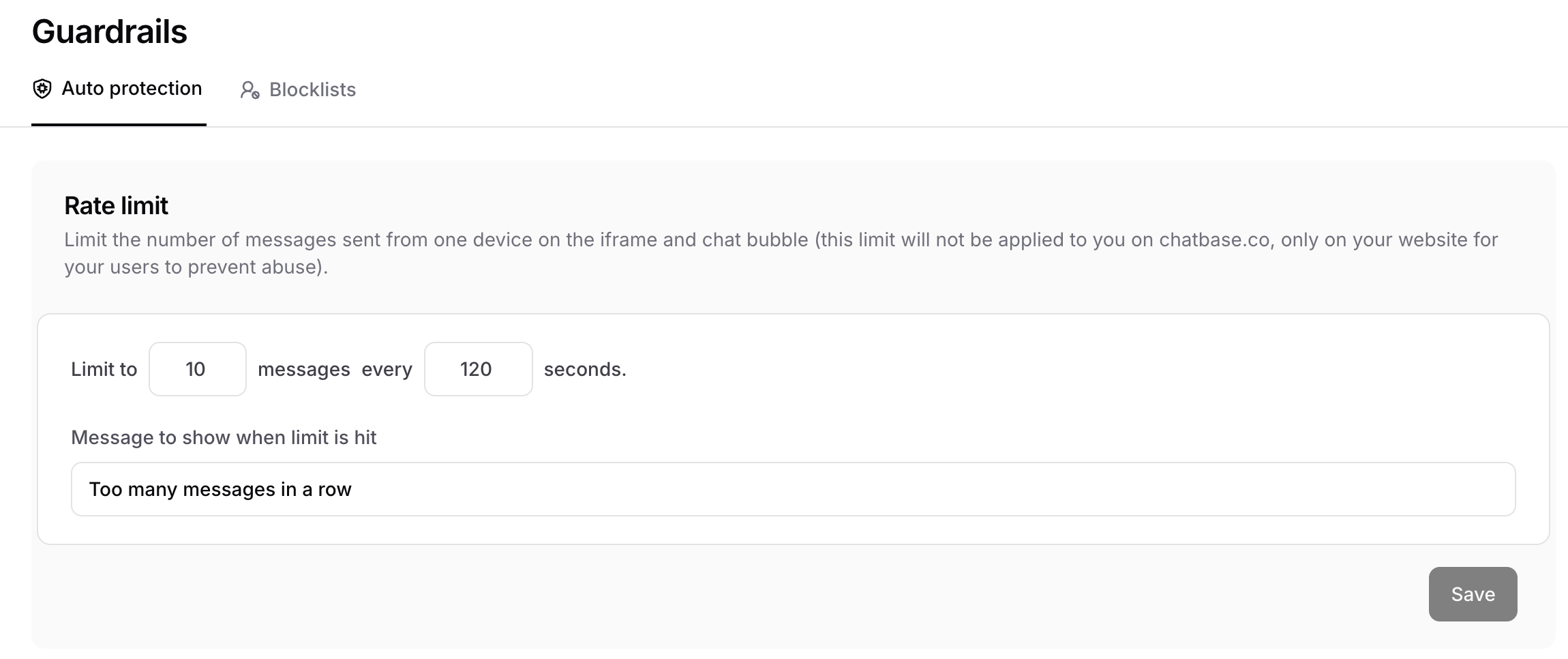
Defaults and allowed values
If a value is out of range, the card shows an error such as “Message limit cannot exceed 200 messages” or “Time limit cannot exceed 3600 seconds”.
How visitors are counted
The rate limit doesn’t identify individual devices. It counts messages per IP address, per AI agent. Visitors who share one IP address, such as people on the same office network, share the same limit. If your AI agent serves many people behind one network, raise the limit.Where the rate limit applies
- Applies to: the Chat Bubble and iframe, Center Stage, Help Page, and voice on the web
- Doesn’t apply to: API calls, the Playground and Compare, Tests, Helpdesk AI draft replies, email, and Phone
Spam detection
Use Spam detection to have Chatbase automatically check conversations for spam. When spam is detected, the conversation is paused and the AI agent stops replying to it. You can also pause conversations manually from Activity > Conversations. Turn the toggle on to enable it. The check runs after the 2nd, 4th, 8th, and 16th user message in a conversation, so it catches abuse early. Spam checks don’t use your message credits.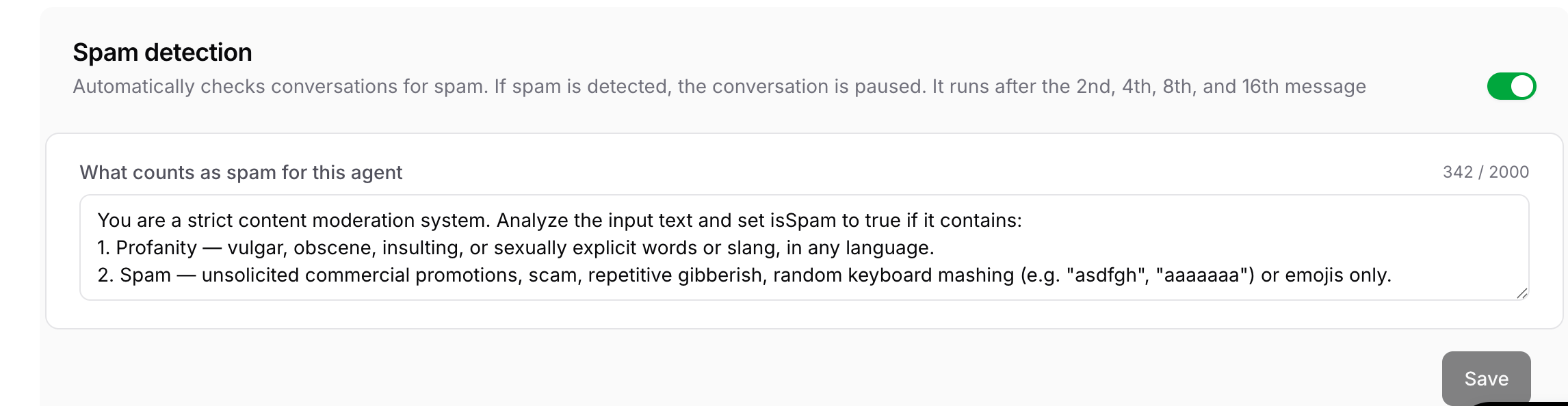
Defining what counts as spam
The What counts as spam for this AI agent field holds the instructions the spam checker follows, up to 2,000 characters. Chatbase provides a default that flags:- Profanity, such as vulgar, obscene, insulting, or sexually explicit words or slang, in any language.
- Spam, such as unsolicited commercial promotions, scams, repetitive gibberish, random keyboard mashing, or emoji-only messages.
What happens when a conversation is paused
- The visitor can keep sending messages. They’re saved, but the AI agent doesn’t reply, and the visitor sees no error.
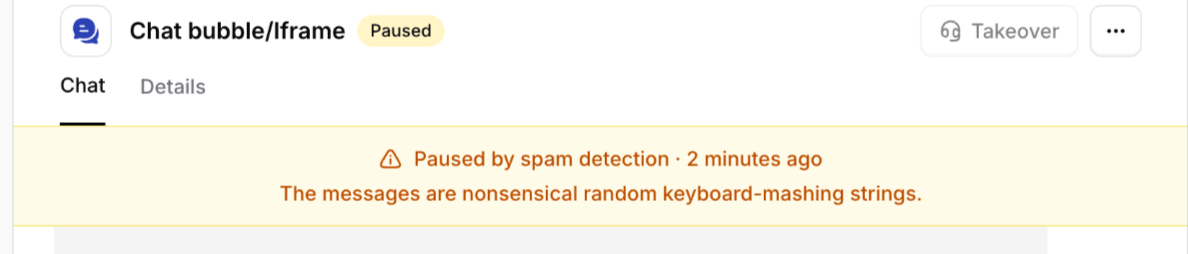
- Your team sees “Paused by spam detection” on the conversation, with how long ago it was paused and the reason the spam checker gave.
Resume a paused conversation
- Go to Activity > Conversations and open the conversation.
- Open the conversation’s menu and click Resume conversation.
Supported Channels
Spam detection works across the following channels and experiences:- Chat widget, including the Chat Bubble, and iFrame
- Center Stage
- Help Page
- API v1 and v2
- WhatsApp, Messenger, and Instagram
- Playground, Q&A preview, and Action preview: these are internal testing experiences, not customer-facing channels. Spam detection still runs there, so testing with rude or nonsense messages can pause your test conversation.
- Slack
- Email: email uses its own spam detection system
- Zendesk Messaging
- Phone
- Facebook and Instagram comments: these become Helpdesk tickets, not AI agent conversations
Country blocking
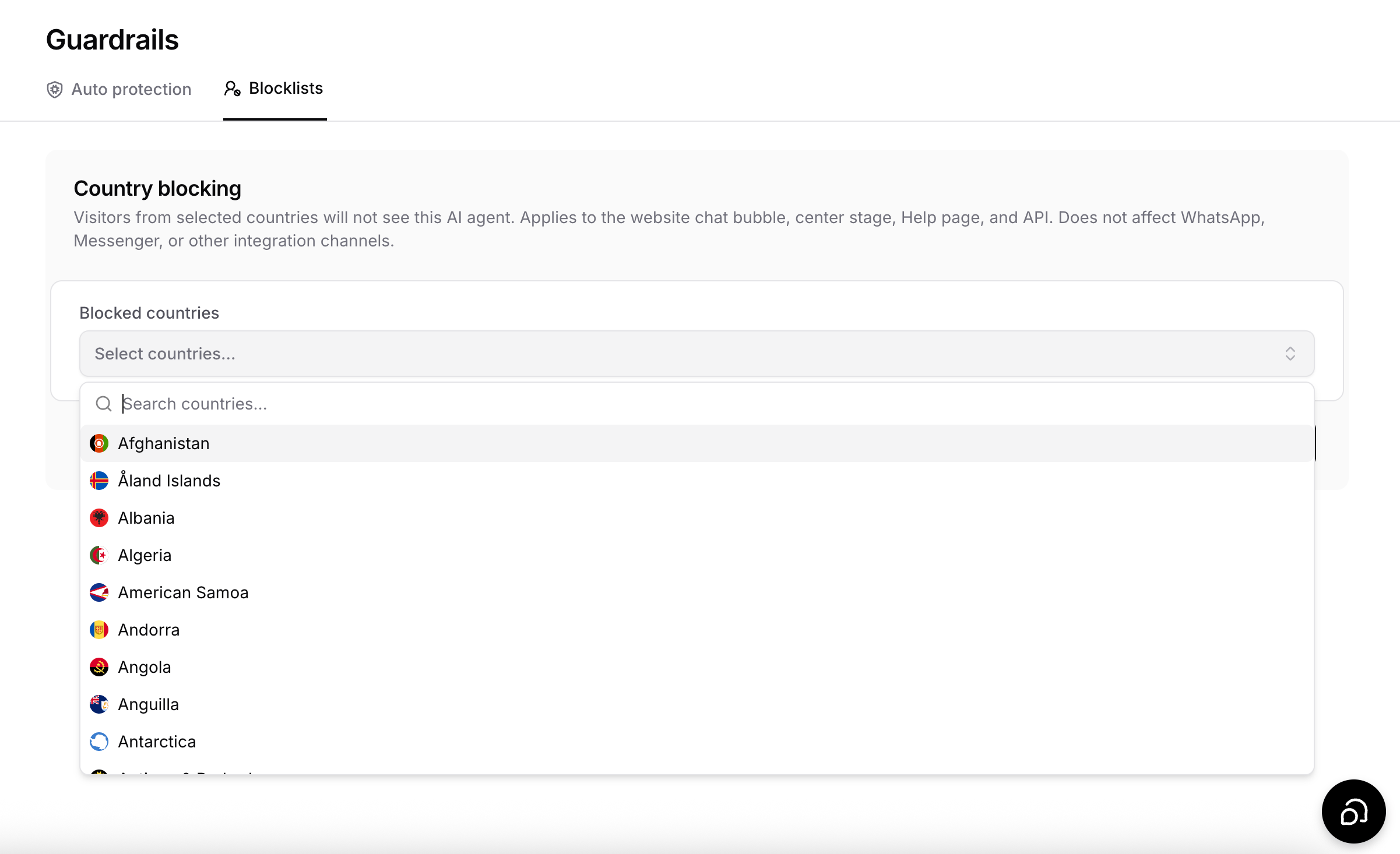
Use Country blocking on the Blocklists tab to hide your AI agent from visitors in specific countries. Chatbase detects a visitor’s country from their IP address and blocks anyone from a listed country from reaching the AI agent.Blocking a country
- Go to Build > Guardrails and open the Blocklists tab.
- Under Blocked countries, open the Select countries… dropdown and search for a country by name.
- Select each country you want to block. Selected countries appear as chips below the dropdown.
- Click Save.
Allowing only a few countries
To make your AI agent available in only a few countries:- Click Select all in the country picker.
- Unselect the countries you want to allow.
Supported Channels
- Website Chat Bubble and Center Stage: these will not be displayed to blocked visitors.
- Help Page: blocked visitors will receive a
404error. - API: chat requests (API v1 and v2) originating from blocked countries will be rejected with “This chatbot cannot be found”.
- Voice on the web: blocked visitors can’t start a voice session.
Country blocking does not apply to WhatsApp, Messenger, Instagram, Slack, Zendesk, email, Phone, or the Playground. Conversations through these channels will continue as usual, regardless of the user’s location.
Frequently asked questions
Why are several visitors hitting the rate limit at once?
Why are several visitors hitting the rate limit at once?
The rate limit counts messages per IP address, not per device. Visitors behind one IP address, such as a shared office or school network, share the same limit. Raise Limit to so more messages fit in each window.
Does spam detection use message credits?
Does spam detection use message credits?
No. Spam checks are free and don’t count toward your message credits.
Can I unpause a conversation that spam detection paused?
Can I unpause a conversation that spam detection paused?
Yes. In Activity > Conversations, open the conversation’s menu and click Resume conversation. The AI agent then replies to new messages again.
How do I see which conversations spam detection paused?
How do I see which conversations spam detection paused?
In Activity > Conversations, set the Conversation state filter to Paused. Conversations paused by spam detection show “Paused by spam detection” with the reason the spam checker gave, so you can check that your spam definition flags the right conversations.
What does a paused visitor see?
What does a paused visitor see?
Nothing changes for them on screen. Their messages are saved, but the AI agent doesn’t reply and no error is shown.
Can I allow only certain countries?
Can I allow only certain countries?
There’s no allowlist mode, but you can get the same result: click Select all in the country picker, then remove the countries you want to allow, and save.