

Save and publish
Changes you make on a page such as Instructions, Actions, Procedures, or a channel’s settings go into your draft. Nothing changes for your customers yet. The Playground always uses your draft, so you can try a change before anyone else sees it. Your chat widget, Help Page, the Playground’s preview link, and every other channel keep using the live agent. When the draft is ready, click Publish in the top-right corner. While your draft has changes that aren’t live yet, a dot appears on Publish and a count next to it shows how many. Publish appears on pages whose changes go into the draft. Pages whose changes go live right away, or that don’t change your AI agent, don’t show it. These include Backstage, Data Sources, Guardrails, Tests, Outbound, Integrations, and Settings.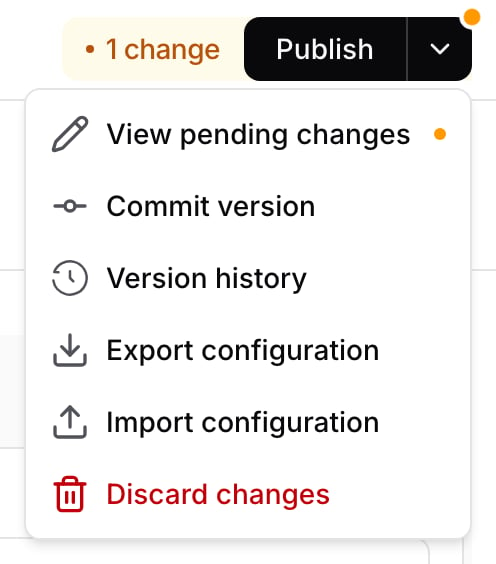
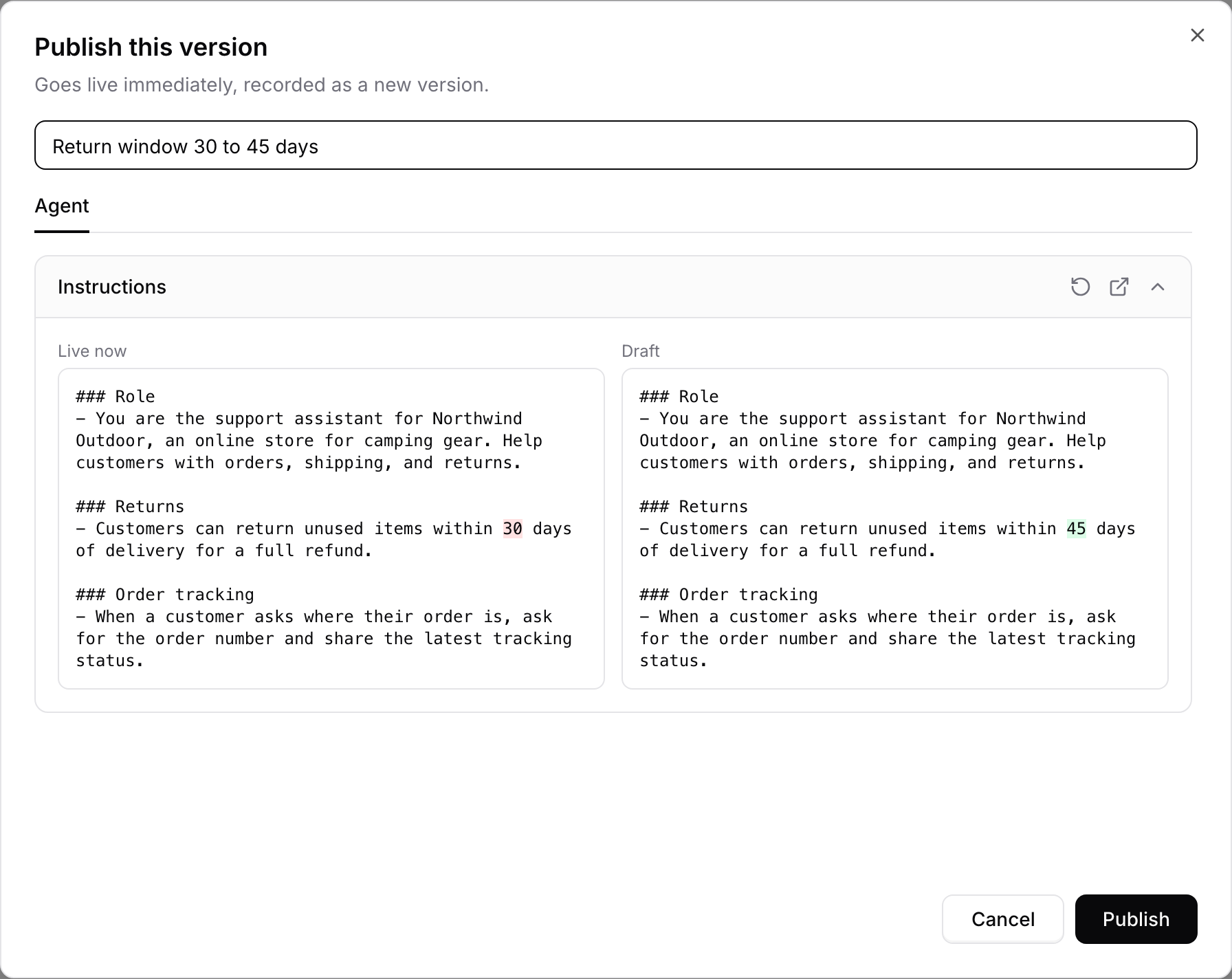
You need permission to edit the AI agent to publish, commit, or restore a version. Restoring a version that changes Actions also needs permission to edit Actions.
Settings that go live right away
Some settings aren’t part of the draft. They take effect as soon as you save them, and restoring a version never changes them:- Data Sources and training
- Connections to other apps and channels, such as WhatsApp, Messenger, Instagram, Slack, and Zendesk
- Turning a channel on or off
- Security settings, such as allowed domains, rate limits, and blocked senders
- Uploaded images, such as logos, avatars, and Widget images
- The voice pronunciation dictionary
When to publish and when to keep drafting
The draft lets you group related changes and publish them together. As a rule of thumb:- Keep drafting while a change is only partly done. For example, a new returns Procedure that also needs an Action and an instructions update should go live as one version, not three.
- Publish once you’ve tried the change in the Playground and it behaves the way you want. Tests run on the published AI agent, so for changes that affect important conversations, run your Tests right after publishing and compare the pass rate with the last run.
- Commit version to keep a setup you might publish later, such as a seasonal one, and Discard changes to drop an experiment that didn’t work.
Example: rolling out a new return policy
A team is extending its return window from 30 to 45 days.1
Update the draft
A teammate edits the instructions and the returns Procedure. Customers still get the 30-day policy.
2
Try it
In the Playground, they ask “Can I return something I bought 40 days ago?” and check that the AI agent says yes.
3
Publish
They check the list in the Publish window, add the description “Return window 30 to 45 days”, and click Publish. Only then do they replace the old returns PDF in Data Sources: Data Sources go live as soon as they’re saved, so updating the PDF earlier would have shown customers the new policy before the instructions matched it. Finally, they run the returns test on the Tests page, which checks the live AI agent.
4
Roll back if needed
If something goes wrong, they open Version history, select the previous version, compare it to Live, and click Restore. Restoring doesn’t change Data Sources, so they also put the old returns PDF back.
Version history
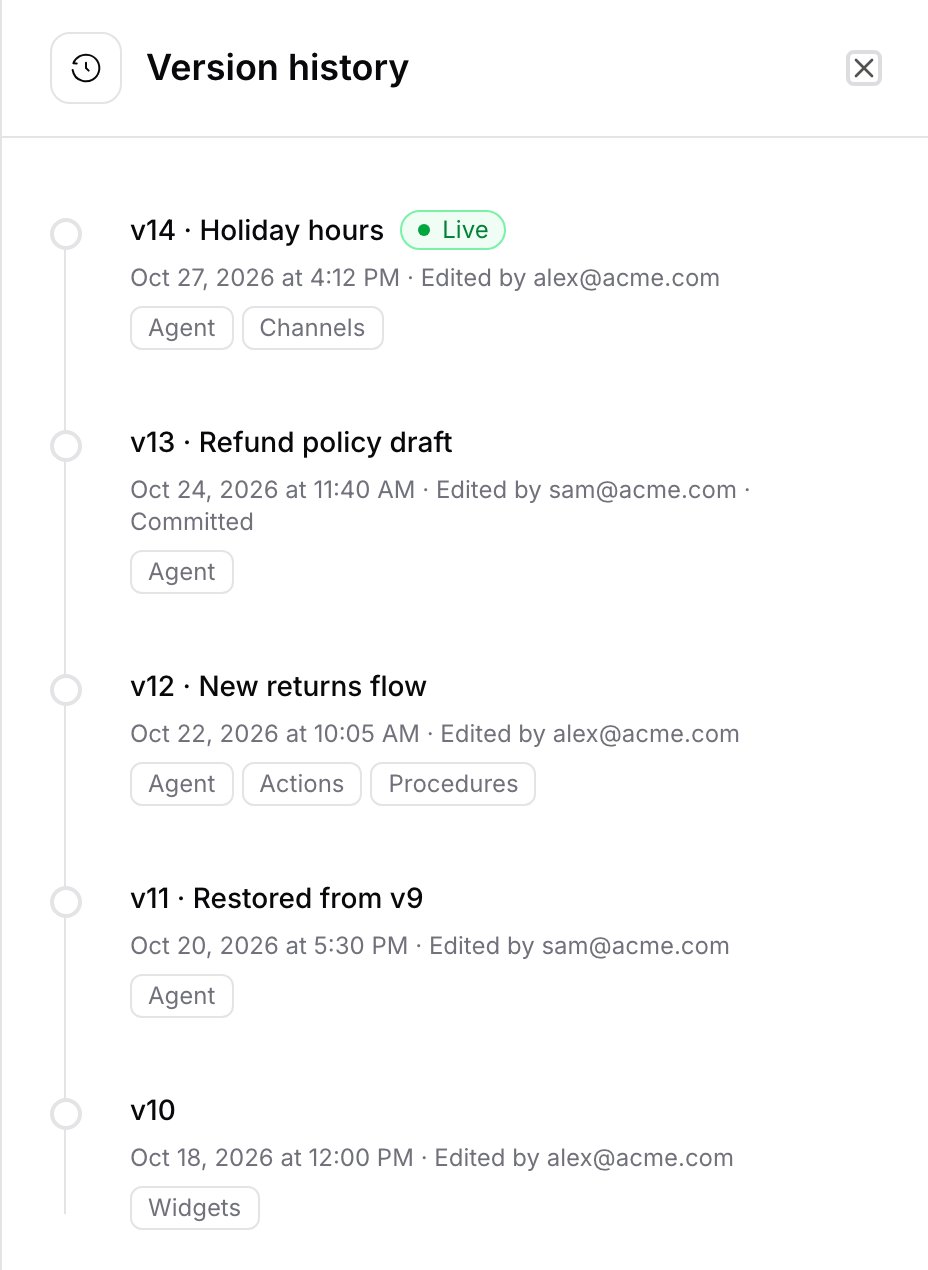
Open the arrow next to Publish and click Version history. Each version shows:- Its number and description
- When it was saved and who saved it
- The areas it changed
- Live on the version your customers are using now, and Committed on versions that were committed but never published
See what a version changed
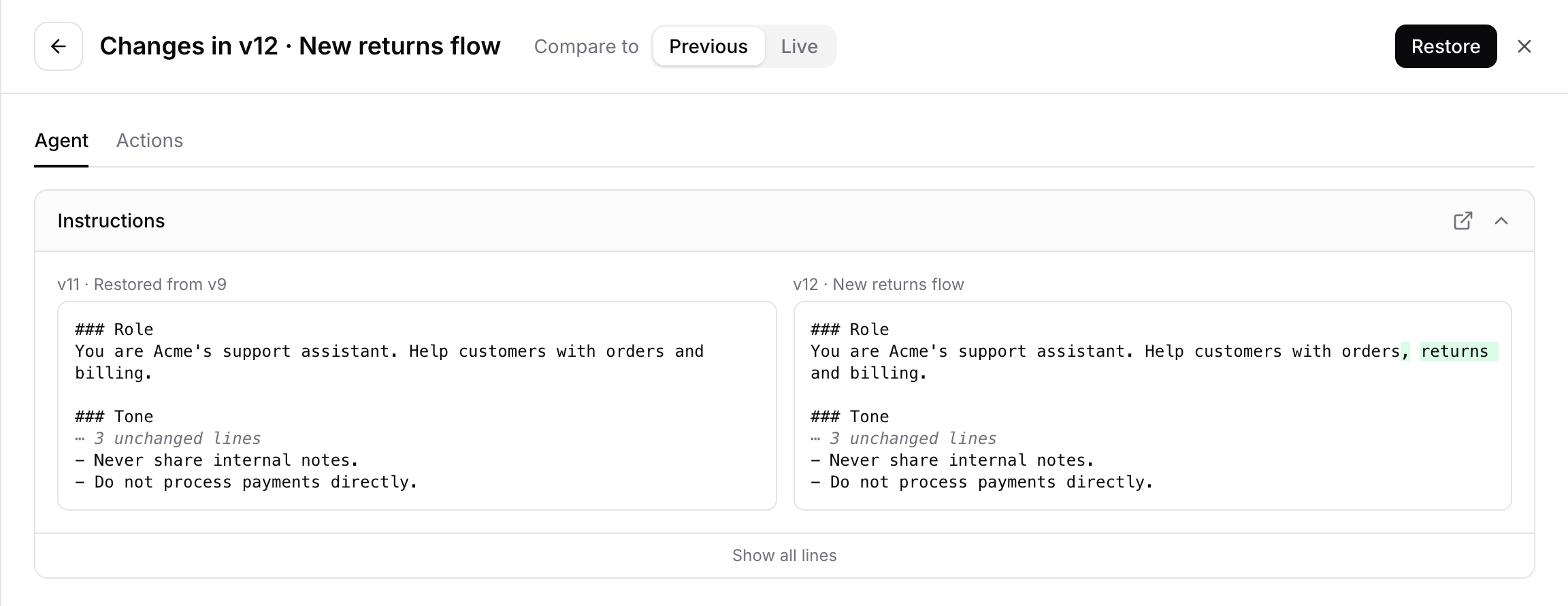
Click a version to open its changes. Use Compare to to switch between:- Previous: what this version changed compared with the version before it.
- Live: what would change if you restored this version now.
Restore a version
Open the version and click Restore, then confirm. Restoring:- Makes that setup live immediately.
- Saves it as a new version at the top of the history. Older versions stay where they are.
- Discards any unpublished changes in your draft.
- Keeps the restored version’s description, or names it “Restored from” followed by the version number.
Export and import a configuration
Export saves your AI agent’s setup to a file. Import loads that file into the draft of any AI agent, in any workspace. Use them to copy a setup from one AI agent to another, or to keep a copy outside Chatbase.Export
Open the arrow next to Publish and click Export configuration. Chatbase downloads a file named after your AI agent, such as “Support agent configuration.json”. The file holds your draft: the live setup plus any unpublished changes, covering the agent’s settings, channels, Actions, Widgets, and Procedures. Settings that go live right away, such as Data Sources and connections to other apps, aren’t included. Anyone who can open the AI agent can export it. If you can’t view Actions, the file leaves out Actions, Widgets, and Procedures.Import
Open the arrow next to Publish, click Import configuration, and choose a file. Then pick how to apply it:- Merge adds everything in the file and updates matching items. Items the file doesn’t mention stay as they are.
- Overwrite replaces each area the file includes. Items the file doesn’t mention in those areas are removed. Areas the file leaves out stay as they are.
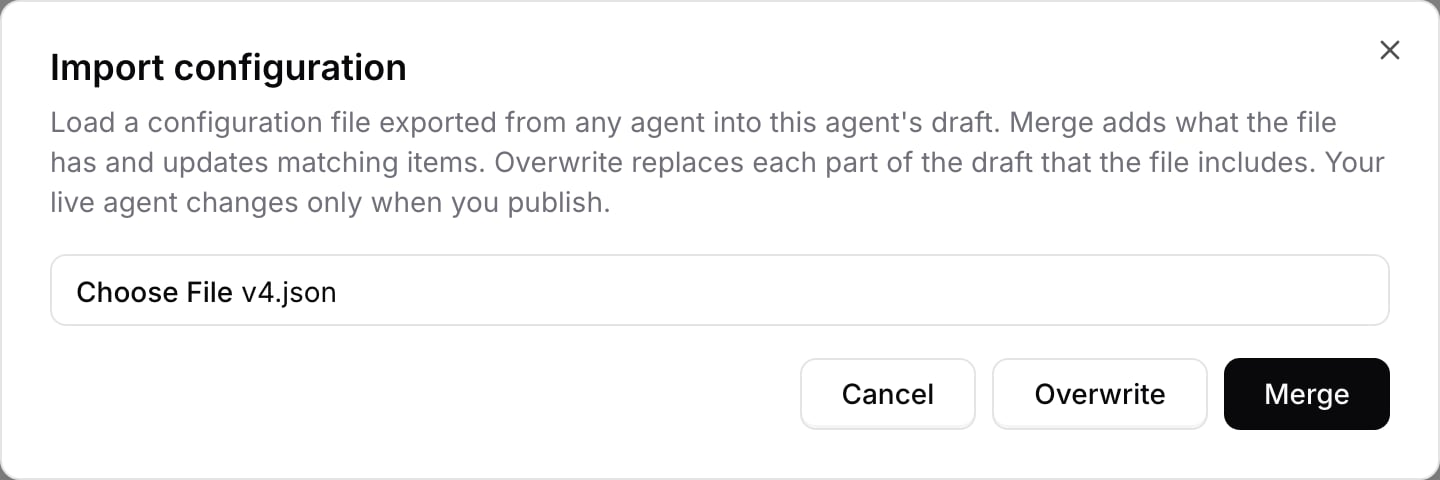
A matched item is updated in place, so anything that points to it keeps working. An item with no match is added as a new one. Actions in the file that use a Widget point to the matching Widget in your AI agent.
Import applies the whole file or nothing. If any part can’t be saved, Chatbase saves none of it and shows the reason. Common reasons:
- The file isn’t an exported configuration.
- An Action has the same name as an existing Action of a different type.
- Your plan doesn’t allow an Action in the file.
- An Action needs an integration this AI agent isn’t connected to.
Changes made outside the dashboard
- API: updates through the Chatbase API go live immediately, without a draft, and appear in version history a minute or two later. They don’t change your draft.
- Backstage: changes Backstage makes go into your draft, like your own. Backstage can also list your versions, show what restoring one would change, and restore it after you approve.
Frequently asked questions
Can I undo a publish?
Can I undo a publish?
Yes. Open Version history, select the version you want to go back to, and click Restore. That setup goes live immediately and is saved as a new version, so the version you undid stays in the history. Restoring also discards any unpublished changes in your draft, and it never changes settings that go live right away, such as Data Sources.
Which changes go live without publishing?
Which changes go live without publishing?
Data Sources and training, connections to other apps and channels, turning a channel on or off, security settings, uploaded images, and the voice pronunciation dictionary. Changes made through the Chatbase API also go live immediately. See Settings that go live right away.
I saved a change but my website still shows the old behavior. Why?
I saved a change but my website still shows the old behavior. Why?
Saving puts the change in your draft. Only the Playground uses the draft. Your chat widget, Help Page, the Playground’s preview link, and every other channel use the live AI agent until you click Publish.
Who can publish or restore a version?
Who can publish or restore a version?
Anyone with permission to edit the AI agent can publish, commit, or restore a version. Restoring a version that changes Actions also needs permission to edit Actions. See Roles and permissions.