

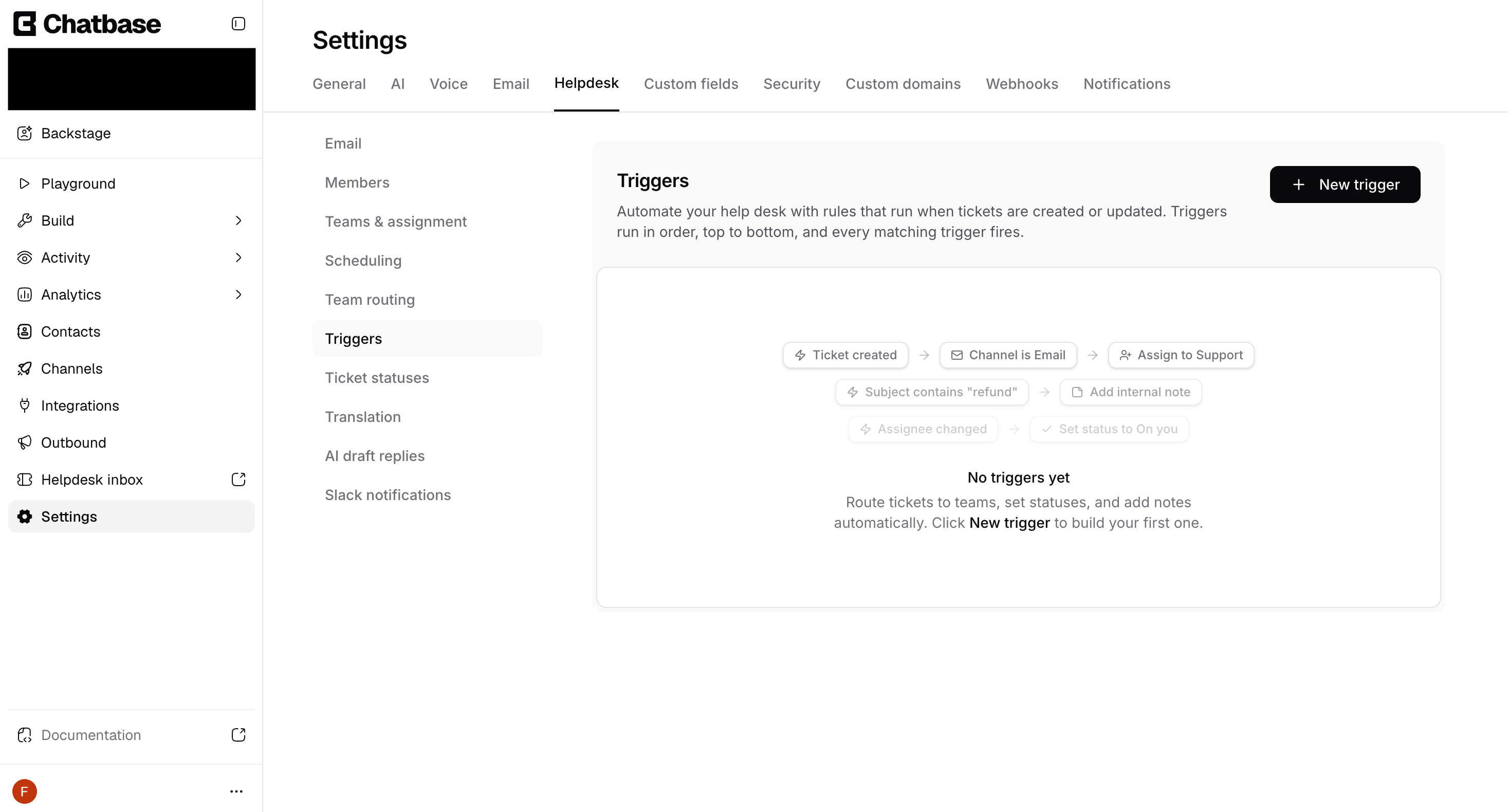
Triggers require the Helpdesk to be enabled for your AI agent. If you haven’t set it up yet, see the Helpdesk overview.
How a Trigger Works
Every trigger is made of four parts:Details
A name and optional description so your team knows what the rule does and why.
Conditions (WHEN)
The rules that decide whether a ticket matches, based on its status, channel, assignee, team, priority, tags, custom fields, the requester’s contact record, and more.
Actions (THEN)
What happens when a ticket matches: set a status, assign work, add a note or tags, send an email, a webhook or a Slack message. Actions run in order.
Status
Whether the trigger is Active or Paused. Only active triggers run.
Example: escalate urgent billing tickets
This example trigger raises the priority of billing emails that mention a chargeback and alerts the team:How Triggers Run (Cycles)
Triggers don’t just run once from top to bottom: they run in cycles. This lets one trigger’s action feed into another trigger’s conditions, so your rules can build on each other. Here’s what happens each time a ticket is created or updated:1
Scan from the top
Chatbase checks every active trigger in order, top to bottom, against the ticket.
2
Matching triggers fire
Each trigger whose conditions match runs its actions. A trigger fires at most once per run.
3
A change restarts the scan
If any trigger changes the ticket (for example, it sets a new status or assigns a team), the scan starts over from the top. Triggers that hadn’t matched before now get another chance, because they’re re-checked against the ticket’s updated state.
4
Repeat until nothing changes
The cycle keeps restarting until a full pass fires nothing new. At that point the ticket is done and the final result is saved.
The Default Team Trigger
When you enable the Helpdesk, Chatbase adds a trigger named Route to default team, described as “When a new ticket still has no team, assign it to your default team.” Its conditions are Ticket is Created and Team is No team, its action assigns the Default team, and it sits last in the list so your own routing triggers run first. This trigger is what sends unrouted tickets to your default team. It’s an ordinary trigger: if you pause or delete it, tickets that no other trigger routes stay without a team.Creating a Trigger
1
Open Triggers
Go to Settings → Helpdesk → Triggers and click New trigger. A panel opens from the right.
2
Name your trigger
Give it a clear Name (for example, “Route billing tickets”) and an optional Description explaining what it does.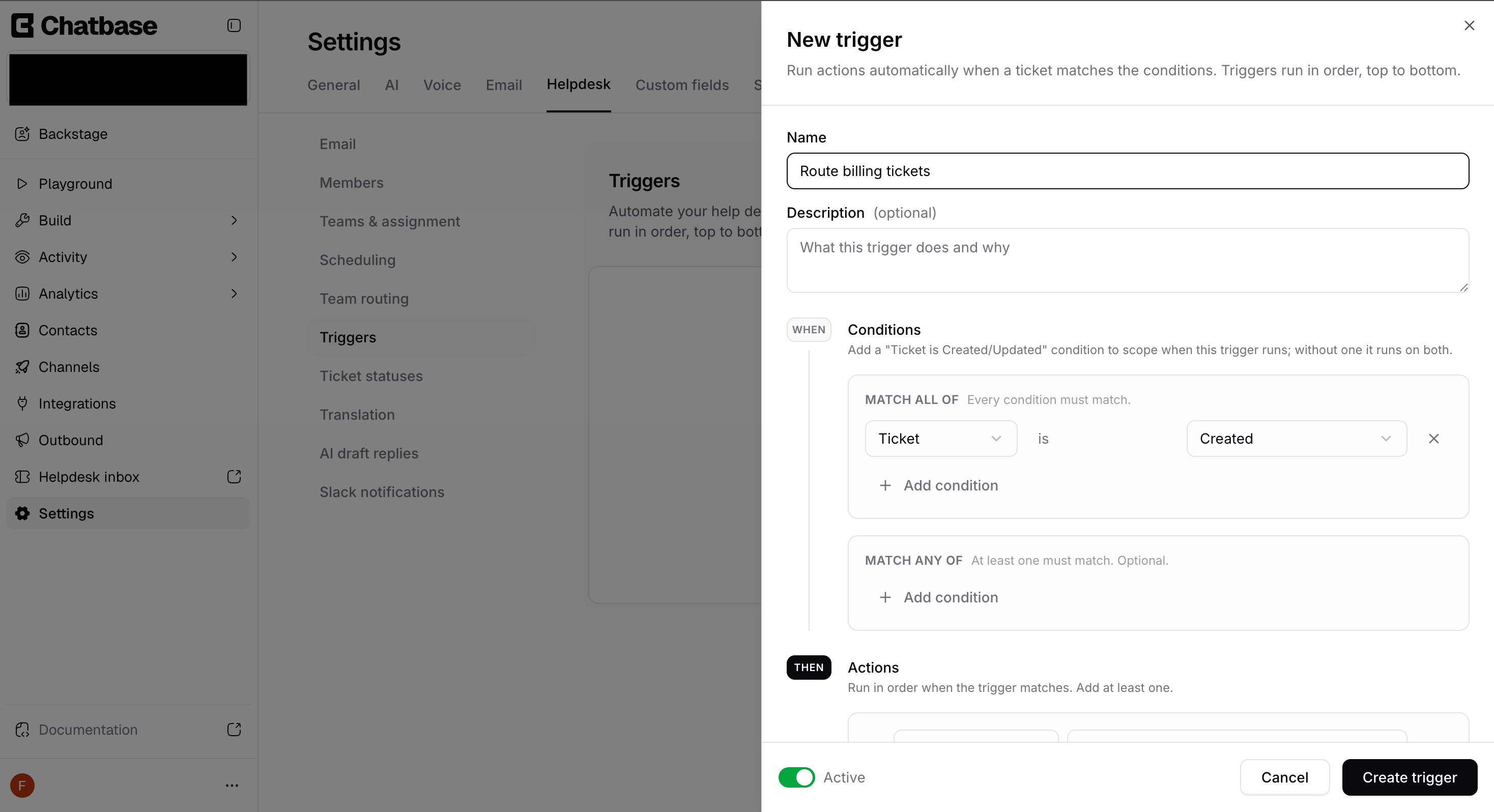
3
Set the conditions (WHEN)
Add the conditions that decide when the trigger should run. See Conditions below for every available field and operator.
4
Add the actions (THEN)
Add at least one action to perform when a ticket matches. See Actions below for the full list.
5
Activate and save
Use the Active / Paused toggle to decide whether the trigger runs, then click Create trigger. New triggers are active by default.
Conditions
Conditions decide which tickets a trigger applies to. They’re organized into two groups:- Match ALL of: every condition in this group must match.
- Match ANY of: at least one condition in this group must match. This group is optional and is combined with the ALL group using AND.
When does a trigger run?
Add a Ticket is Created or Ticket is Updated condition to control when a trigger fires. If you don’t add one, the trigger runs on both create and update. Triggers run only when a ticket is written. There’s no clock: nothing re-checks tickets over time, so a trigger can’t fire because a ticket has waited a certain time.
Setting a field to the value it already has changes nothing and runs no triggers.
Some replies also change the ticket on their own:
- A customer reply moves a ticket in On customer, On hold or Closed to the default On you status.
- An agent reply reopens a Closed ticket to the default New status. It never moves On you to On customer; only Send and close changes the status as you send.
- An agent reply to an unassigned ticket assigns the ticket to that agent.
Ticket condition fields
Two more ticket fields are in the picker:
- Ticket type: Standard ticket, Live chat (tickets from the Chatbase Live Chat Action), or Outbound.
- Last message from: Customer or Agent.
What Description holds depends on how the ticket was created. For an email ticket it’s the email body, and the keyword match runs over the email’s HTML. For a takeover or a Chatbase Live Chat ticket, it’s the AI summary of the conversation. For a ticket from a create-ticket Action, it’s the description the AI agent wrote.
Contact condition fields
Match on the ticket requester’s contact record. These look up the person who opened the ticket, so a ticket from an unidentified visitor (no contact record) matches nothing. Contact fields appear under the Contact group in the field picker.Custom field conditions
When your AI agent has custom fields, they appear in their own Custom fields group in the picker, one entry per field. The operators follow the field’s type. Dropdown and Boolean fields also supportchanged, changed to and changed from, and Date fields can be compared with before, after and between.
Routing condition fields
These describe how the ticket arrived (its delivery “envelope”). They only match on the run that creates the ticket or on an inbound customer message, so pair them with aTicket is Created condition and an Assign team action to route tickets to teams.
About operators
The
changed* operators only make sense on updates: they compare the value before and after the change. On ticket creation there’s no previous value, so a changed condition won’t match.Actions
Actions are what the trigger does when a ticket matches. Add at least one; they run in order, top to bottom.
No action sets a custom field value.
Send webhook
The Send webhook action posts an HTTP request to an external endpoint, to notify another system, kick off an automation, or sync ticket data. The action itself is just a selector: you pick one of the webhooks you’ve configured under Settings → Webhooks. The endpoint URL, headers, request body, and signing secret all live on the webhook connection, so several triggers can reuse the same one.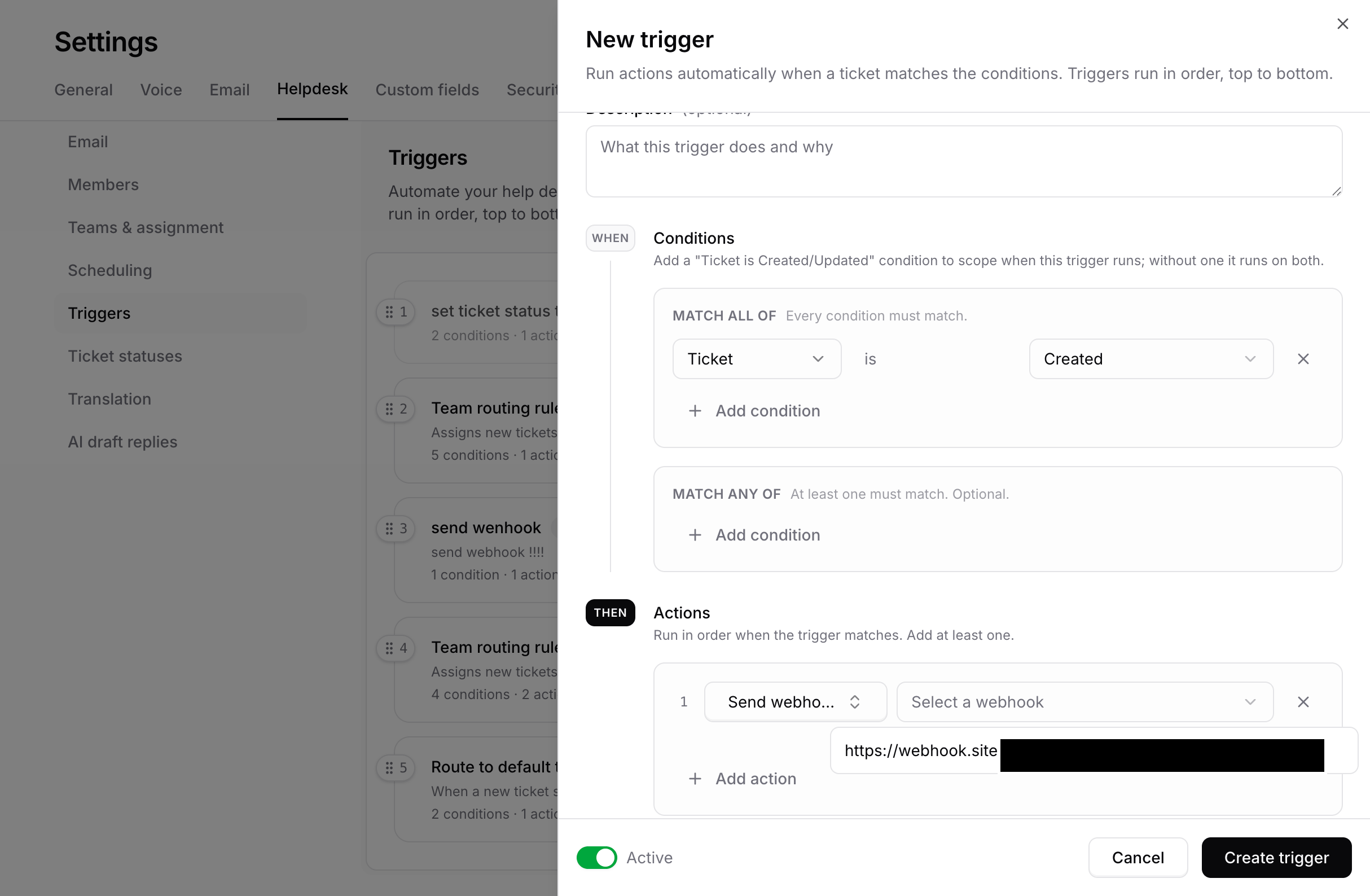
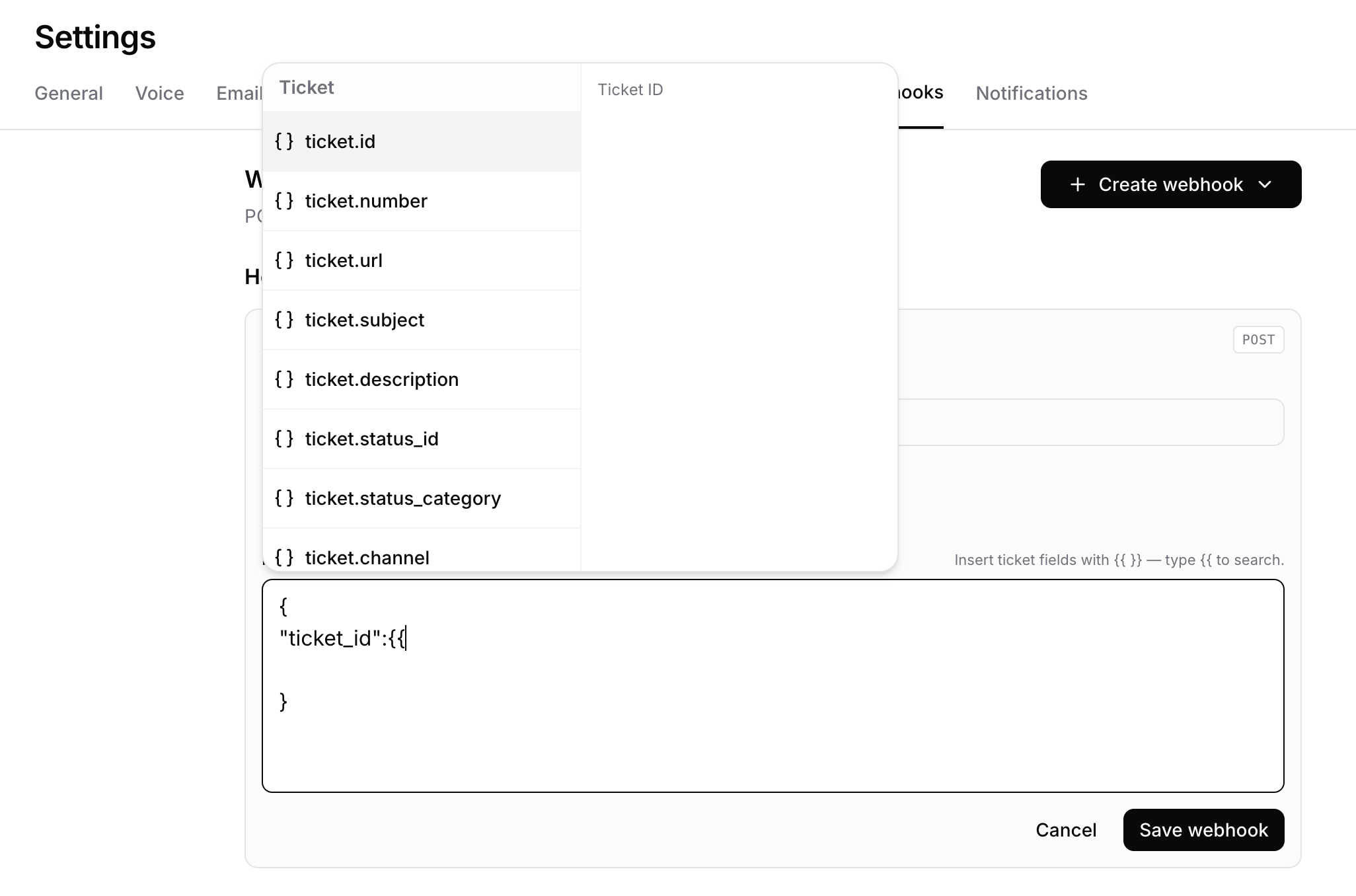
- Configure the endpoint, custom headers, and a request body template (with
{{ticket.*}}placeholders) once under Settings → Webhooks, then reference it from as many triggers as you like. - Each delivery is signed with the connection’s secret via an
X-Chatbase-Signatureheader so your endpoint can verify it came from Chatbase. - Webhooks are delivered after the ticket change is saved and are retried on transient failures, so your endpoint may receive the same event more than once. Dedupe on the delivery id.
Send email
The Send email action sends an email when a ticket matches: to keep the customer posted on a status change, alert a team about a new high-priority ticket, or notify an outside address that doesn’t use the Helpdesk. Everything is configured right on the action: who receives it, the subject, and the body.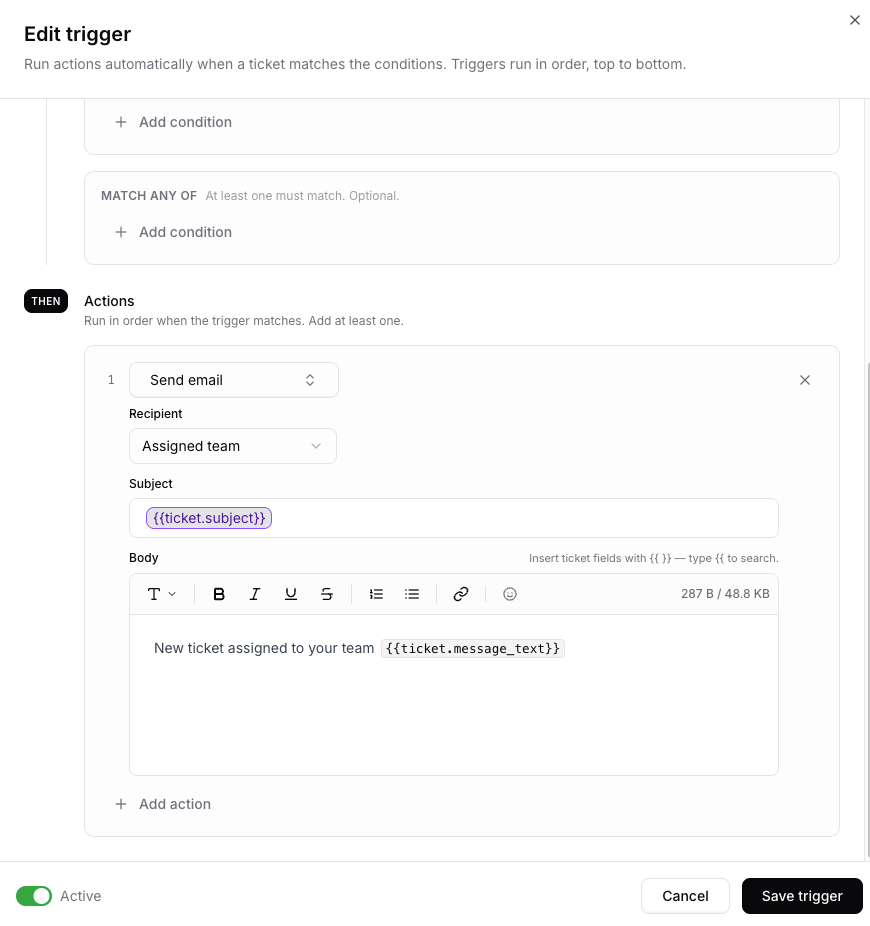
Recipient
Team recipients send one email per member. A recipient that can’t be resolved to a valid address (an unassigned ticket with an Assignee recipient, for example) is skipped without failing the rest of the trigger.
Sender and threading
- From address: the address the ticket was received on, if it’s one of your Helpdesk emails. Otherwise the first Helpdesk email, then any verified address, then your AI agent’s Chatbase address.
- From name: the custom name, if Display Name is set to Use custom name. In the default Automatically use support associate’s name mode, trigger emails go out with no display name.
- Threading: emails to the Requester are sent in the ticket’s email thread, so the customer’s reply lands back on the same ticket. Emails to agents, teams and custom addresses are not threaded.
- Signature: your Helpdesk email signature is not added to trigger emails.
Subject and body
The Subject is a single line and the Body is a rich-text editor with formatting, lists, and links. Both accept ticket fields as{{ }} placeholders: type {{ to search and insert one. Placeholders are filled in with the ticket’s values at send time, after every trigger in the run has finished, so the email reflects the ticket’s final state (for example, the status your trigger just set).
There are no placeholders for custom fields or contact attributes. A placeholder with no value (for example,
{{ticket.requester_name}} for a contact without a name) is replaced with an empty string. Ticket values are inserted as plain text, so formatting in a customer’s message can’t alter your email’s layout.
Send Slack message
The Send Slack message action posts to Slack channels when a ticket matches, so your team hears about it where they already work instead of having to watch the inbox. Everything is configured on the action: the channels it posts to (up to 20), and the message itself. It needs the Slack integration connected first.For a private channel, the Chatbase Slack app has to be a member before it can post. Run
/invite @Chatbase in the channel.Message
Write the message in the composer. It accepts the same ticket placeholders as Send email: type{{ to search and insert one, or use the { } button in the toolbar. There is an emoji picker beside it.
Slack messages also take a fallback, written with a | inside the placeholder. {{ticket.requester_name | there}} prints the requester’s name, or there when the contact has no name, which keeps a greeting from reading as Hi ,.
Checking What a Trigger Did
Each time triggers run on a ticket, the conversation shows one ⚡ entry for that run. It names the trigger and lists every action in the order it ran. Click a trigger’s name to open it in the editor.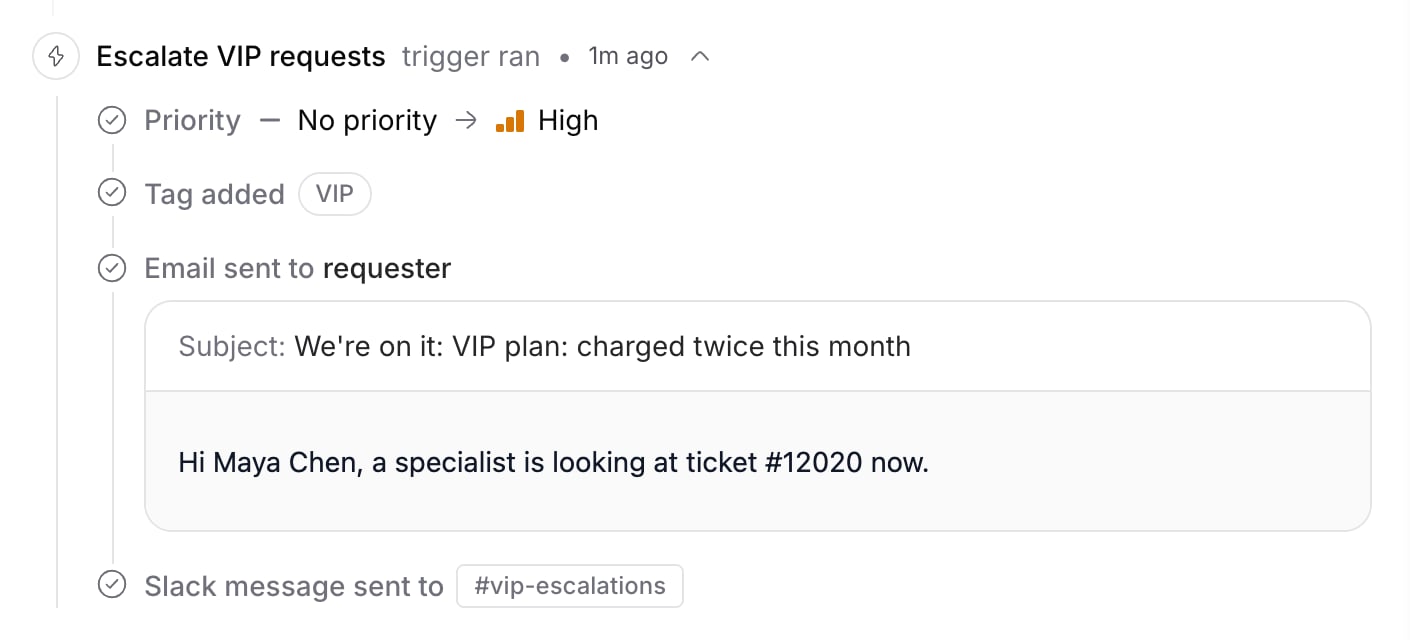
3 changes. Click the header to expand or collapse it.
Each action shows its result:
- Field changes show the old and new value, like
Priority No priority → Highor the tag that was added. - Send email shows the recipient and the subject as it was sent, with placeholders filled in. Expand it to read the body.
- Send webhook shows the endpoint and the HTTP status code it returned. The code appears once your endpoint responds, and a retry that succeeds replaces an earlier failure.
- Send Slack message shows the channels it posted to.
- A failed action shows in red with the reason, like
Status not changed: the status no longer exists,Email not sent: no valid recipient address, orEndpoint returned HTTP 500. The rest of the run still applies.
Managing Triggers
Ordering
Triggers run in the order they appear in the list. Drag the handle on the left of any trigger to reorder it. Because every matching trigger fires, the order matters when two triggers touch the same field: the later one wins.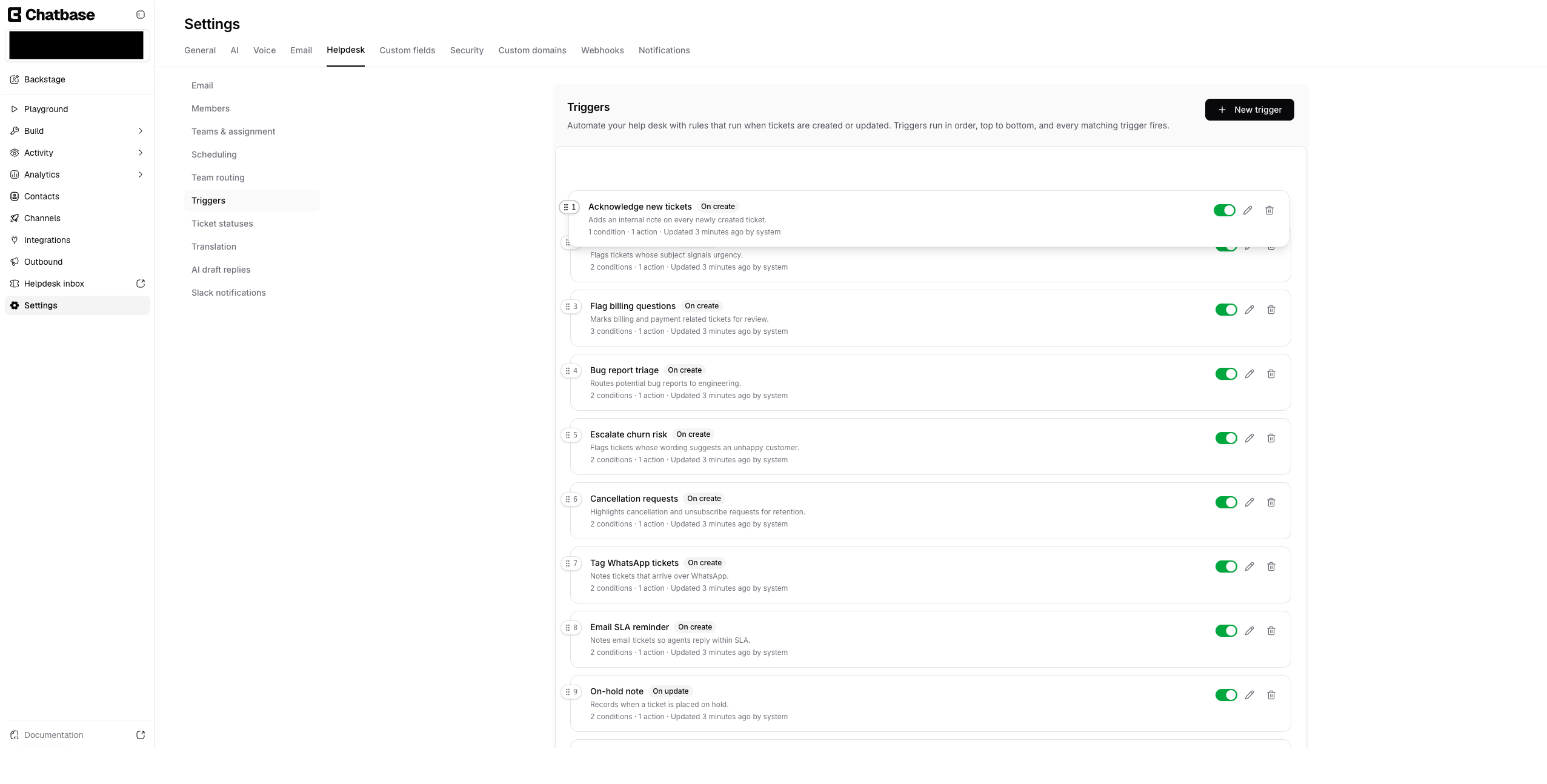
Activate or pause
Use the switch on each trigger row to turn it Active or Paused. Paused triggers stay in your list but don’t run, so you can temporarily disable a rule without deleting it.Edit or delete
Open a trigger to edit its name, conditions, or actions at any time. To remove a trigger, use the delete control and confirm. Deleted triggers stop running on new and updated tickets, and this can’t be undone.Needs attention
If a trigger references something that no longer exists (a deleted team, an archived status, a removed agent, or an archived Slack channel), it’s flagged with a Needs attention badge. Open the trigger and update the affected condition or action to fix it. A Start Slack thread action is also flagged when Chatbase isn’t a member of its channel: run/invite @Chatbase in that channel.
Good to Know
- Every matching trigger fires. Triggers aren’t exclusive: all rules whose conditions match will run, in order. Use ordering to control which action takes precedence.
- Triggers run after the ticket is saved. They apply once a create or update is committed, so they never block or fail the underlying ticket change. Webhook and email actions are sent after the save, too.
- Only active triggers run. Pause a trigger to disable it without losing its configuration.
- Triggers are per AI agent. Each AI agent has its own list, and limits count per AI agent, not per workspace.
- Triggers need the Helpdesk plan. If the account’s plan no longer includes the Helpdesk, triggers stop running.
- Triggers route tickets to teams. Use a
Ticket is Createdcondition, a Recipient address / Channel condition, and an Assign team action. Add Team is No team so it doesn’t override a team set earlier, and place it above Route to default team so it runs first.
Limitations
- No time-based triggers: there’s no condition for business hours or for the time since the last message.
- No action sets a custom field, and there are no custom-field or contact-attribute placeholders.
Limits
When you reach the trigger limit, the page shows “You’ve reached the limit of 1000 triggers.”
Frequently asked questions
Can a trigger fire when a ticket has had no reply for 24 hours?
Can a trigger fire when a ticket has had no reply for 24 hours?
No. Triggers run only when a ticket is created or updated, and nothing re-checks tickets over time. There’s no condition for business hours or for the time since the last message. To keep an eye on waiting tickets, use a saved view with Last message by is Customer and an open status, sorted by Last activity (oldest).
How do I email an agent when a ticket is assigned to them?
How do I email an agent when a ticket is assigned to them?
The Helpdesk only plays a sound in the app when you’re assigned a ticket. To also send an email, create a trigger with Ticket is Updated and Assignee changed, and a Send email action to the Assignee.
How do I tag every ticket from one company's email domain?
How do I tag every ticket from one company's email domain?
Add a contact Email condition with
domain is any of (for example, acme.com) and an Add tags action. You can then filter the inbox or a saved view by that tag.Do triggers run on tickets created through the API or by a takeover?
Do triggers run on tickets created through the API or by a takeover?
Tickets created through the API and by teammates in the Helpdesk run Created triggers. A manual takeover skips Created triggers, including the default team trigger, but the assignment that follows the takeover runs Updated triggers.
Can two triggers loop forever?
Can two triggers loop forever?
No. Each trigger fires at most once per run, and a run stops after a full pass in which nothing fires, or after 1,000 firings at most. Changes made by triggers don’t start a new run.