

There is no separate AI agent-wide ticket assignment page. Every assignment setting belongs to a team, and the default team is selected for you when the page opens.
Assignment methods at a glance
Manual
Tickets remain unassigned until a teammate claims one or a manager assigns it.
Balanced
Each new ticket goes to the available agent with the fewest open tickets.
Round Robin
Each new ticket goes to the available agent who has gone longest without receiving one.
Manual assignment
With manual assignment, new tickets land in the shared inbox and wait for a teammate to pick them up or for a manager to assign them directly. This is the default strategy for new teams. Best for:- Small teams where agents self-select work
- Specialized tickets that require specific expertise
- Low-volume inboxes that don’t need automation
Balanced assignment
Balanced assignment automatically routes each incoming ticket to the available agent with the lowest number of open tickets. In the team settings it reads “go to the team member with the fewest open tickets.” This keeps workloads even across your team, so no single agent gets overwhelmed while others sit idle. Balanced only counts each agent’s open tickets in this team. An agent with 8 open tickets on a “Billing” team and 2 on a “Tier 2” team counts as having 2 when Tier 2 assigns a ticket.How it works
- A new ticket arrives in the Helpdesk.
- The system finds all agents whose status is Available.
- If a max ticket limit is configured, agents who have reached that limit are excluded.
- The ticket is assigned to the agent with the fewest open tickets. Which statuses count as open is set per team; see Agent workload.
- If multiple agents are tied, the one who was least recently assigned a ticket receives it.
Round robin assignment
Round robin distributes tickets sequentially by assigning each new ticket to the available agent who was least recently assigned, regardless of how many tickets they currently have open. It’s a good fit for sales and lead distribution where equal opportunity matters more than current workload.How it works
- A new ticket arrives in the Helpdesk.
- The system finds all agents whose status is Available.
- If a max ticket limit is configured, agents who have reached that limit are excluded.
- The ticket is assigned to the agent with the oldest last-assignment timestamp, the teammate who has waited longest for a new ticket.
Comparison
Unassigned tickets
When no agents are available or all agents have reached their ticket limit at the moment a ticket is created, the ticket stays in the shared inbox as unassigned. It isn’t stuck there: on Balanced and Round Robin teams, Chatbase picks up waiting tickets again when something changes in the team.When waiting tickets are picked up
Chatbase looks for unassigned tickets that have a New status and belong to a Balanced or Round Robin team, and runs the team’s strategy on them. It runs when:- an agent’s status is set to Available
- a member is added to the team
- the team’s settings are saved
- a shift is edited or deleted, or an agent is put on a shift
- time off is added or removed
- a ticket is moved to the team
- an agent’s workload drops below the team’s max tickets per agent
Unassign on reply
Turn this on in the team’s settings. A customer reply then gives the ticket another chance at assignment:- If the ticket is already unassigned, assignment runs again.
- If the ticket is assigned and that agent is still available, nothing changes.
- If the ticket is assigned and that agent is no longer available, the agent is unassigned and assignment runs again.
- On a Manual team, the agent is only unassigned. There is no auto-assignment to run, so the ticket goes back into the team’s pool for someone to claim.
- The ticket keeps its existing team.
- The same max tickets per agent limit and Assign to next available shift setting apply, just as they do when the ticket is first created.
- Closed and Cancelled tickets are skipped.
When all agents are unavailable
If every agent is set to Away, Busy, or Paused at the moment a ticket is created, the auto-assignment algorithms (balanced and round robin) cannot find an eligible agent. Here’s what happens:- Incoming tickets stay unassigned in the shared inbox with a New status, in the Unassigned view.
- When an agent is set back to Available, the team’s waiting tickets are picked up, highest priority first. See When waiting tickets are picked up.
- A teammate can claim a ticket, or a manager can assign one, at any time.
Assign to next available shift
When every agent is unavailable and you use Balanced or Round Robin assignment, you can enable Assign to next available shift so that incoming tickets are automatically routed to an agent whose shift starts soonest, instead of staying unassigned.How it works
- A new ticket arrives and the system finds no available agents (all are
Off shift,Away,Busy, orPaused). - The system looks at all scheduled agents and calculates when each agent’s next shift begins, skipping any agents who are on time off.
- The ticket is assigned to the agent (or agents, if tied) whose shift starts the earliest.
- The chosen agent is selected using the same algorithm you configured. Balanced picks the one with the fewest open tickets, Round Robin picks the one least recently assigned.
This feature only applies to scheduled agents (those assigned to a shift). Manual agents are not considered because their next available time cannot be predicted.
Enabling the toggle
1
Open the team
Navigate to Settings → Helpdesk → Teams & assignment and select the chip of the team you want to configure.
2
Choose an auto-assignment method
Set the team’s Assignment strategy to Balanced or Round Robin. The toggle is not available for Manual assignment.
3
Enable the toggle
Turn on Assign to next available shift and save. When enabled, tickets that would otherwise stay unassigned are routed to the next agent coming on shift.
Things to know
- Max ticket limits still apply. If you have a max tickets per agent configured, the next-shift agent must also be under that limit to receive the ticket.
- Time off is respected. Agents on time off are skipped even if their shift is the soonest.
- Multiple agents on the same shift. When several agents share the same next shift start time, the configured assignment algorithm (Balanced or Round Robin) breaks the tie.
- No scheduled agents? If your team has no scheduled agents, this toggle has no effect since there are no shift start times to predict.
Max tickets per agent
For both automated methods (balanced and round robin), each team can optionally set a maximum number of open tickets per agent. When an agent reaches this limit, they stop receiving new assignments until their workload drops below it, for example by closing tickets.- Default: No limit
- Maximum: 1,000,000
- Scope: Set per team, alongside the assignment strategy
- What counts: See Agent workload. By default, every ticket that isn’t Closed or Cancelled counts.
1
Open the team
Navigate to Settings → Helpdesk → Teams & assignment and select the team’s chip. Set its Assignment strategy to Balanced or Round Robin (the limit does not apply to Manual).
2
Set the cap
Enter a value in Max tickets per agent. Leave it empty for no limit. A good starting point is 10 for most support teams. Adjust based on your ticket complexity and team size, then save.
Agent workload
An agent’s workload is the number of their tickets that count toward the team’s max tickets per agent. Balanced assignment also uses it to find the agent with the fewest open tickets. Each team chooses whether tickets waiting on someone else are included:
Turning off On customer and On hold means a ticket that is only waiting on the customer or on a third party no longer takes up one of the agent’s slots. Agents whose tickets are mostly waiting then keep receiving new ones instead of reaching the cap.
1
Open the team
Navigate to Settings → Helpdesk → Teams & assignment and select the team’s chip.
2
Open the workload settings
Under Statuses that count toward agent workload, click Configure. The row appears on Balanced teams, and on Round Robin teams once Max tickets per agent is set.
3
Choose the statuses
Turn On customer and On hold on or off, then click Save in the panel. The summary under the row updates, for example “On customer and On hold tickets don’t count.”
4
Save the team
Click Save on the Team settings card to apply the change.
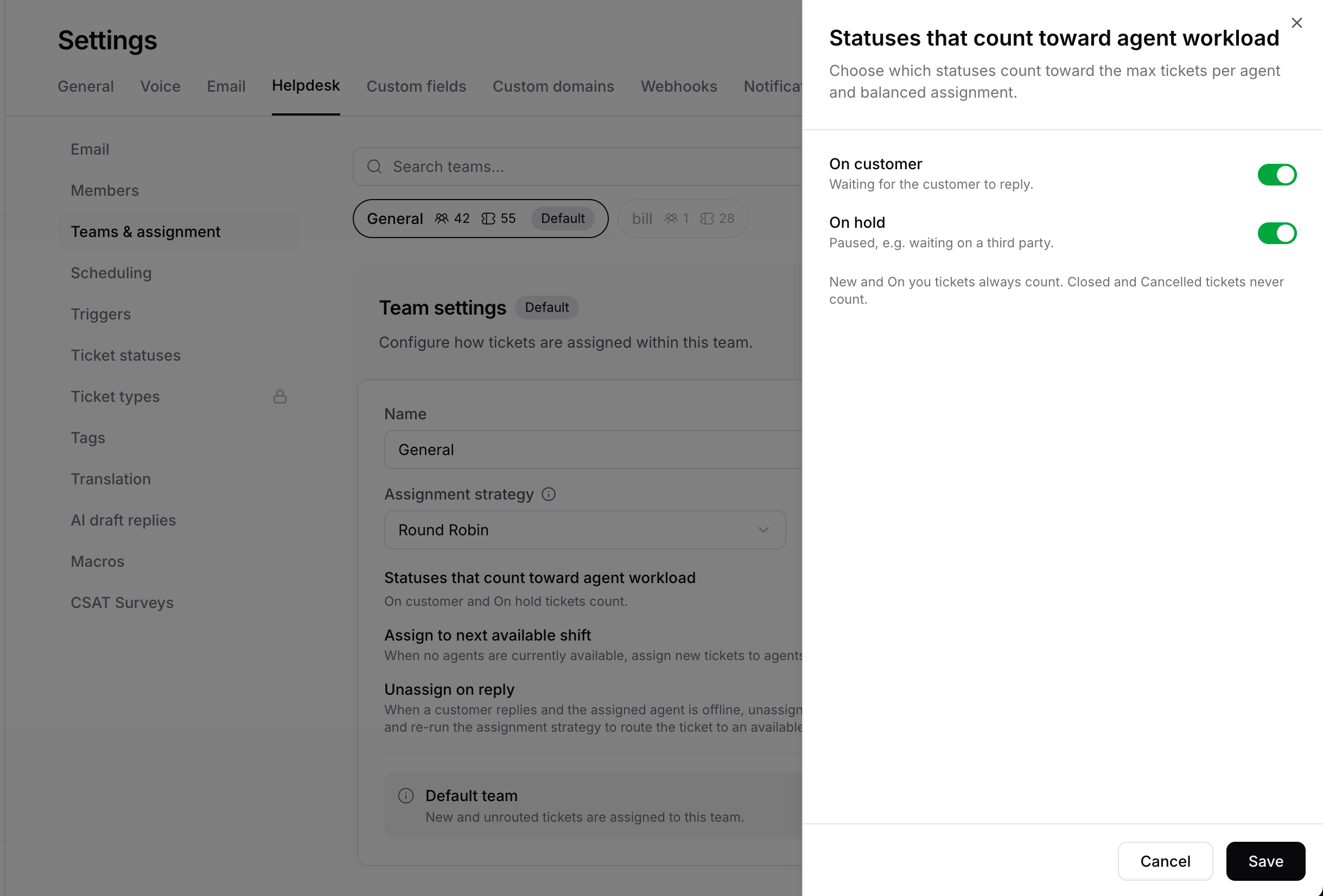
The setting applies everywhere the team auto-assigns tickets: when a ticket is created, when a trigger assigns to the team, and when Unassign on reply runs assignment again. Ticket statuses themselves don’t change.
Agent availability
Only agents with an Available status are eligible for automatic assignment. For agents who aren’t on a shift schedule, you set this status yourself from the Members page (Settings → Helpdesk → Members), where every agent is listed with their teams and availability. A scheduled agent’s status comes from their shift instead, so the Members page shows it as read-only, with the tooltip “Status is managed by the schedule” and the shift’s name.
A scheduled agent is Available inside their shift hours and Away outside them or on time off. The Scheduling page labels the same two states On shift and Off shift.
Any workspace member who can access the AI agent can receive tickets, whatever their role. Status is what matters, not role.
Agents can update their own status from the sidebar when an admin has enabled Allow teammates to be able to change their availability status on the Members page.
Setting up assignment
1
Open the team
Navigate to Settings → Helpdesk → Teams & assignment and select the chip of the team you want to configure.
2
Choose an assignment method
Set the team’s Assignment strategy to Manual, Balanced, or Round Robin based on the team’s workflow.
3
Configure ticket limits (optional)
If using balanced or round robin, set Max tickets per agent to prevent agent overload. Use Configure under Statuses that count toward agent workload to choose whether On customer and On hold tickets count, then save.
4
Set agent availability
Open Settings → Helpdesk → Members and make sure agents who are ready to receive tickets are set to Available.
Good to know
- New agents default to Away. When an agent is first added to an AI agent, their status is set to Away. They will not receive auto-assigned tickets until an admin or the agent themselves switches to Available.
- Ticket limits only apply to auto-assignment. The max tickets per agent setting does not restrict manual assignment. An admin can still assign tickets to an agent who has exceeded the configured limit.
- Reassignment does not change ticket status. When a ticket is reassigned from one agent to another, the ticket’s status remains unchanged. It does not reset to New or On You automatically.
- The Away toggle only switches between Away and Available. Paused agents and agents on a shift schedule do not get this toggle in the sidebar. An admin can change a paused agent’s status from the Settings → Helpdesk → Members page. A scheduled agent’s status follows their shift instead.
- Agents are notified in the Helpdesk only. When a ticket is assigned to you, by a teammate or automatically, the Helpdesk plays a sound and, if the tab is in the background, adds an unread count to the tab title. Turn the sound off with Sound notifications in the sidebar user menu. There is no built-in email or push notice. To email agents, create a trigger with a Send email action to the Assignee.
- Takeovers skip assignment. A ticket created by a takeover is assigned to the teammate who took over.
- Live chat handoffs follow the same rules. Tickets from the Chatbase Live Chat Action go through your triggers and then the team’s strategy, availability, max tickets and next-shift settings, like any other ticket. The handoff happens even when no agent is available.
Frequently asked questions
Do unassigned tickets get assigned when an agent comes back online?
Do unassigned tickets get assigned when an agent comes back online?
Yes, on Balanced and Round Robin teams. When an agent is set to Available, Chatbase picks up the team’s unassigned tickets that still have a New status, up to 20 per pass, highest priority first, then oldest. A shift starting doesn’t trigger this by itself. See When waiting tickets are picked up.
Does Balanced count an agent's tickets across all teams?
Does Balanced count an agent's tickets across all teams?
No. Balanced counts only the agent’s open tickets in the team it’s assigning for. Closed and Cancelled tickets never count, and On customer and On hold count unless the team turned them off under Agent workload.
Does ticket priority change who gets a ticket?
Does ticket priority change who gets a ticket?
No. Priority only sets the order in which waiting tickets are picked up: highest priority first. Balanced and Round Robin pick the agent the same way whatever the priority.
How do agents know a ticket was assigned to them?
How do agents know a ticket was assigned to them?
The Helpdesk plays a sound and adds an unread count to the tab title while the Helpdesk is open. For email notices, create a trigger with a Send email action to the Assignee.
Can I assign more tickets than the max tickets per agent?
Can I assign more tickets than the max tickets per agent?
Yes. The limit only applies to automatic assignment. You can still assign a ticket by hand to an agent who is over it.
Why are new tickets sitting unassigned in the default team?
Why are new tickets sitting unassigned in the default team?
The default General team uses Manual assignment out of the box. Switch its Assignment strategy to Balanced or Round Robin on Settings → Helpdesk → Teams & assignment.