

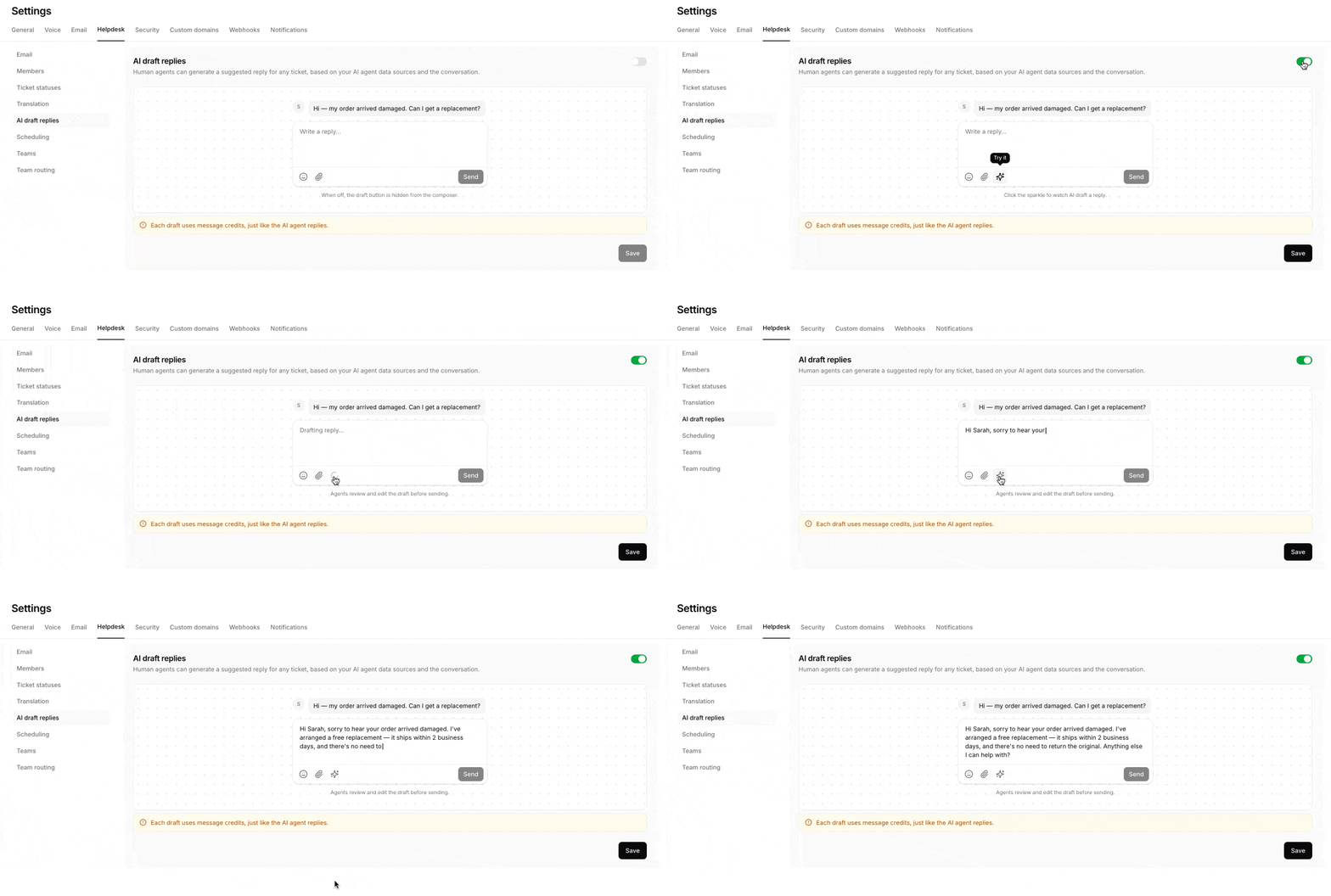
How AI Draft Replies work
When a human agent is handling a ticket, they click the Draft reply with AI button in the message composer. It’s an icon-only button with a sparkles icon, in the composer toolbar after the attachments button; hover over it to see its name. The draft streams into the composer, and the composer is locked until it finishes. The human agent can then:- Review the generated response
- Edit or personalize the content
- Add any missing information
- Send the response when ready
What a draft reads
Shopify order details reach a draft only through the Retrieve and display orders Shopify Action. If that Action isn’t enabled on the AI agent, the draft doesn’t see the customer’s orders, even though the Shopify Orders panel shows them in the ticket sidebar.
Example
A customer, Jane Doe, emails: “I was charged twice for my March invoice. Can you refund one?” With the Stripe Action enabled, a draft might look up her invoices and suggest:Hi Jane, thanks for flagging this. I can see two charges for your March invoice, so I’ve passed the duplicate to our billing team for a refund.The agent checks the details against Stripe, edits anything the draft got wrong, and sends it.
Credits
Each draft uses message credits, just like a reply generated directly by the AI agent. The settings page says: “Each draft uses message credits, just like the AI agent replies.”- The cost depends on your AI agent’s model, and on whether the draft uses an Action, exactly as for an AI agent reply.
- There’s no daily cap on drafts. When the account runs out of message credits, drafts stop working until credits are available again.
- AI Draft Replies are the only Helpdesk AI feature that uses credits. Translation, AI Compose, the takeover summary and the Slack summary on close are free.
Enable AI Draft Replies
To enable AI Draft Replies:- Log in to your Chatbase dashboard.
- Open your AI agent.
- Go to Settings.
- Select Helpdesk.
- Open AI draft replies.
- Enable the AI Draft Replies toggle.
- Click Save.
Generate a draft reply
To generate a response:- Open a ticket in the Chatbase Helpdesk.
- Make sure the composer is on the Reply tab.
- Click Draft reply with AI in the composer toolbar.
- Wait for the draft to finish streaming into the composer.
- Review and edit the draft as needed.
- Click Send when the response is ready.
AI-generated drafts are never sent automatically. A human agent must review and send the response.
When the button is disabled
Disable AI Draft Replies
To remove the AI draft button from the composer:- Go to Settings → Helpdesk → AI draft replies.
- Disable the toggle.
- Click Save.
Frequently asked questions
Do AI draft replies use message credits?
Do AI draft replies use message credits?
Yes. Each draft uses message credits, just like an AI agent reply with the same model. There’s no daily cap, but drafts stop when the account runs out of credits.
Does the draft read internal notes and custom fields?
Does the draft read internal notes and custom fields?
No. Drafts skip internal notes, except a note that opens the ticket, and don’t read custom fields. They use the AI agent’s instructions, Procedures, Data Sources, read-only Actions, and the last 10 replies on the ticket, including replies from merged tickets.
Is the draft written in the customer's language?
Is the draft written in the customer's language?
Usually. Drafts follow your AI agent’s instructions and the customer’s messages, so they tend to match the customer’s language, but this isn’t guaranteed and the Translation setting isn’t used. Check the language before sending.
Can I use AI drafts for internal notes?
Can I use AI drafts for internal notes?
No. The button only works on the Reply tab. On the Note tab it’s disabled with “Switch to the Reply tab to draft with AI”.