

Merging a ticket
1
Open the merge picker
In the right-hand panel, click the merge icon in the Customer History header.
2
Pick the other ticket
The list shows the customer’s 20 most recently active tickets. Search by ticket number or message text to find others.
3
Choose which ticket to keep
By default, the ticket you have open is merged into the one you pick. Click Swap to keep the open ticket instead.
4
Click Merge
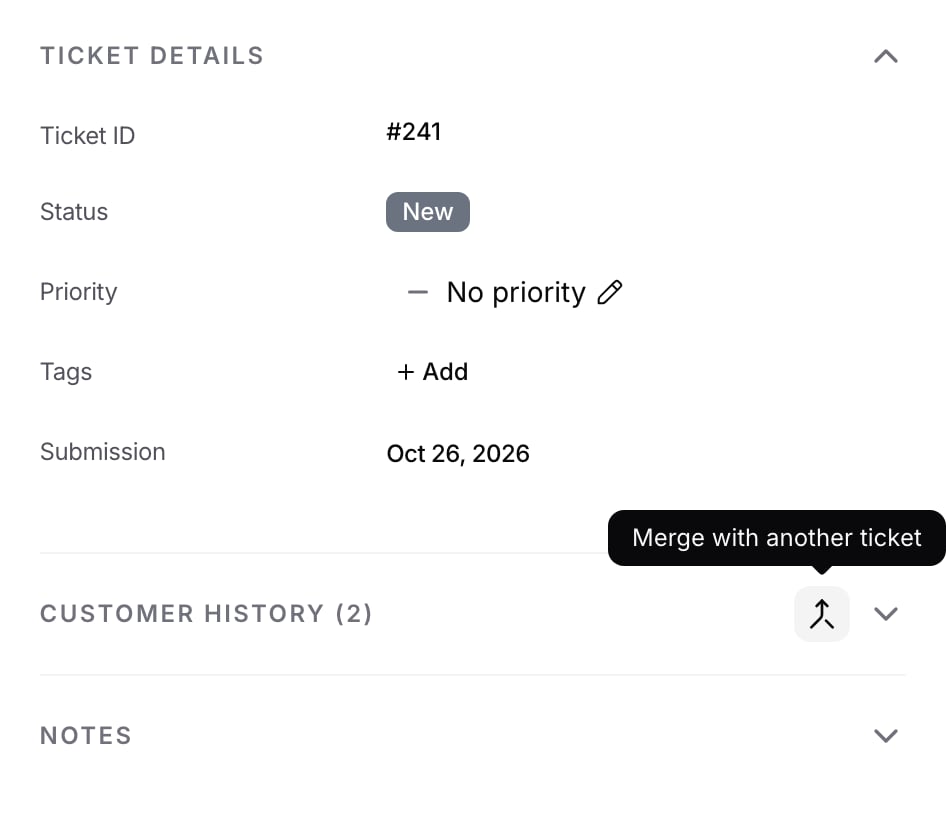
Merging more than one ticket
Turn on Select multiple in the merge picker to merge up to 10 tickets into the one you have open. If one of them can’t be merged, the rest still merge.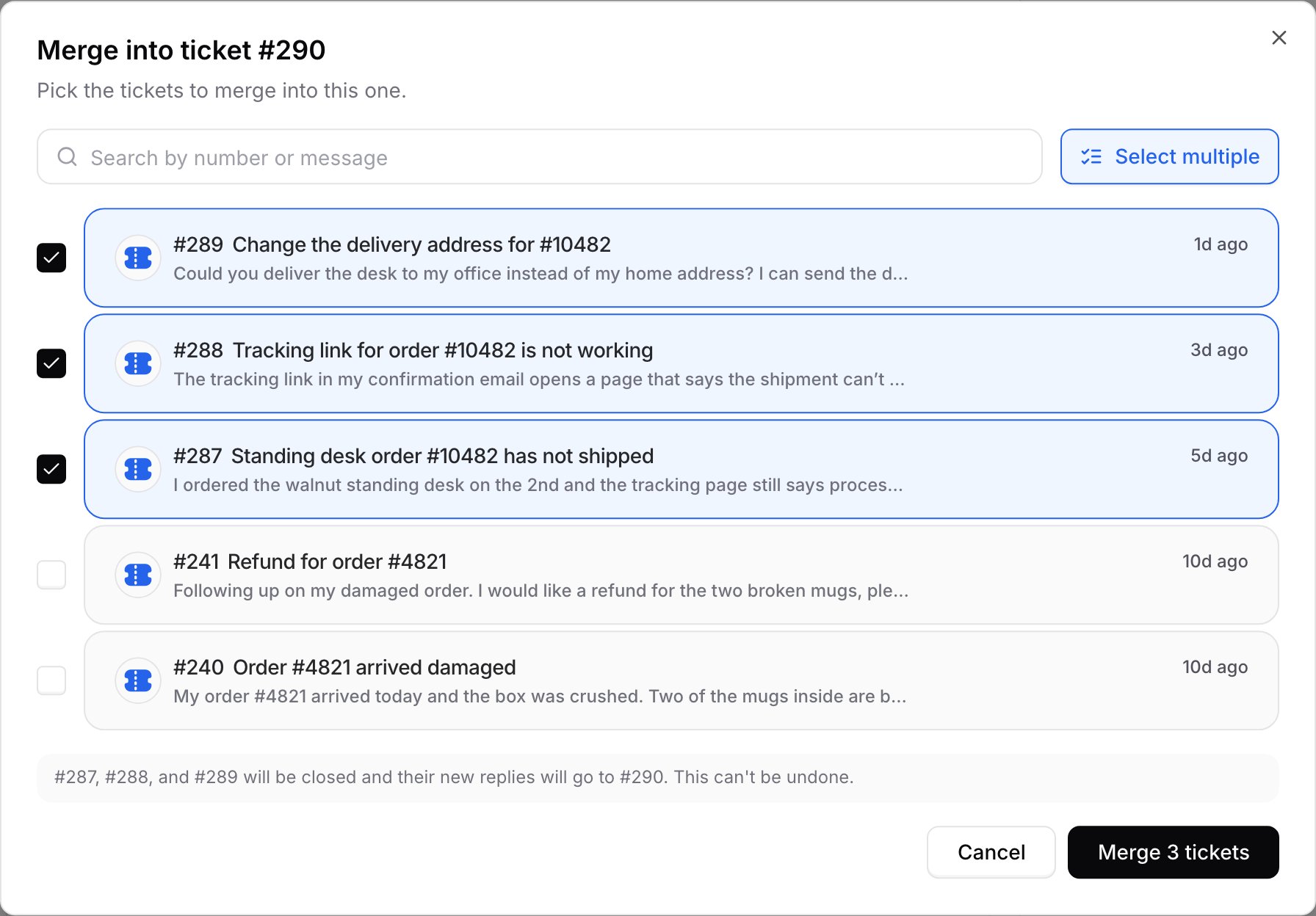
Reading a merged ticket’s messages
On the ticket you kept, Show messages on a merge opens the merged ticket’s replies and notes below it. A merged ticket with merges of its own opens those the same way.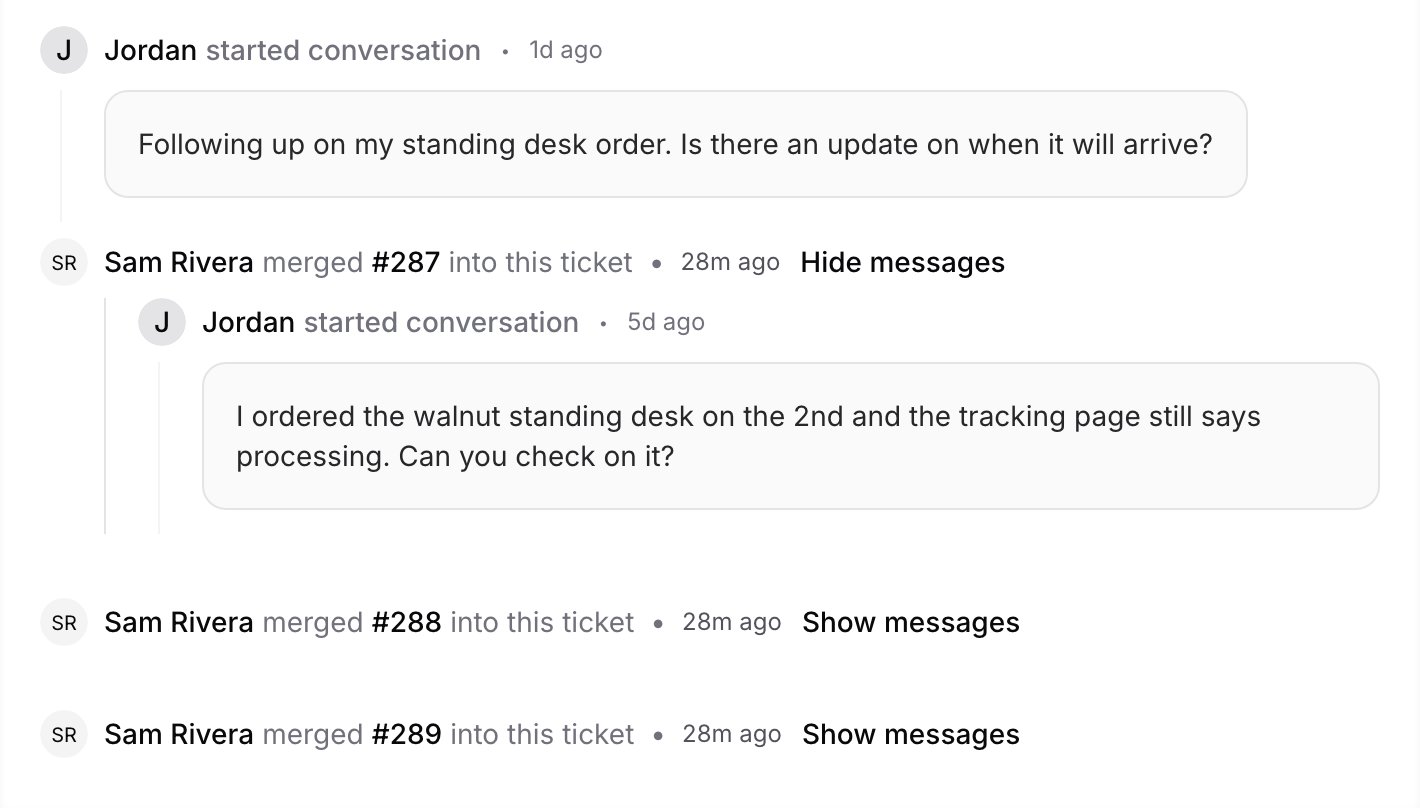
Which tickets can be merged
Both tickets must belong to the same customer, and the ticket you keep must be open. A ticket that was already merged cannot be merged again, and nothing can be merged into it.
On WhatsApp, Messenger, and Instagram, keep the ticket for the customer’s current conversation and merge older tickets into it. If you try to merge that ticket away, the picker shows “The customer’s current conversation has to stay open. Try Swap.”
Chat Bubble visitors type their own email address, so two tickets with the same unverified address may come from different people. When an address isn’t verified, the merge dialog warns that “these tickets may not be from the same person. Only merge if you’re sure.” Check both tickets before merging.
What happens to the merged ticket
It moves to your default closed status, or keeps its status if it was already closed. After that it can only move between closed statuses, and bulk reopening skips it. Agents can add notes to it but cannot reply. When the customer replies to the merged ticket’s email thread, the reply goes to the ticket you kept, with a note showing which ticket it was sent to. If that ticket is later merged too, replies go to the newest ticket.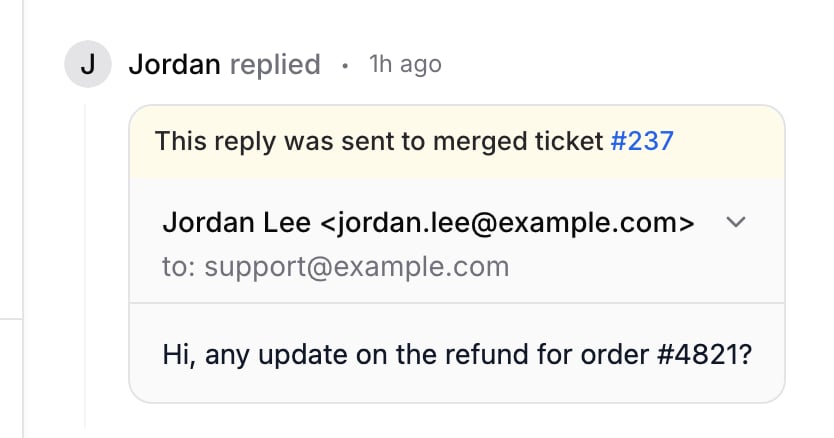
Fields stay on the merged ticket
The kept ticket doesn’t inherit anything from the merged ticket. Tags, custom fields, priority and CC participants stay where they were. Copy anything you need onto the kept ticket before or after merging. The kept ticket’s timeline links to the merged ticket’s history.Live chat and takeover
If the merged ticket was open, its conversation goes back to the AI agent once no other open ticket remains on it, so the AI agent answers the customer’s next message there. Exceptions:- Email conversations never go back to the AI agent, so the customer’s email replies keep reaching your team.
- API, Phone and mobile SDK conversations never go back to the AI agent after a ticket.
TICKET_MERGED error.
Merging requires the Edit tickets permission.
Frequently asked questions
Is the customer told when I merge their tickets in the Helpdesk?
Is the customer told when I merge their tickets in the Helpdesk?
No. Merging sends nothing to the customer. If they reply to the merged ticket’s email thread, the reply lands on the ticket you kept.
Can I undo a merge?
Can I undo a merge?
No. A merge is permanent. Check both tickets first, especially when the email address isn’t verified.
Can I merge tickets in bulk or through the API?
Can I merge tickets in bulk or through the API?
Not from the bulk selection bar or the API. From an open ticket, turn on Select multiple in the merge picker to merge up to 10 of the customer’s tickets into it.
Can I merge tickets from two different customers?
Can I merge tickets from two different customers?
No. Both tickets must belong to the same customer: the same email address for Email, Chat Bubble, API and agent-created tickets, or the same contact on one messaging channel.