

refund-request. Support teams use them to triage the queue and to build saved views. Filters are used in two places:
- The Filter button above the ticket list, for quick ad-hoc filtering of the current view.
- The Filters tab when creating or editing a saved view, where the same filters are persisted alongside a sort order and column layout.
Filters you add with the Filter button don’t survive a page reload. After a reload, the inbox goes back to the active view’s saved conditions, while the view and sort order stay. To keep a filter, save it as a saved view.
Available fields
Operators by field
The available operators depend on the field.
What each operator means:
- is any of / is none of: pick one or more values; the ticket must match (or not match) any of them.
- is: single fixed value (boolean, single-select, text, number, or date).
- contains: the text value includes the typed text anywhere, ignoring case.
- is greater than / is less than: numeric threshold.
- in the last: relative window such as the last 7 days, the last 2 weeks, or the last 3 months. Maximum 365 days.
- before / after: absolute date threshold.
- between: a range with a start and end, for dates or numbers. The order of the two bounds doesn’t matter.
- is set / is not set: whether the ticket has a value for the field at all.
Values by field
Status category
One or more of the six built-in status categories:- New: freshly created, not yet picked up
- On You: assigned, awaiting agent action
- On Customer: agent replied, awaiting customer response
- On Hold: paused on an external dependency
- Closed: resolved
- Cancelled: spam, duplicate, or opened in error
Status
One or more of the statuses configured in your workspace, including any custom statuses you’ve added under Settings → Helpdesk → Ticket statuses. Unlike Status category, this matches one specific configured status rather than its lifecycle group.Channel
One or more of:- Chat Bubble/Iframe: embedded AI agent on your website, including your Help Page
- Email: email forwarding
- API: created programmatically
- Messenger
- Center Stage: full-focus chat experience centered over your website
- Phone: inbound phone call handled by your AI agent
- Instagram comment: a comment on an Instagram post
- Facebook comment: a comment on a Facebook post
is none of with every other channel selected, or match Helpdesk in a trigger condition and tag the tickets. Help Page conversations have no channel of their own and appear under Chat Bubble/Iframe.
Assignee
One or more of:- Me: the currently signed-in agent
- Unassigned: no agent assigned
- Any specific agent in the workspace
Team
One or more of:- My teams: teams you belong to
- No team: tickets with no team assigned
- Any specific team in the workspace
Priority
One or more of:- No priority: tickets nobody has triaged yet
- Low, Normal, High, Urgent
is none of Low returns untriaged tickets as well. See Priority.
Tags
One or more of:- Untagged: tickets with no tags at all
- Any active tag on the AI agent
- Any archived tag, listed under an Archived heading and labelled
(archived)
is any of when it carries at least one of the selected tags. To require two tags at once, add a separate condition for each. See Tags.
Mentions me
This filter has no operator or value to configure. It is either present in your filter list or it isn’t. When present, the inbox is restricted to tickets where you are @mentioned in an internal note. To turn it off, remove the filter row.Created / Last message
Date values, used with one of the date operators above. Relative windows accept a positive integer up to 365 paired with a unit (days, weeks, or months).
There is no hours unit and no “more than N ago” operator. before takes a fixed calendar date that doesn’t move forward, so you can’t build a rolling filter such as “no reply in 24 hours”. The closest is Last message by is Customer plus an open status category, sorted by Last activity (oldest) in a saved view.
Last message by
One of:- Customer: most recent message came from the customer
- Agent: most recent message came from a teammate
Type
One of:- Ticket: standard support ticket
- Live chat: active live chat session
- Outbound: a ticket from an outbound campaign
Custom fields
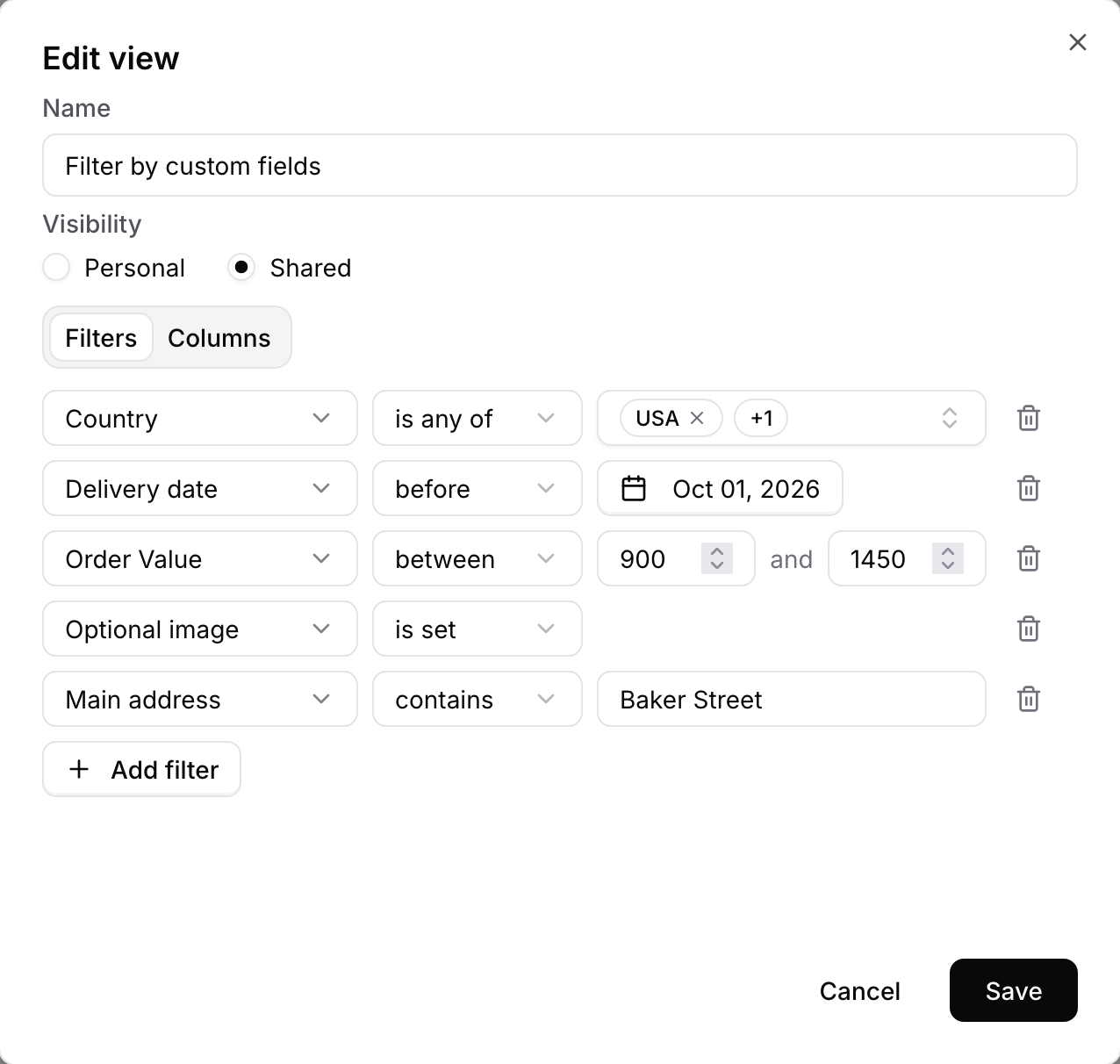
A Dropdown value is one or more of the field’s options. Archived options are listed under an Archived heading and labelled
(archived), so a view built on an option keeps working after you retire it. A Dropdown with no active options offers only is set and is not set.
A ticket matches is set when it holds any value for the field. A field the customer never answered, or one your team cleared, is not set.
A filter addresses the field, not the Action that collected it. Two create-ticket Actions that both collect Order number are matched by the same condition.
Archiving a field doesn’t break the filters that use it. An archived field stays on existing conditions and saved views and keeps matching, but is no longer offered when you add a new condition.
Combining filters
Conditions are combined with AND: every condition must match. Stack different fields to slice the inbox precisely. For example:- Channel is any of WhatsApp + Status category is any of New, On You + Created in the last 1 day → fresh, unresolved WhatsApp tickets from the past day.
- Assignee is any of Unassigned + Last message by is Customer → tickets waiting for someone to pick them up where the customer spoke last.
- Order value is greater than 500 + Status category is any of New → high-value orders nobody has picked up yet, using a custom field alongside a built-in one.
Fields you can’t filter on
The inbox has no requester or contact filters, so you can’t filter by the customer’s email domain, name or contact attributes. Triggers do have contact conditions (Name, Email, Phone number, External ID and contact attributes, with domain is any of for Email). To filter by them, create a trigger that adds a tag, then filter on Tags. For example, a trigger with the condition Email domain is any of acme.com and the action Add tags: acme lets you filter the inbox with Tags is any of acme.Frequently asked questions
How do I keep a Helpdesk filter for later?
How do I keep a Helpdesk filter for later?
Save it as a saved view. A saved view keeps its filter conditions, so you can open the same list again in one click. Your active view and sort order also stay when you reload the page.
Why can't I find the Helpdesk channel in the Channel filter?
Why can't I find the Helpdesk channel in the Channel filter?
It’s left out of the filter on purpose. Tickets your team creates in the Helpdesk, including tickets created on the Email channel, use the Helpdesk channel. Select them with
Channel is none of plus every other channel, or tag them with a trigger that matches the Helpdesk channel.Can I filter tickets by customer email or domain?
Can I filter tickets by customer email or domain?
Not directly. There are no requester filters. Use a trigger with an Email condition (
domain is any of) to tag those tickets, then filter on Tags.Can I filter outbound tickets?
Can I filter outbound tickets?
Yes. Add the Type field with the operator
is and pick Outbound.Can I show tickets with no reply for more than 24 hours?
Can I show tickets with no reply for more than 24 hours?
Not as a rolling filter. Date filters work in days, weeks or months, and
before uses a fixed date. Combine Last message by is Customer with an open status category and sort by Last activity (oldest) to put the longest-waiting tickets first.