

How It Works
When a teammate takes over a conversation, Chatbase:- Stops the AI agent from responding to the customer
- Generates an AI summary of the conversation, which costs no message credits
- Creates a Helpdesk ticket linked to the conversation
- Assigns the ticket to the teammate who took over
Because the ticket is assigned straight away, team routing doesn’t apply. Triggers that run when a ticket is Created, including the default Route to default team trigger, are skipped. Triggers that run when a ticket is Updated do run, because assigning the ticket counts as an update.
Who can take over
Anyone with permission to work on Helpdesk tickets for that AI agent can take over. It isn’t limited to the Support Associate role.Which channels support takeover
On Email, takeover cancels any AI email reply that is still pending or delayed. Later emails in the same thread go to the Helpdesk ticket instead of the AI agent. A brand-new email thread from the same customer may start a new conversation that the AI agent answers.
Taking Over a Conversation
1
Open the conversation
Open Activity > Conversations in the dashboard and select the conversation.
2
Click Takeover
Click the Takeover button in the conversation header. The button is available unless the conversation is already taken over.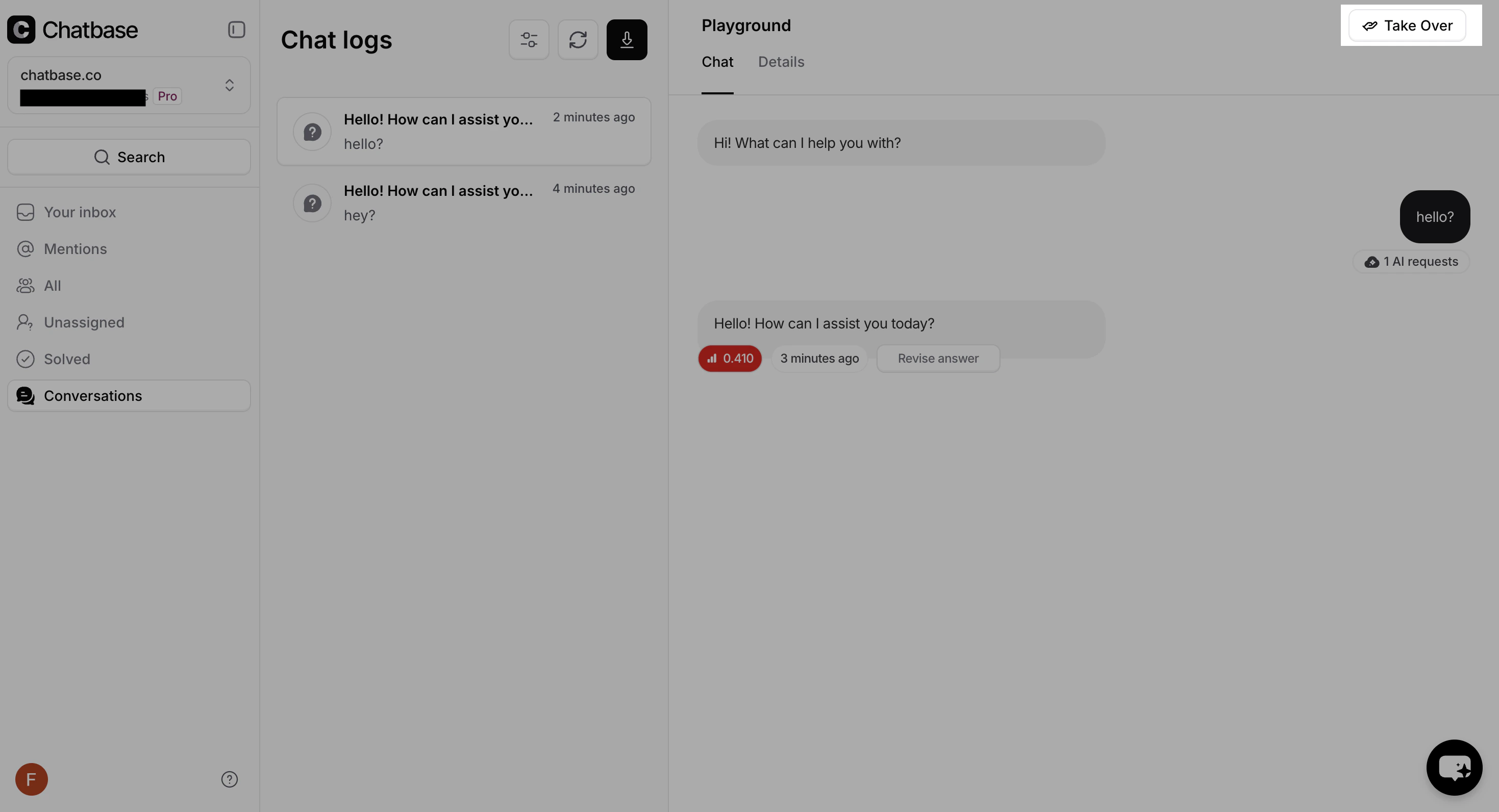
3
View the ticket
After takeover, the newly created Helpdesk ticket opens in a new browser tab. The ticket includes: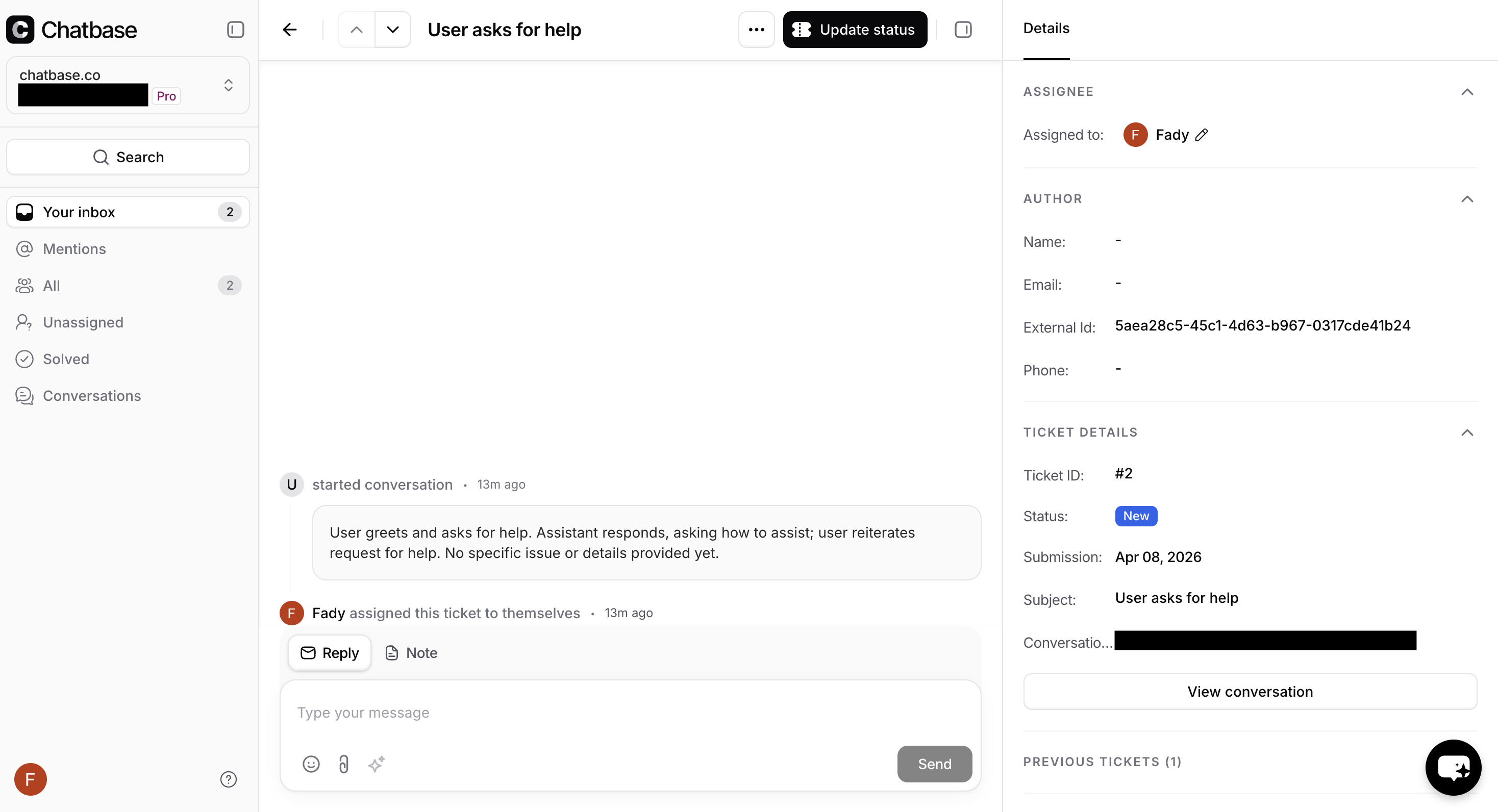
- An AI-generated subject line and summary based on the conversation
- Customer details (name, email, or other identifiers)
Conversation States
Every conversation has an activity state that determines whether takeover is available:Ongoing
Ongoing
The conversation is active and the AI is responding. Takeover is available.
Paused
Paused
The AI is paused on the conversation. Takeover is available.
Taken Over
Taken Over
A teammate has already taken over the conversation. The Takeover button is replaced with a View Ticket button that links to the associated Helpdesk ticket.
Ended
Ended
The conversation has ended. Takeover is available, so you can follow up with the customer.
- It has had no message for 72 hours. API and Zendesk Messaging conversations are not ended this way.
- The visitor clicks End chat in the Chat Bubble. A taken-over conversation is never ended for being idle.
AI-Generated Summary
When a conversation is taken over, Chatbase uses AI to generate a summary so the teammate can understand the context without reading the entire conversation. The summary includes:- A subject line for the ticket
- A brief summary of the customer’s issue
What the Customer Sees
In web chat, such as the Chat Bubble, the customer sees the takeover happen:- The AI stops responding immediately
- A loading spinner appears with the message “Waiting for support agent to join”
- Once the teammate sends their first message, the spinner disappears and the conversation continues as a live chat
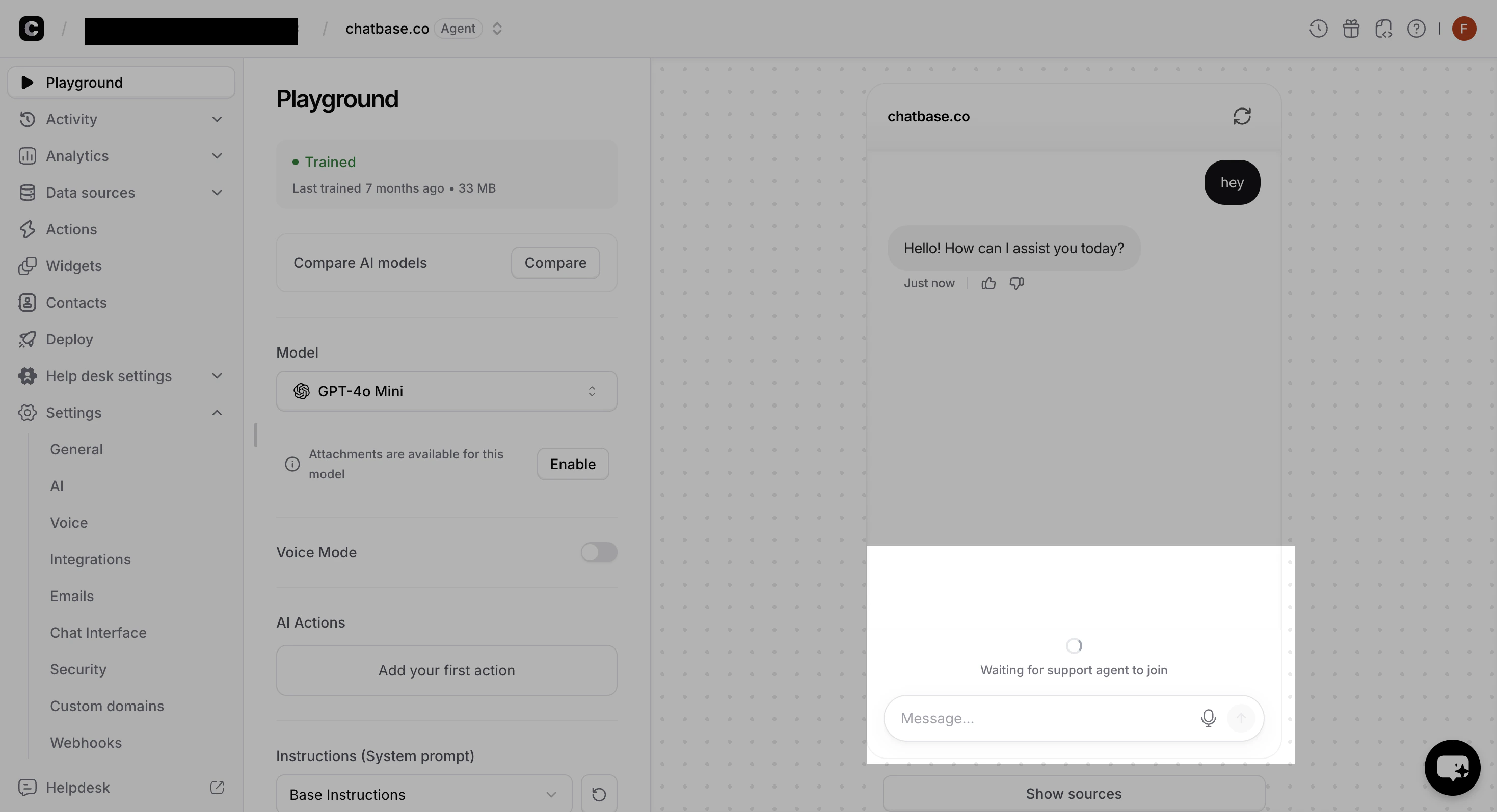
The waiting message is automatically displayed in the customer’s language. See Localization for more details.
Handing the Conversation Back to the AI
To let the AI reply again, close the ticket. Moving the ticket to a closed or cancelled status ends the takeover, and the AI picks up the next customer message.1
Open the ticket
Open the taken-over ticket from the Helpdesk.
2
Change the status
Click Update status in the ticket header and pick a closed or cancelled status, such as Closed or Cancelled.
If the conversation has another ticket that is still open, closing one ticket does not hand it back. The AI resumes only when the last open ticket on the conversation is closed or cancelled.
Multiple Takeovers
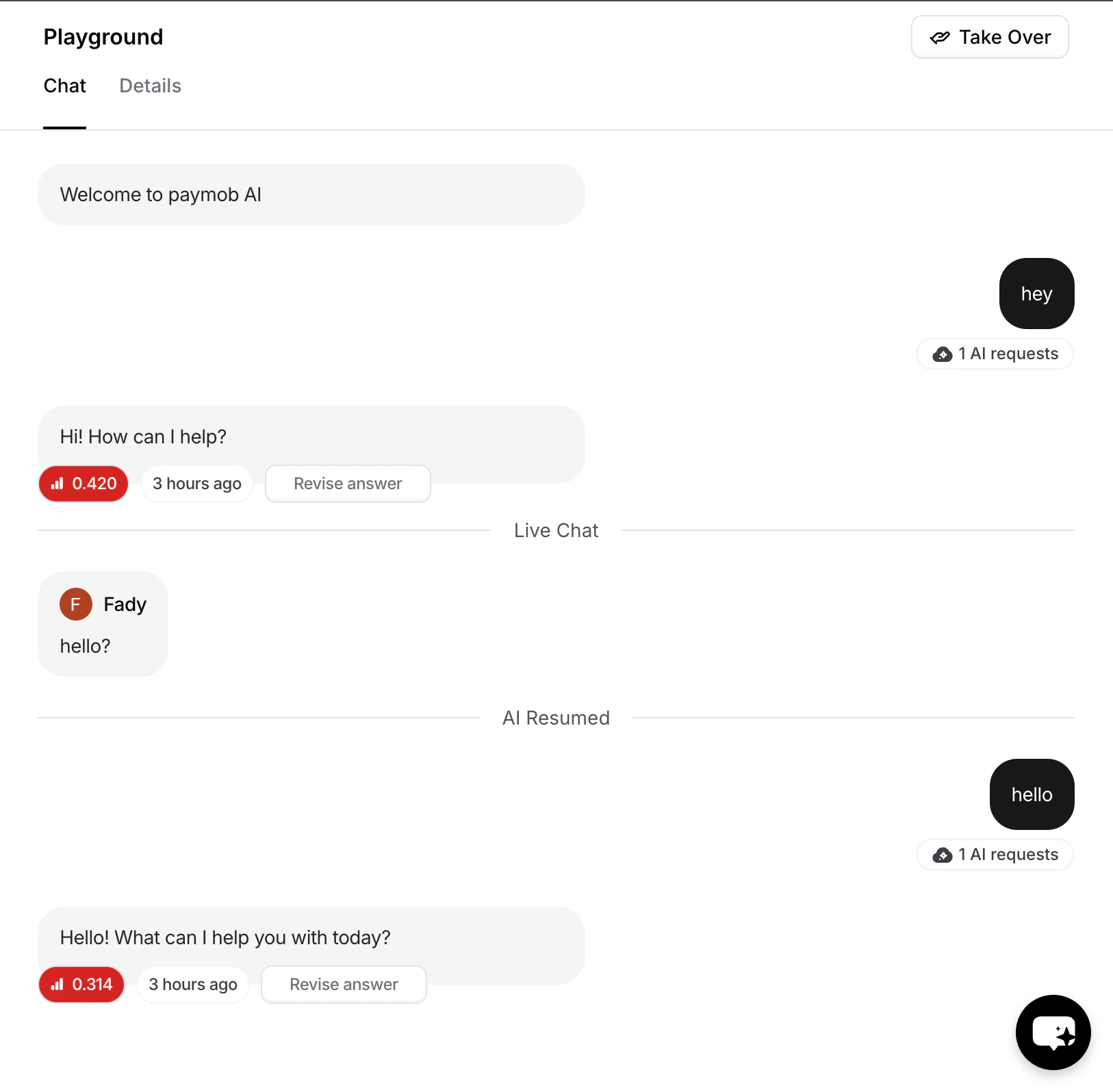
A single conversation can go through multiple takeover and AI resume cycles. Each time, the conversation is clearly divided into sections so both the teammate and the customer can follow the flow:- A “Live chat” separator marks where a teammate took over
- An “AI Resumed” separator marks where the AI took the conversation back
- Customer chats with the AI
- A teammate takes over. A Live chat separator appears
- The teammate resolves part of the issue and closes the ticket. An AI Resumed separator appears
- Customer continues chatting with the AI
- A new issue arises and another teammate takes over. Another Live chat separator appears
Concurrency
Only one teammate can take over a conversation. If two teammates click Takeover at the same time, the first one to complete the action wins and gets the ticket. The second sees a generic error message. They can refresh the conversation to see that it has already been taken over and use the View Ticket button to open it.Frequently asked questions
Does takeover use message credits?
Does takeover use message credits?
No. The AI summary that creates the ticket’s subject and description costs no message credits, and replies you send as a teammate don’t either.
Why didn't my takeover ticket get a team?
Why didn't my takeover ticket get a team?
Takeover tickets are assigned directly to the teammate who took over, so triggers that run on ticket creation, including Route to default team, are skipped. Set the team on the ticket by hand, or add a trigger that runs when a ticket is Updated.
Does the customer get a message when I take over on WhatsApp or email?
Does the customer get a message when I take over on WhatsApp or email?
No. On WhatsApp, Messenger, Instagram, and Email, the customer receives nothing at takeover time. The first thing they see is your reply.
Does the AI keep answering emails after I take over?
Does the AI keep answering emails after I take over?
No. Pending AI email replies are cancelled, and new emails in that thread go to your ticket. A new email thread from the same customer may start a new conversation that the AI agent answers.
Can I take over API or phone conversations?
Can I take over API or phone conversations?
No. Takeover isn’t offered for API, Phone, Slack, mobile SDK, Zendesk, or Salesforce conversations.
What happens if I merge a taken-over ticket?
What happens if I merge a taken-over ticket?
The ticket you keep stays taken over. The ticket that is merged away is closed, and its conversation goes back to the AI agent once no other open ticket remains on it. Email conversations are never handed back this way. See Merging.