

The levels
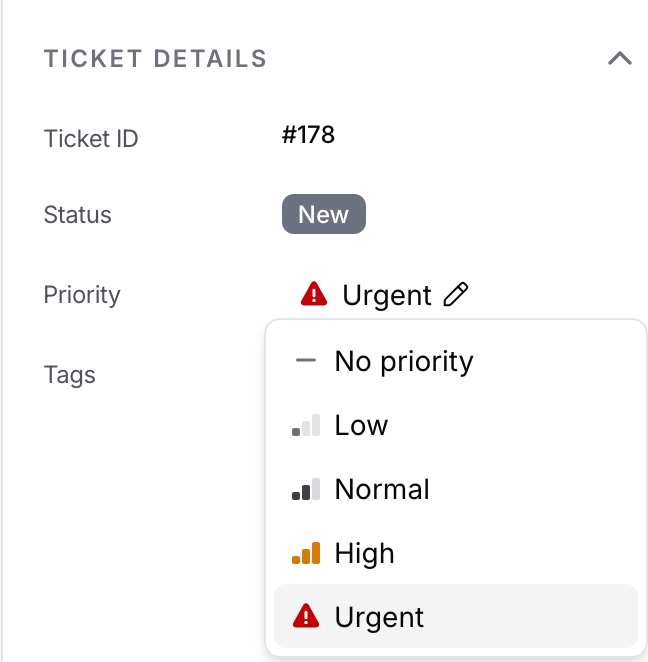
Ranked highest to lowest:- Urgent
- High
- Normal
- Low
- No priority
Setting a ticket’s priority
Open a ticket and find the Priority row in the Ticket Details section of the right-hand panel, just above Tags.1
Click the pencil
It sits next to the current priority.
2
Pick a level
Click one and it applies straight away.
Other ways to set priority
Priority in triggers
Triggers can use Priority as a condition, withis, is not, is any of, is none of, changed, not changed, changed to, not changed to, changed from and not changed from. The values are No priority, Low, Normal, High and Urgent.
A manual priority change counts as an update, so it runs triggers that match Ticket is Updated. For example, this trigger alerts the team when a ticket becomes Urgent:
Setting the same priority again runs no triggers.
Sorting the inbox
Click the Priority column header to sort by it, or pick a priority sort when building a saved view. The Status, Priority, Ticket ID, Created at and Last updated headers sort; Requester, Assignee, Team and Ticket details don’t.- Priority (high → low) puts Urgent at the top and untriaged tickets at the bottom.
- Priority (low → high) reverses it, which surfaces the untriaged pile first.
Filtering by priority
Priority is available as a field in the filter builder and inside saved views.
No priority is one of the values you can pick, the same as any other level. That is worth knowing because it makes both of these work the way you would expect:
- Priority is any of No priority gives you the untriaged queue.
- Priority is none of Low returns untriaged tickets too, since No priority is genuinely not Low.
Conditions in a filter are combined with AND. To catch everything above a line, pick the levels you want in one
is any of condition rather than adding a condition per level, which would ask for tickets at several levels at once and return nothing.In the ticket list
Priority sits in the ticket list by default, directly after Status. Move or hide it from the Columns tab when creating or editing a saved view. Priority is any of Urgent, High, sorted by Priority (high → low), gives your team a standing queue of everything that cannot wait.Good to know
- Priority is internal. Customers never see it, in the chat widget or anywhere else.
- When a teammate changes the priority of a ticket you have open, it updates without a refresh.
- Changing a ticket’s priority needs permission to edit tickets. There is no separate permission for priority.
- Priority doesn’t change which agent Round Robin or Balanced assignment picks. It only sets the order in which unassigned waiting tickets are picked up: highest priority first, then oldest. See When waiting tickets are picked up.
Frequently asked questions
Can I set Helpdesk ticket priority automatically?
Can I set Helpdesk ticket priority automatically?
Yes, with a trigger that uses the Set priority action. For example, set Urgent on new tickets tagged
outage. The create-ticket Action can’t set priority itself.Can I change the priority of many tickets at once?
Can I change the priority of many tickets at once?
Yes. Select the tickets in the list, click Edit, and pick a Priority. Each request can update up to 100 tickets.
Does changing priority run triggers?
Does changing priority run triggers?
Yes. A priority change counts as a ticket update, so triggers with Ticket is Updated run. Use Priority changed to to react to a specific level.
Can customers see a ticket's priority?
Can customers see a ticket's priority?
No. Priority is internal to your team.