

Best for:
Sensitive, urgent, or account-specific issues where the customer needs a person now, rather than a ticket and a follow-up later.
- “I want to speak to someone right now”
- “This is urgent”
- “The AI isn’t helping me”
Prerequisite: The Chatbase Helpdesk must be enabled. Click Helpdesk inbox in the sidebar and enable it from there. See the Helpdesk overview for how conversations are handled once they arrive.
The Action itself doesn’t collect any details: it hands the conversation to your team as soon as it runs. To ask the customer questions first, such as an order number or what they need help with, add the Action to a Procedure step after those questions. The answers stay in the conversation, so your team sees them when they join. To save the details as ticket fields (subject, description, or custom fields), use Escalations instead. See Live chat vs. Escalations.
Before you start
- Helpdesk enabled. Until it is, the Chatbase live chat card in Create Action shows Enable Helpdesk and an Enable Chatbase Helpdesk button instead of the Action.
- Basic plan or higher. The Action needs a plan that includes the Helpdesk. It’s blocked again if you downgrade to a plan without it.
- Not on HIPAA accounts. The Action can’t be used on HIPAA-compliant accounts.
- A free Action slot. Live chat counts toward your plan’s Actions limit per AI agent.
How to create the Action
1
Navigate to Actions
Go to your Chatbase dashboard and select your AI agent. Click Build > Actions in the left sidebar.
2
Open the Chatbase live chat card
Click Create Action. Under the Escalations filter, open the Chatbase live chat card (“Hand over from the AI agent to live chat with a human support agent”), then select Live chat.
3
Configure General settings
When to use: Tells the AI agent when to hand the conversation over. It’s prefilled with a default you can edit. The default includes the instruction “Reply that an agent will be connected to the chat shortly only if the action is successful.”, which is what produces the customer’s confirmation message.There’s no Action name field: the Action’s name is set for you.To restrict the Action to Procedure steps only, turn on Only use in Procedures.
4
Choose Channels
Under Channels, turn the Action on or off for each channel. See Channels.
5
Enable and test
Make sure the Action is enabled, then ask your AI agent to speak to a human. Confirm the conversation appears in your Helpdesk inbox as a Live chat ticket.
How it works
When the AI agent calls the Action, Chatbase:- Creates a ticket of type Live chat. The AI agent writes a summary of the conversation, and its first 80 characters become the ticket subject.
- Takes over the conversation, so the AI agent stops replying.
- Runs your Helpdesk Triggers on the new ticket, which decide its team and assignee.
{{agentAvailable}} variable first. The variable is true when at least one Helpdesk agent’s status is Available. The Live agent availability template in the Procedures Templates tab does this: if {{agentAvailable}}, it uses live chat, otherwise it uses create_ticket so your team can follow up.
To hand over only during your support hours, use a time condition instead. The Live agent availability by hours template branches on “The current time in UTC+3 is between 9:00 AM and 5:00 PM”: inside those hours it uses live chat, otherwise it uses create_ticket. Edit the hours and timezone to match your team. Always name the timezone, because the AI agent compares the condition against the current time in UTC. There’s no timeout and no fallback to the AI agent: the conversation stays with your team until the ticket is closed. The only failure is the ticket itself failing to be created, which shouldn’t happen in normal use. If it does, the AI agent lets the customer know.
Example
For example, a customer on the Chat Bubble writes “My account is locked and I need a person now.”- The AI agent calls the Action and replies “I’m connecting you with a member of our team. An agent will join the chat shortly.”
- The customer sees Waiting for support agent to join.
- A Live chat ticket appears in the Helpdesk, and your Triggers route it to a team.
- An agent replies from the Helpdesk, and the reply appears in the customer’s chat.
- The agent closes the ticket, and the AI agent answers the customer’s next message.
What the customer sees
The confirmation message isn’t a fixed text. The AI agent writes it after the Action succeeds, guided by your When to use instructions. Edit When to use to change what it says.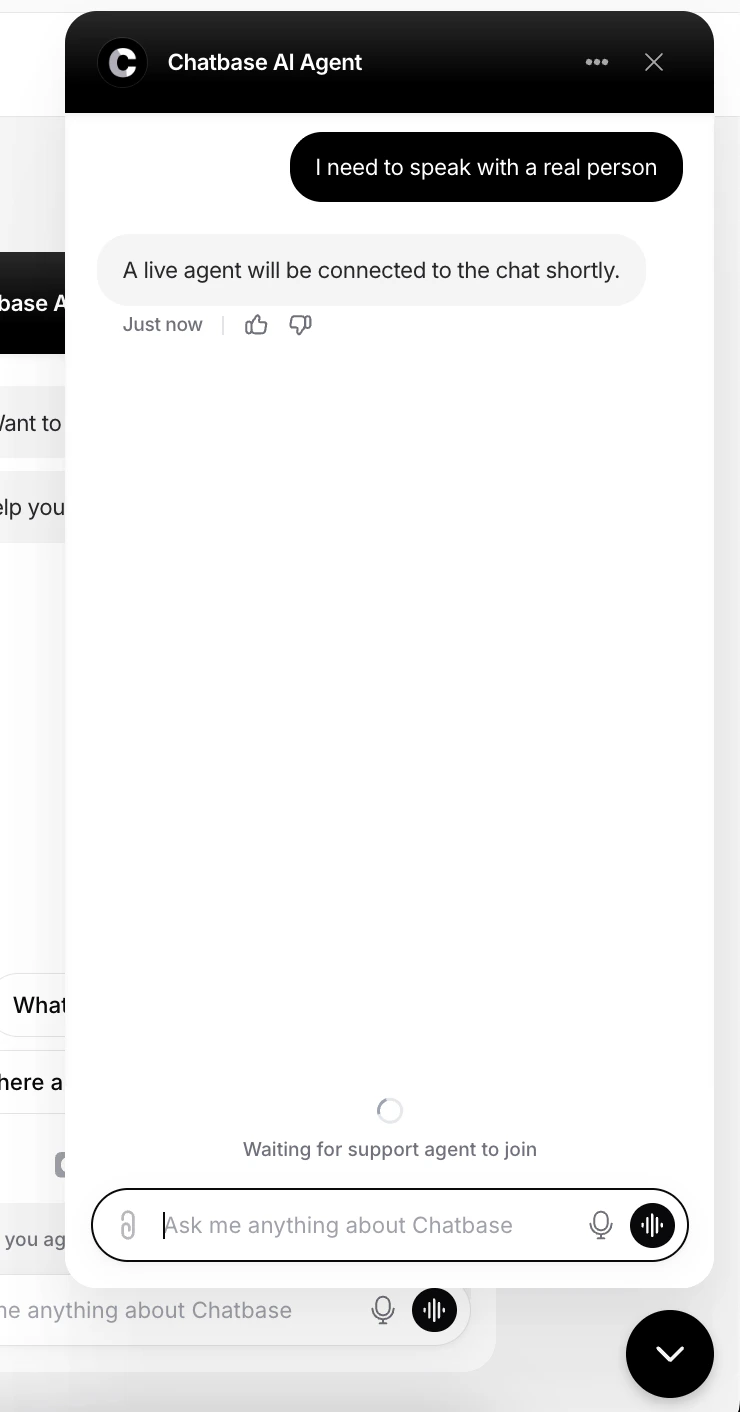
What your team sees
The conversation appears in the Helpdesk inbox in real time, labeled as a Live chat ticket, with the AI summary.
- Reply directly to the customer in real time
- Add internal notes
- Continue the conversation from the existing thread
Assignment
The ticket is created without a team or assignee, so assignment is handled by your Triggers. The default Route to default team Trigger sends the ticket to your default team and applies that team’s assignment method (Manual, Round robin, or Balanced), its max tickets per agent, and Assign to next available shift. If no agent can be assigned, for example because nobody is Available, the ticket goes to the team as unassigned. See Unassigned tickets.Notifications
The Action doesn’t send its own push or email alert.- Sound and tab counter: the sound and the “(n)” counter in the browser tab fire only for the agent the ticket is assigned to, and only if that agent has sounds on.
- Unassigned tickets alert no one. A ticket waiting in the team pool is visible in the inbox but triggers no sound.
- No desktop notifications. There are no browser desktop notifications.
- Email or Slack alerts: add a Trigger with a Send email or Send Slack message action that matches live chat tickets.
Handing the conversation back to the AI agent
Close the ticket. When the last open ticket on the conversation moves to a closed or cancelled status, the AI agent takes the conversation back and answers the customer’s next message. There’s no separate “hand back” button in Activity > Conversations, which only offers Takeover and View Ticket. See Handing the conversation back to the AI.Live chat vs. Escalations
Both Actions hand the conversation to your team when Escalations uses Chatbase Helpdesk as the platform: the AI agent stops replying and the customer sees the same waiting spinner. The differences:Channels
The Chatbase live chat Action is compatible with the Chat Bubble, Help Page, Center Stage, Email, Instagram, Messenger, and WhatsApp channels. Every other channel is incompatible and can’t be selected. Use Channels in the Action’s configuration to enable or disable it per channel. See Channels for what configured, unconfigured, and incompatible mean.Best Practices
Staff It Before You Enable It
The Action runs even when no one is available. Only enable it when agents can respond, and set an auto-assigning team so live chats reach someone.
Keep Triggers Strict
Write tight When to use instructions so the AI agent doesn’t escalate conversations it could have resolved.
Let the AI Try First
Handle common questions with the AI agent and reserve live chat for what it can’t resolve.
Reserve It for Urgency
Use live chat for sensitive, urgent, or account-specific issues, and Escalations for everything that can wait.
Frequently asked questions
What happens if no agent is available?
What happens if no agent is available?
On its own, the Action still runs: the ticket is created, the conversation is taken over, and if no agent can be assigned, the ticket waits unassigned in the team’s pool. There’s no timeout and no fallback to the AI agent, so the customer keeps waiting until an agent replies or the ticket is closed.To avoid this, call the Action from a Procedure that checks first. Branch on
{{agentAvailable}} to use live chat only when at least one Helpdesk agent is Available, or on a time condition to use it only during your support hours, and open a ticket with Escalations otherwise. The Live agent availability and Live agent availability by hours templates in the Procedures Templates tab are set up this way. See How it works.Can I change the message the customer sees after the handoff?
Can I change the message the customer sees after the handoff?
Yes, through When to use. The AI agent writes the confirmation itself, following those instructions. The Waiting for support agent to join spinner on the widget is fixed and shown in the widget’s language.
Why wasn't a live chat assigned to anyone?
Why wasn't a live chat assigned to anyone?
The default General team uses Manual assignment, so tickets wait in the pool. Change the team’s assignment method to Round robin or Balanced, or route live chats to a team that auto-assigns with a Trigger. Tickets also stay unassigned when every agent is away or at their ticket limit.
Which agents get notified?
Which agents get notified?
Only the agent the ticket is assigned to hears a sound and sees the tab counter. Unassigned tickets alert no one. For email or Slack alerts, set up a Trigger with Send email or Send Slack message.
How does the conversation go back to the AI agent?
How does the conversation go back to the AI agent?
Close or cancel the ticket. Once the conversation has no open tickets left, the AI agent answers the customer’s next message.
Which plan do I need?
Which plan do I need?
Basic plan or higher, with the Chatbase Helpdesk enabled. The Action isn’t available on HIPAA-compliant accounts, and it counts toward your plan’s Actions limit.