

The panel only shows up when a Shopify integration is connected to this AI agent. If you don’t see it, connect your store first. See the Shopify integration guide.
How orders are matched
The panel looks up orders using the ticket contact’s details, in this order:- Email: the contact’s email address is tried first.
- Phone: if no orders are found by email (or there’s no email on file), it falls back to the contact’s phone number.
Looking up a different customer
Sometimes the ticket contact isn’t the same person who placed the order (for example, they wrote in from a different email). Use the lookup field at the top of the panel to search by a different email or phone number.- Edit the field and confirm to run a new search.
- Click Reset to ticket contact to go back to the ticket contact’s original details.
The order list
Each order shows a summary card with:- Order number (e.g.
#1024) and the date it was placed - Total price
- Status badge for fulfillment (unfulfilled, partially fulfilled, fulfilled)
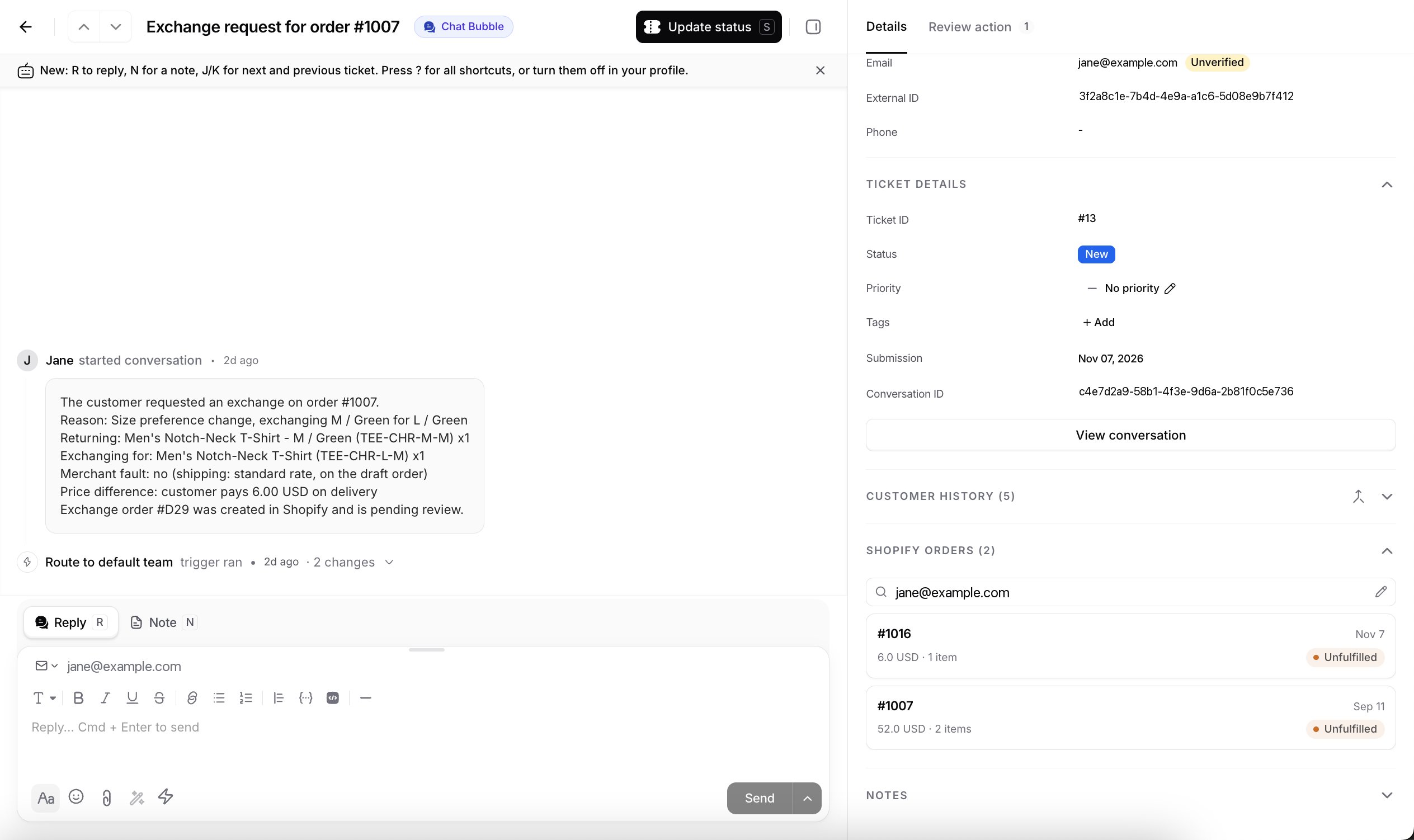
Shopify Orders (12). When Shopify can’t give an exact number, you’ll see an estimate instead, like Shopify Orders (12+).
Load more
Only the most recent orders load at first. Click Load more at the bottom of the list to fetch the next batch. This continues from where the list left off, so you won’t see duplicates.Order details
Click any order card to open its full details. From here you can see everything needed to help with the order:- Line items: each product with its image, quantity, and price
- Pricing breakdown: subtotal, shipping, tax, discounts, and the final total
- Shipping address: name, full address, and phone
- Status badges for fulfillment and payment (paid, pending, refunded, and so on)
- Fulfillments & tracking: fulfillment status plus tracking number, carrier, and a link to track the shipment
- Quick links: click Open in Shopify to open the order in your Shopify admin, or view the customer-facing order status page
Order data in macros
You do not have to copy these details by hand. With a store connected, macros can pull the same order in as variables, so a shipping-update reply writes itself from{{shopify.last_order.number}}, {{shopify.last_order.carrier}}, and {{shopify.last_order.tracking_url}}. The variable picker gains two groups, Shopify order and Shopify customer, both reading the same most-recent order this panel shows.
Resolve order tickets faster
Most store tickets are about one order. With the panel open next to the conversation, you can answer without asking the customer to repeat details or searching Shopify yourself. A few common cases: “Where is my order?”- Open the ticket. The panel matches the customer’s orders by their email, or by phone if there’s no match.
- Click the most recent order and check Fulfillments & tracking for the carrier, tracking number, and tracking link.
- Reply with a shipping-update macro that fills in
{{shopify.last_order.number}},{{shopify.last_order.carrier}}, and{{shopify.last_order.tracking_url}}, or share the customer-facing order status page from the quick links.
Frequently asked questions
Why don't I see the Shopify Orders panel on a ticket?
Why don't I see the Shopify Orders panel on a ticket?
The panel only appears when a Shopify store is connected to the AI agent the ticket belongs to. Connect your store with the Shopify integration guide.
Why does the panel show no orders for this customer?
Why does the panel show no orders for this customer?
The panel searches by the ticket contact’s email first, then their phone number. If the customer ordered with different details, search with the lookup field at the top of the panel.
What does a count like Shopify Orders (12+) mean?
What does a count like Shopify Orders (12+) mean?
Shopify couldn’t give an exact number, so the panel shows an estimate. Click Load more at the bottom of the list to fetch the next batch of orders.
Which order do Shopify variables in macros use?
Which order do Shopify variables in macros use?
The most recent order Chatbase can match to the person who opened the ticket. It is the same order the panel reads. See Shopify variables.
How do I make changes to an order?
How do I make changes to an order?
The panel is read-only: you can’t refund, cancel, or edit an order from it. Click Open in Shopify in the order details to open the order in your Shopify admin, and make the change there.
Related
Shopify Integration
Connect your Shopify store to Chatbase to enable the orders panel and Shopify Actions.
Macros
Saved replies that can fill in order number, status, and tracking automatically.