

What you can do:
Put your AI agent in front of every visitor to your Weebly site, answering questions without them leaving the page.
Before you start
- A Chatbase account with an AI agent. If you haven’t built one yet, follow Your first AI agent.
- A Weebly website you can edit.
How to embed your AI agent
1
Copy your embed code
- Navigate to your dashboard and select the AI agent you wish to embed.
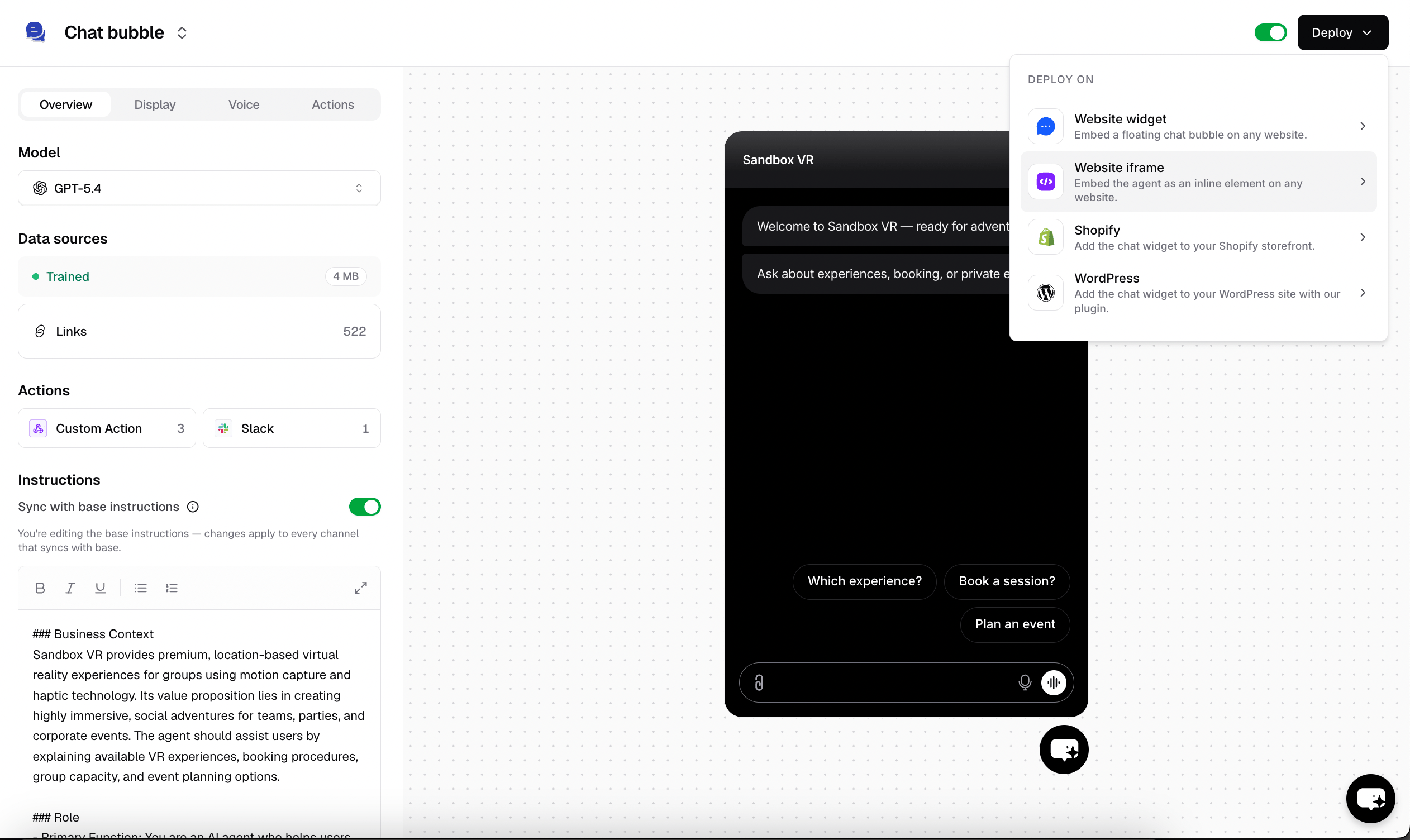
- Click Channels in the left sidebar, then click Manage on the Chat Bubble card (or Setup, if you haven’t configured it yet).
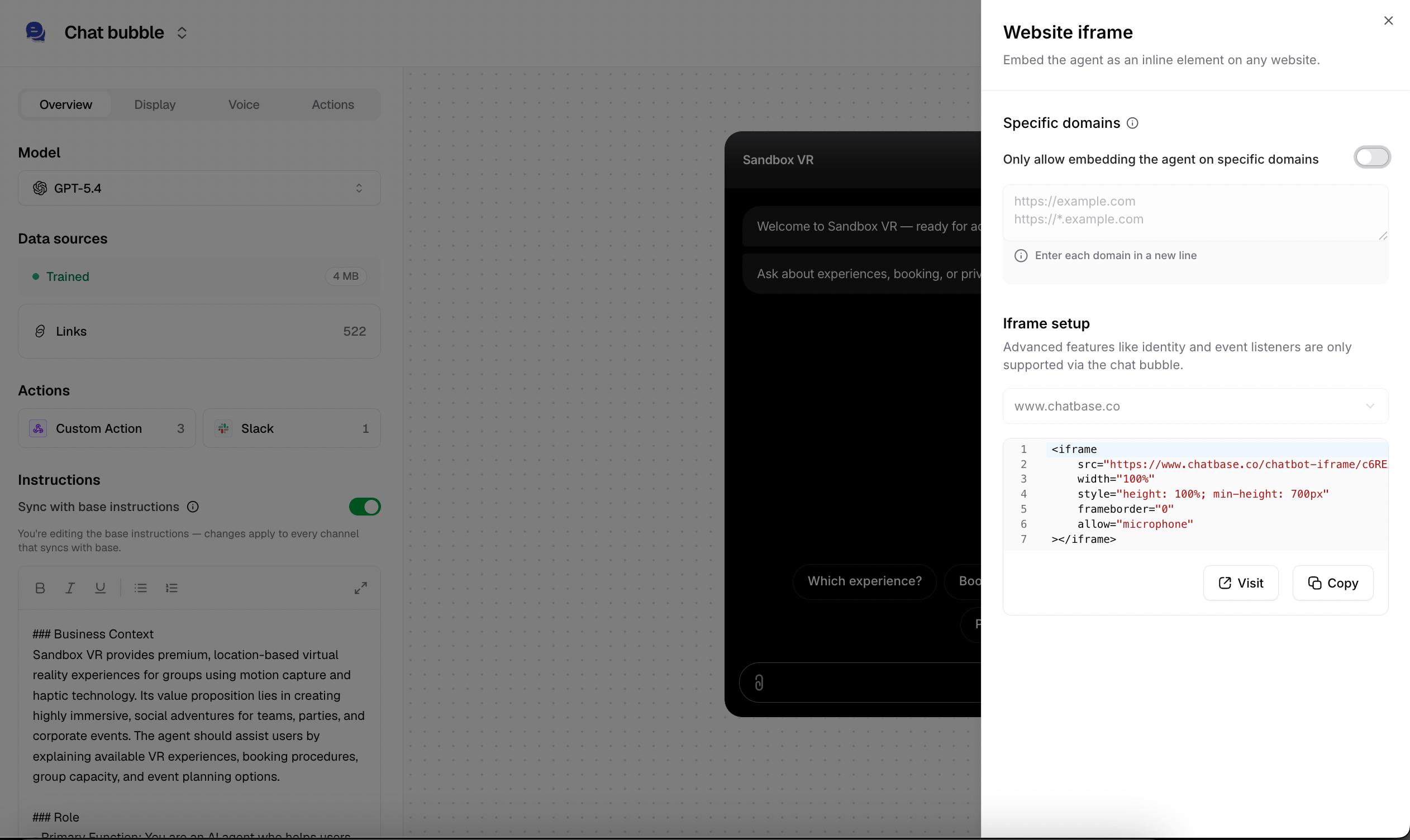
- Click Deploy and select the Website iframe embed type. Scroll down and click Copy to copy the provided HTML code.
2
Open your Weebly site editor
Sign in to your Weebly account, head to the Edit site page, and select the page to edit.
3
Add the Embed Code widget
From the Basic toolbar on the left side of the editing page, locate the Embed Code widget.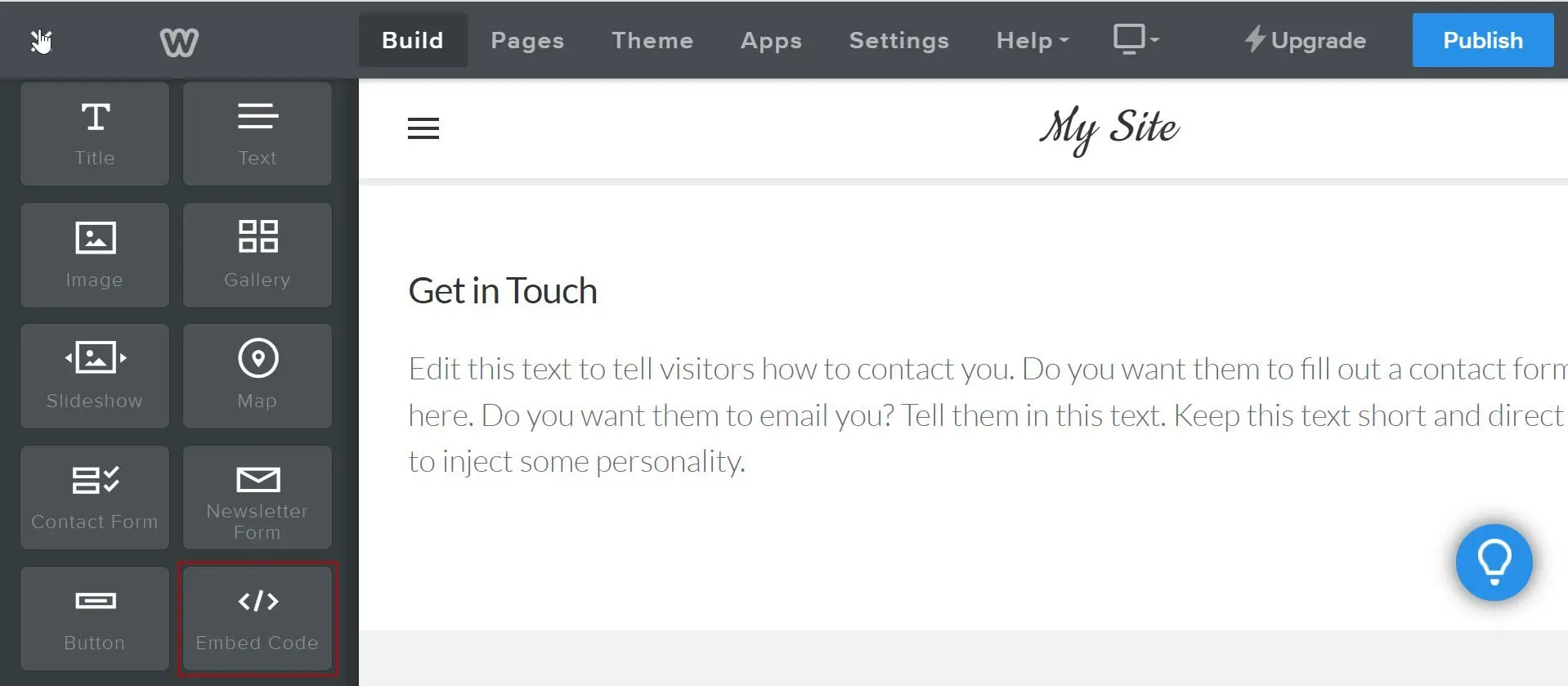
4
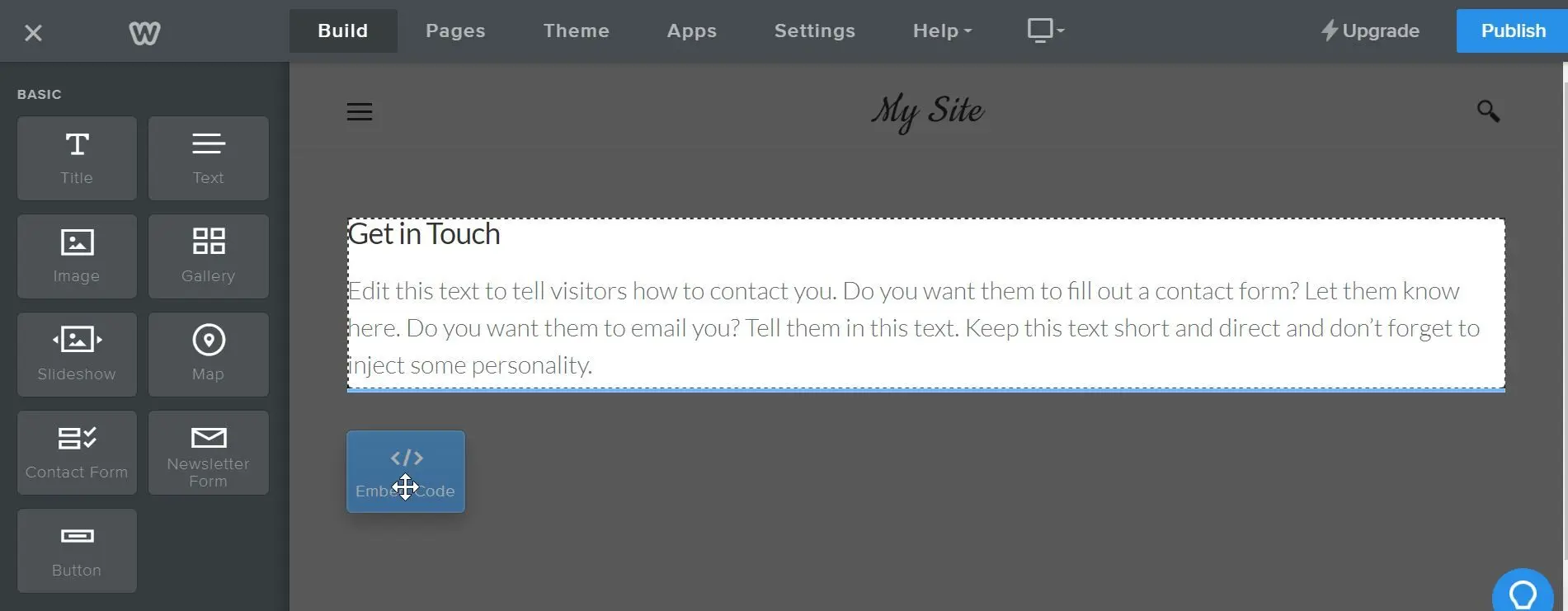
Paste the embed code
You’ll see a text element that says Click to set custom HTML where the widget was placed. Click the text, then click Edit Custom HTML, and paste your Chatbase embed code into the box.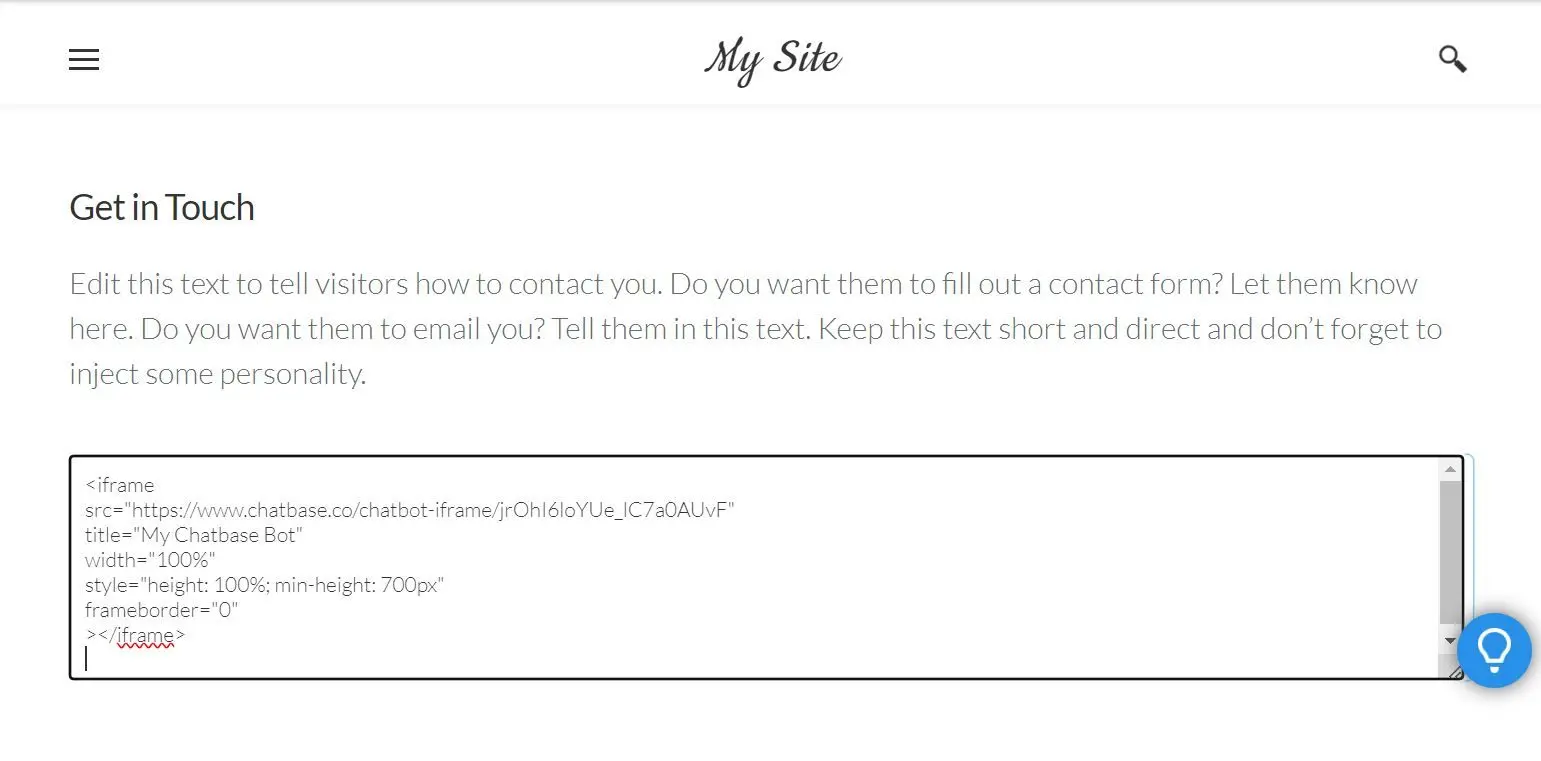
Click outside the element and confirm your AI agent appears on the page.
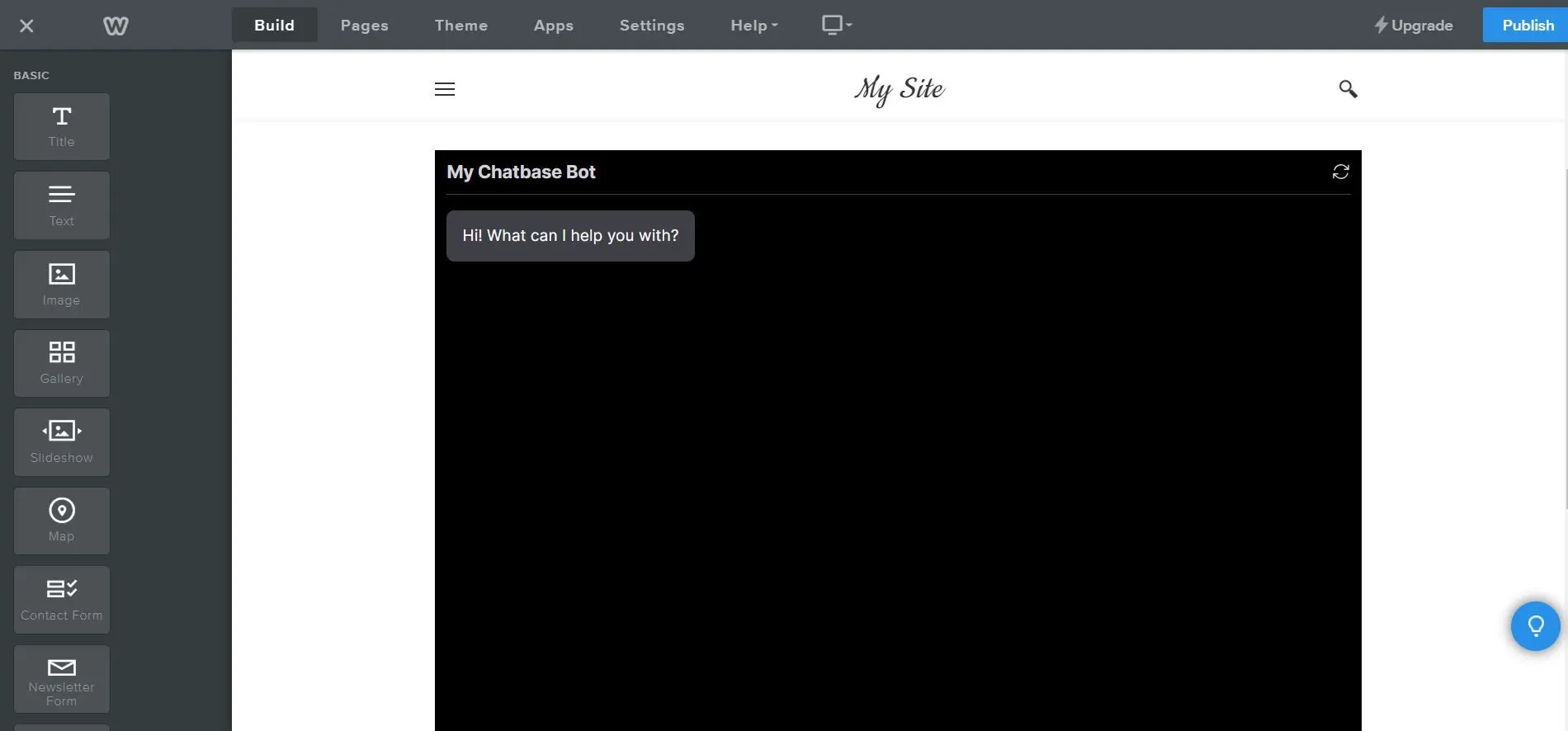
How the iframe sizes itself
The iframe code is set towidth="100%" with height: 100%; min-height: 700px. In practice:
- Width follows the Weebly section or column you drop it into.
- Height doesn’t grow or shrink with the conversation. It’s at least 700px, or taller if the element around it gives it more room.
min-height: 700px value in the code before you paste it, for example to min-height: 550px.
Troubleshooting
The chat is cut off or has a lot of empty space
The chat is cut off or has a lot of empty space
The iframe’s height is fixed by the code, not by the conversation. Adjust the
min-height value in the pasted code until it fits your page, then click outside the element to see the result.The chat shows an error or a blank box instead of the AI agent
The chat shows an error or a blank box instead of the AI agent
Possible causes:
- Only allow embedding the agent on specific domains is on in the Specific domains card of the Deploy sheet, and your Weebly address isn’t listed. Add the exact host your site runs on, such as
https://www.acme.com(example value). An entry withouthttps://orhttp://matches only https pages. - The visitor’s country is in your blocked countries.
You can customize the appearance and colors of your AI agent on your Chatbase dashboard. Go to your dashboard, choose an AI agent, click Channels in the left sidebar, click Manage on the Chat Bubble card, then open the Display tab to edit Content, Capabilities, Colors, Floating bubble, and Localization.
Frequently asked questions
Can I get a floating Chat Bubble on Weebly instead of an inline chat?
Can I get a floating Chat Bubble on Weebly instead of an inline chat?
The floating Chat Bubble comes from the Website widget script, which needs to run on the page itself. If you paste it into an Embed Code element that runs in its own frame, the bubble stays clipped inside that element’s box. The iframe in this guide doesn’t have that problem.
Does the iframe support identity verification and event listeners?
Does the iframe support identity verification and event listeners?
No. Identity verification and event listeners only work with the Chat Bubble script.
Can I add the AI agent to several Weebly pages?
Can I add the AI agent to several Weebly pages?
Yes. Add an Embed Code element with the same code to each page where you want the chat. Pages without the element don’t show it.
Will the chat say "Powered by Chatbase"?
Will the chat say "Powered by Chatbase"?
Yes, by default. You can hide it with the Remove ‘Powered By Chatbase’ add-on. See Add Ons.
Next steps
Customize the Chat Bubble
Match the widget to your brand colors, position, and copy.