


What you can do:
Answer customers on the channel they already use, around the clock, with the same AI agent, knowledge, and Actions you use on your website.
Attachments are supported, so your AI agent can process them and respond based on their content. See Attachments.
You can connect more than one WhatsApp number to your AI agent. Once connected, all your numbers are managed from Channels → WhatsApp → Manage.
Use cases
Customer support. Your AI agent answers from its Data Sources and can read the photos and documents customers send, such as a picture of a damaged item. When it can’t help, the Escalations Action opens a ticket and the AI agent tells the customer a ticket was opened. With Chatbase Helpdesk as the ticket platform, the conversation is handed to your team: the AI agent stops replying, your team’s replies show up live in the WhatsApp chat, and closing the ticket hands it back to the AI agent. Order questions. With Shopify connected, the Retrieve and display orders Action works on WhatsApp, so customers can ask “Where is my order?” and get the status from Shopify. Proactive messages. WhatsApp Campaigns send approved templates to the contacts you choose, for example a Utility template about orders or a Marketing template about a sale. Replies go to your AI agent or, if you choose Human takeover, to a Helpdesk ticket. Sales in the chat. With WhatsApp Catalog, the Retrieve and display products Action sends your Shopify products as native WhatsApp product cards. Customers browse them, add items to a WhatsApp cart, and send the cart to your AI agent to continue to checkout. Customers can also send a photo of a product, and the AI agent finds matching products with search by image.Before you start
The WhatsApp phone number integrated with the AI agent can only be used by the AI agent. It can’t also be used on WhatsApp or WhatsApp Business.The number is already used with WhatsApp
The number is already used with WhatsApp
Delete the account in the app first:
- Open the WhatsApp or WhatsApp Business app.
- Navigate to Settings > Account.
- Select Delete my account. This may take a few minutes, after which the number becomes available.
You previously used WhatsApp through Meta Developer for business
You previously used WhatsApp through Meta Developer for business
You must disable two-step verification:
- Log in to your WhatsApp Business Account.
- Choose the phone number you’d like to integrate.
- Navigate to Settings > Two-step verification and turn it off.
How to connect WhatsApp
1
Open the WhatsApp channel
Navigate to the AI agent you’d like to integrate with WhatsApp. Click Channels in the sidebar, then click Setup on the WhatsApp card.
2
Log in with Facebook
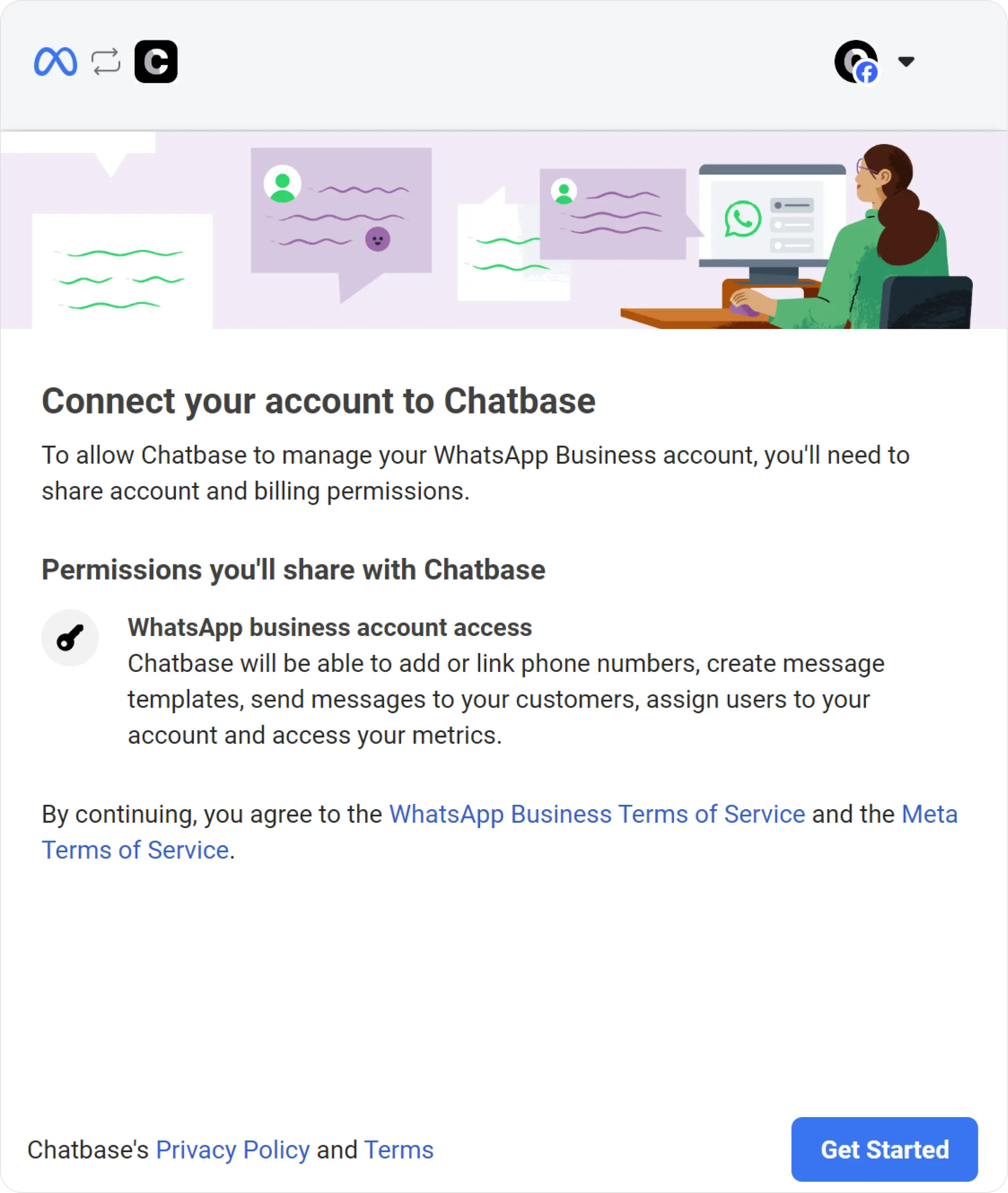
Log in with your personal Facebook account, then click Get started.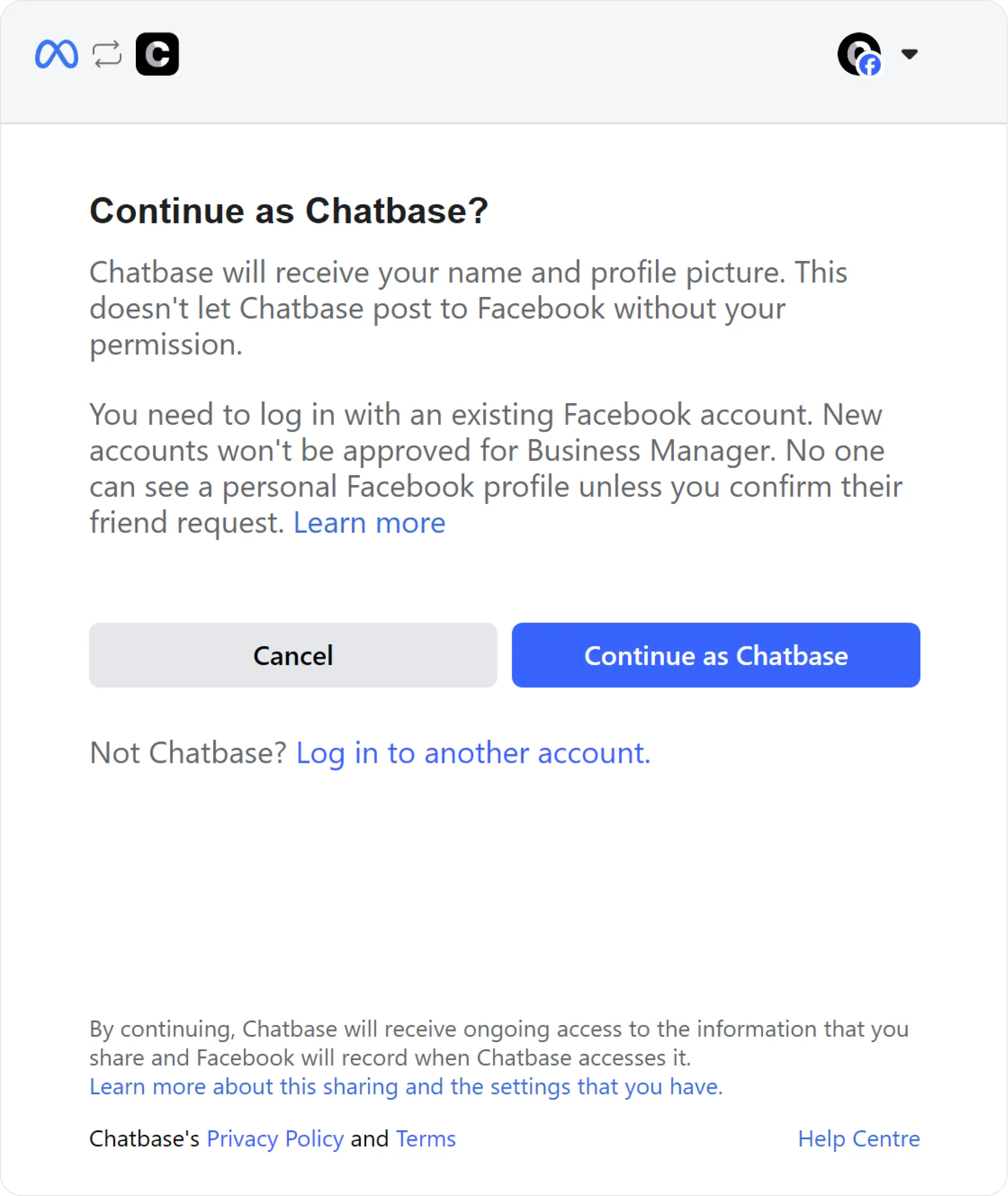
3
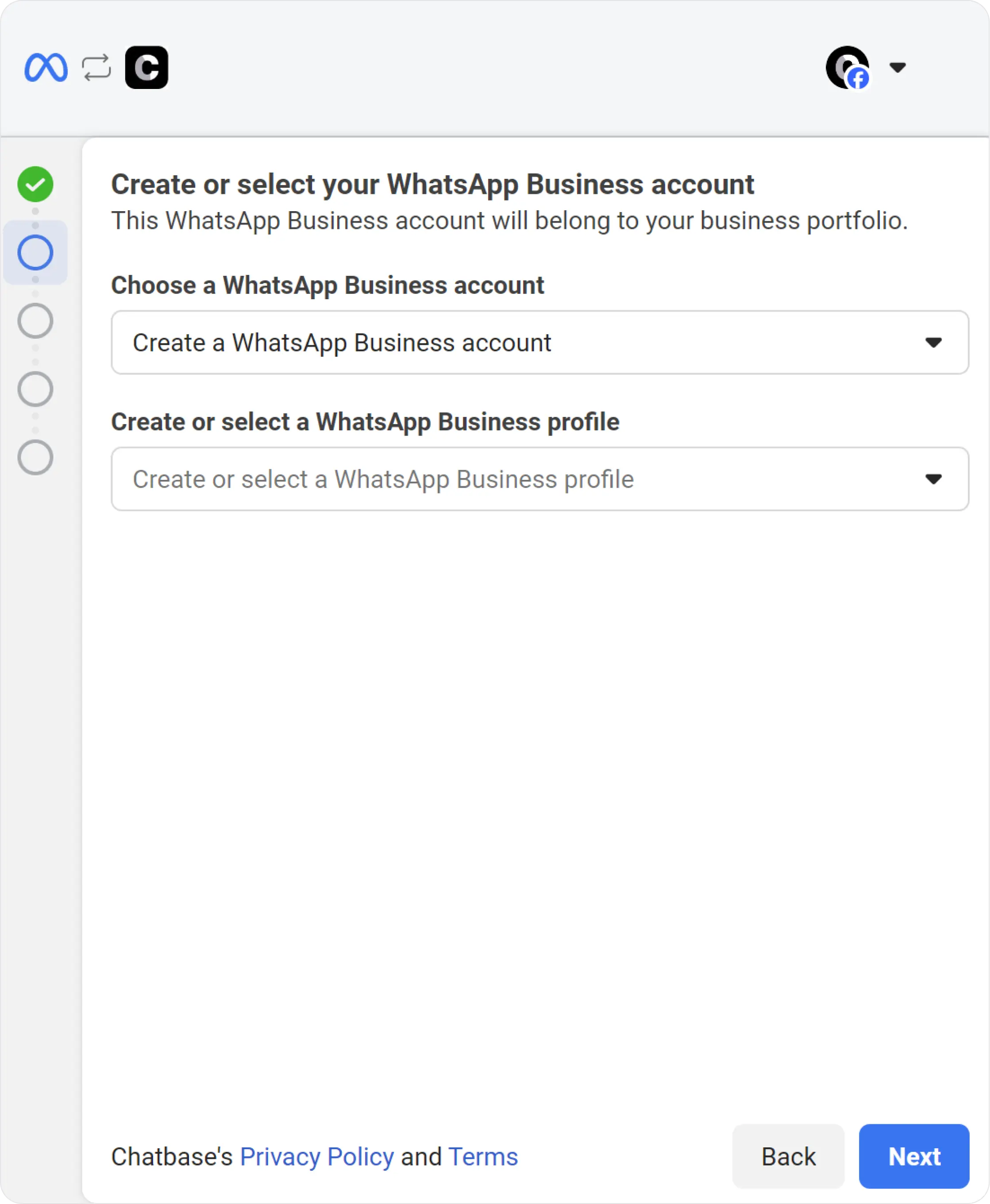
Choose or create a business profile
Select an existing business profile or create a new one, then create or select a WhatsApp business profile.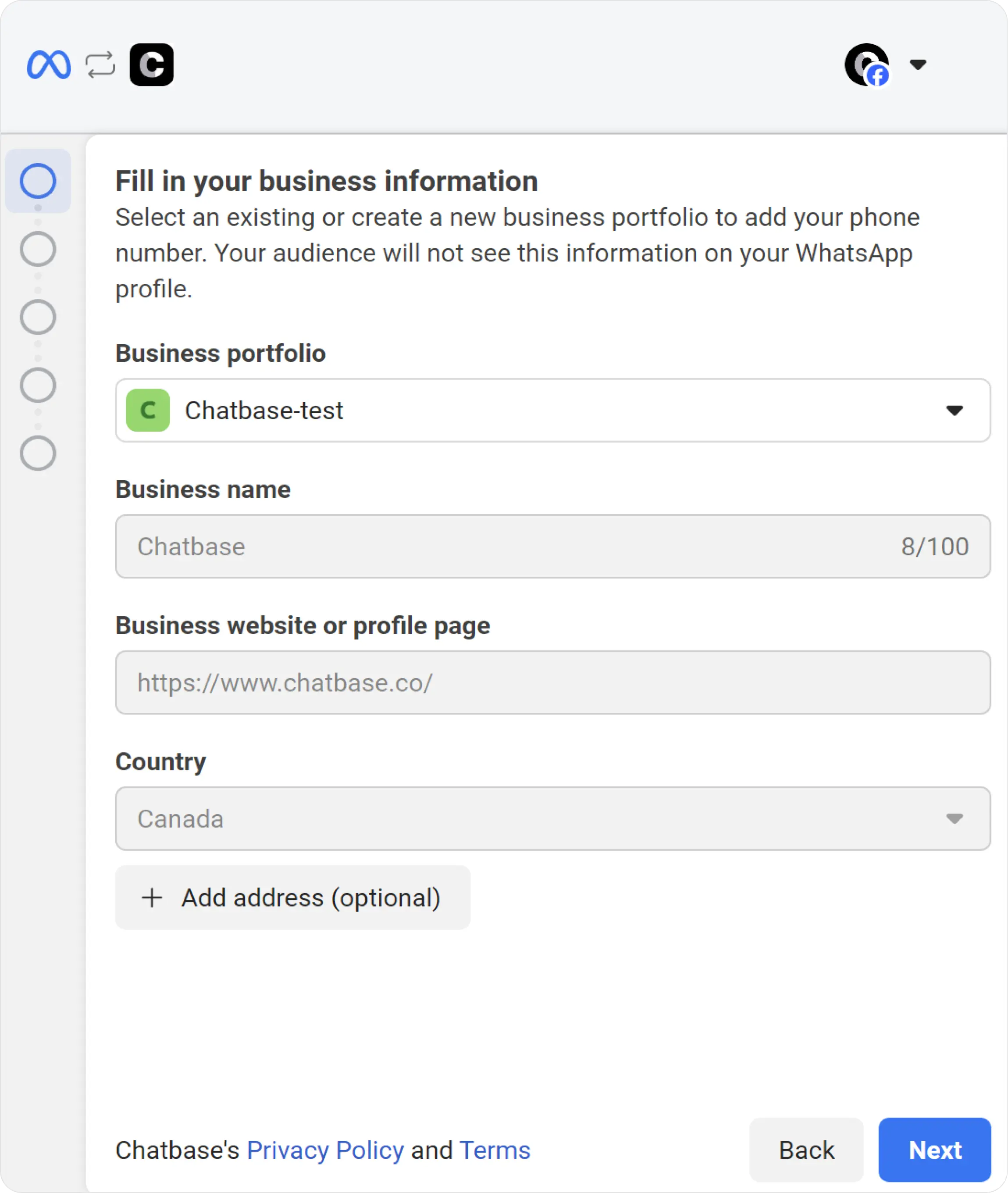
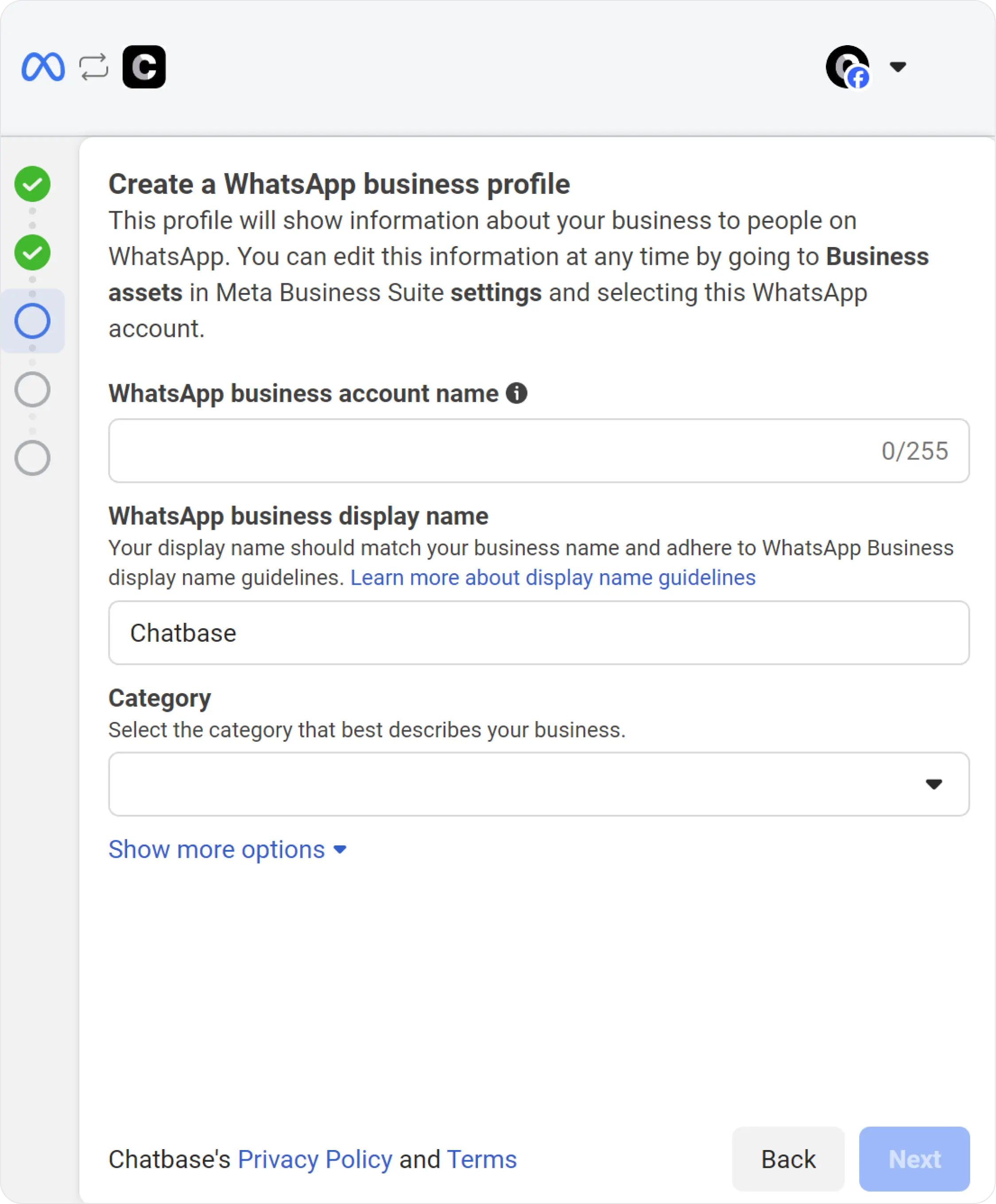
4
Add a phone number
Add a phone number. It’s recommended to have only one associated number in this profile, then click Continue.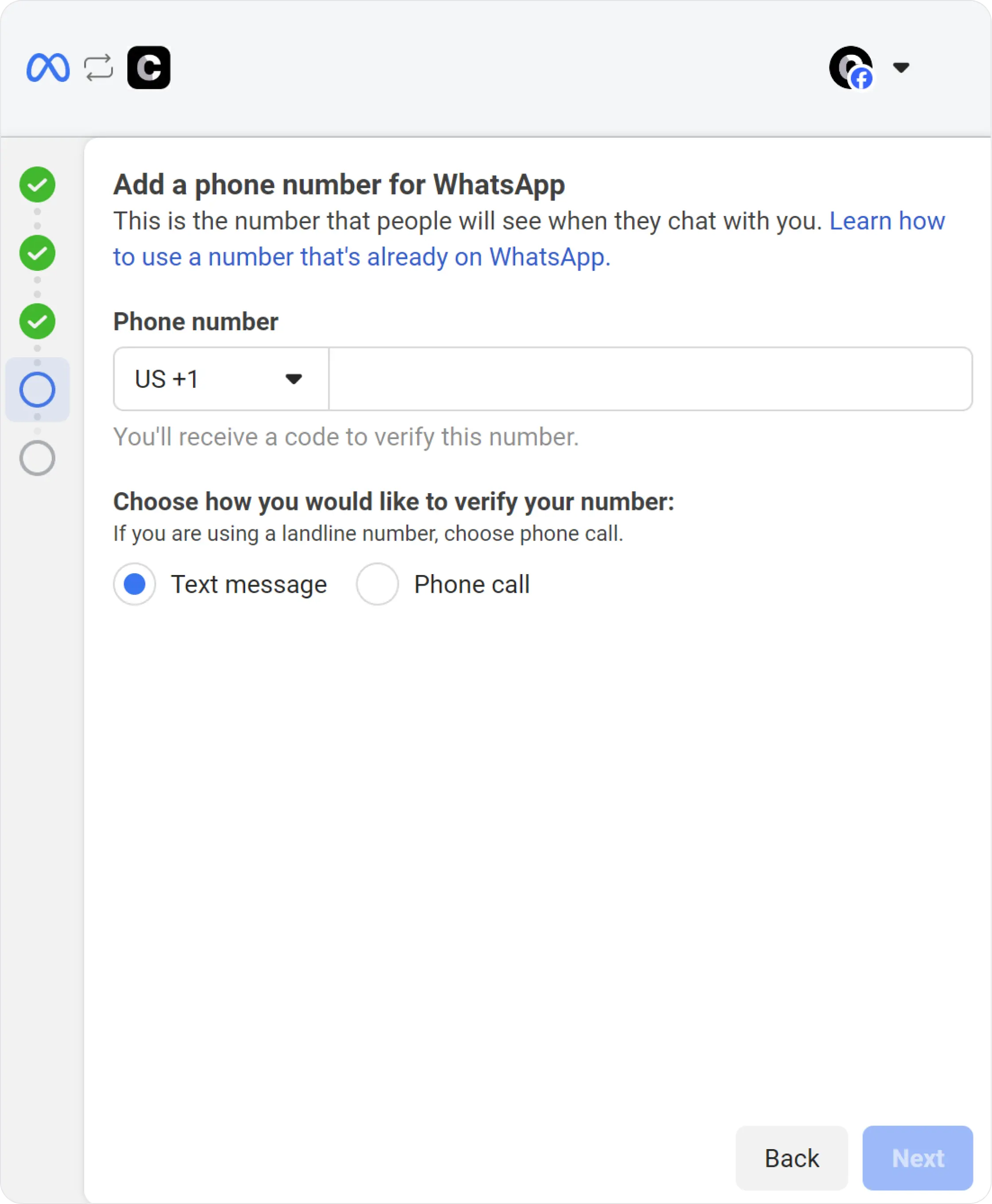
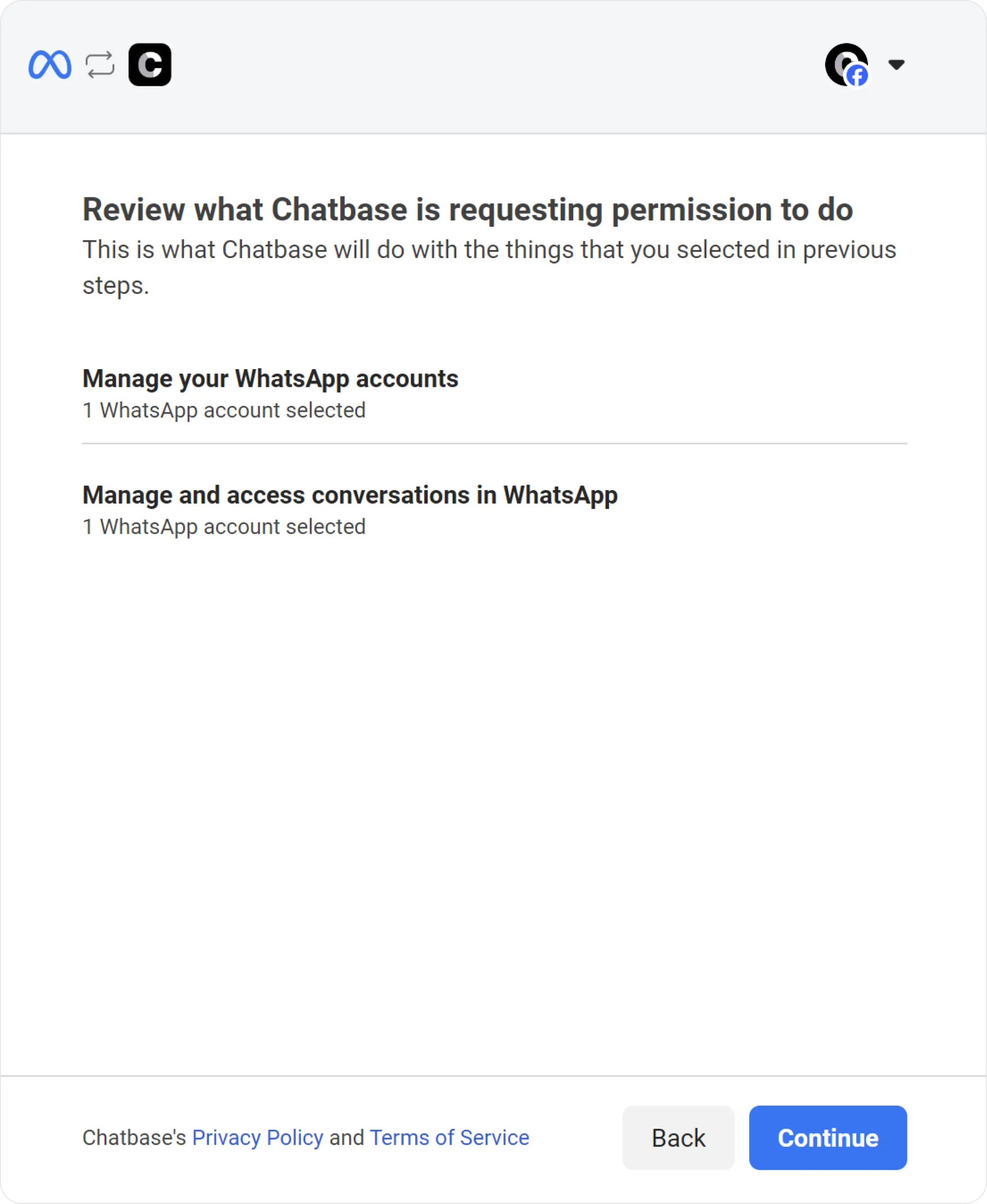
5
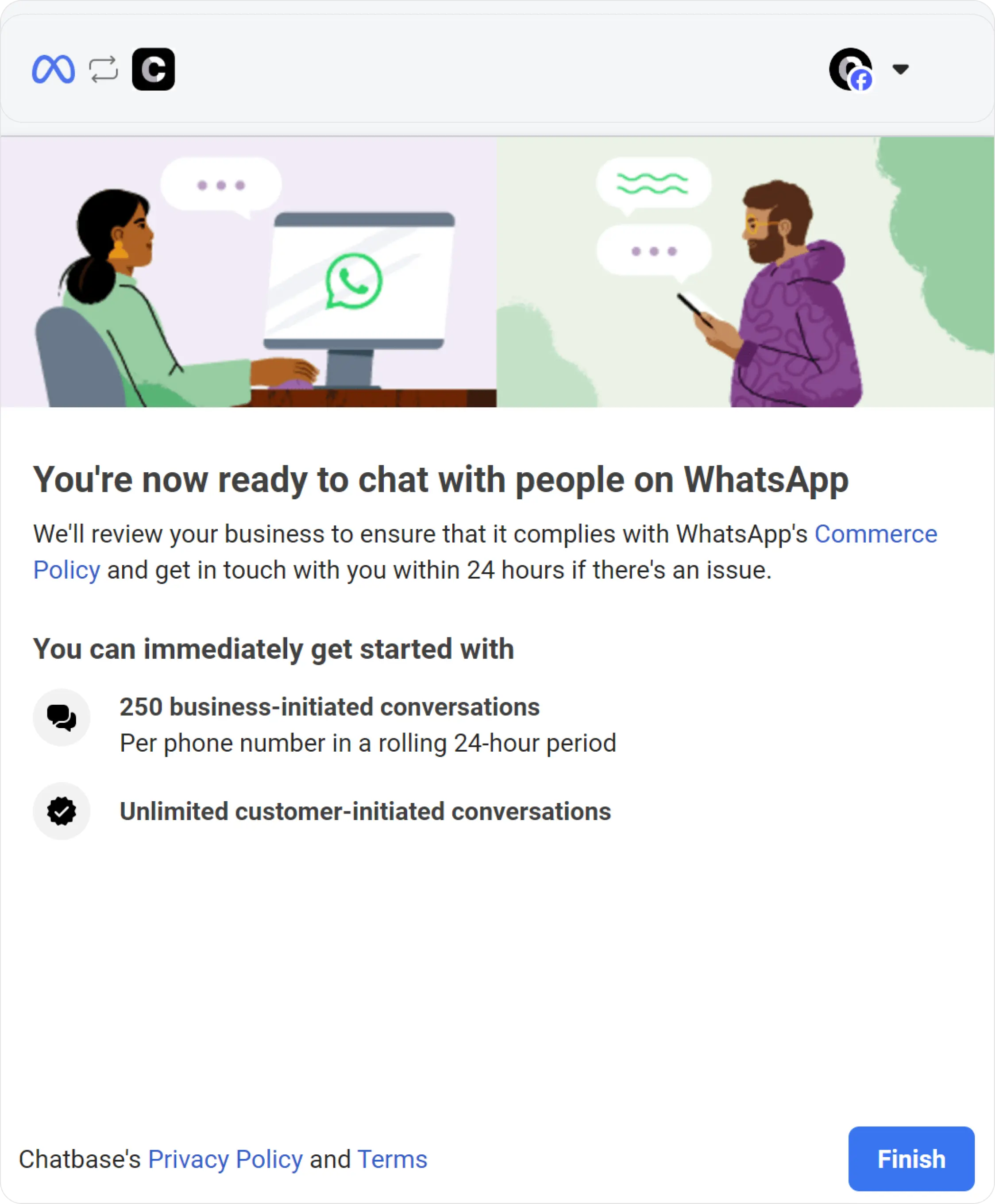
Finish the connection
Wait a few seconds for information verification, then click Finish.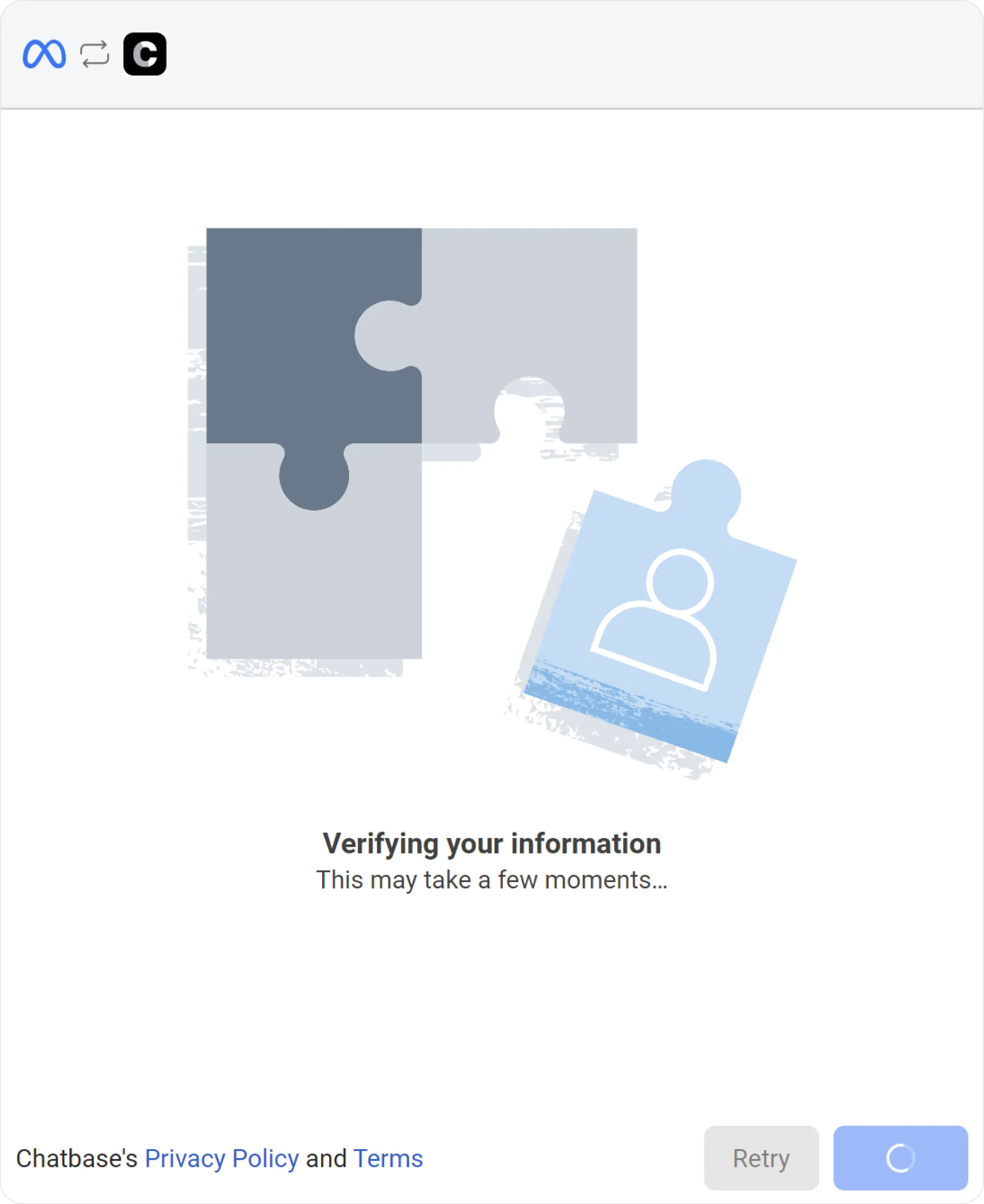
6
Update your WhatsApp settings (optional)
Navigate to Profile, update your WhatsApp settings, then click Save.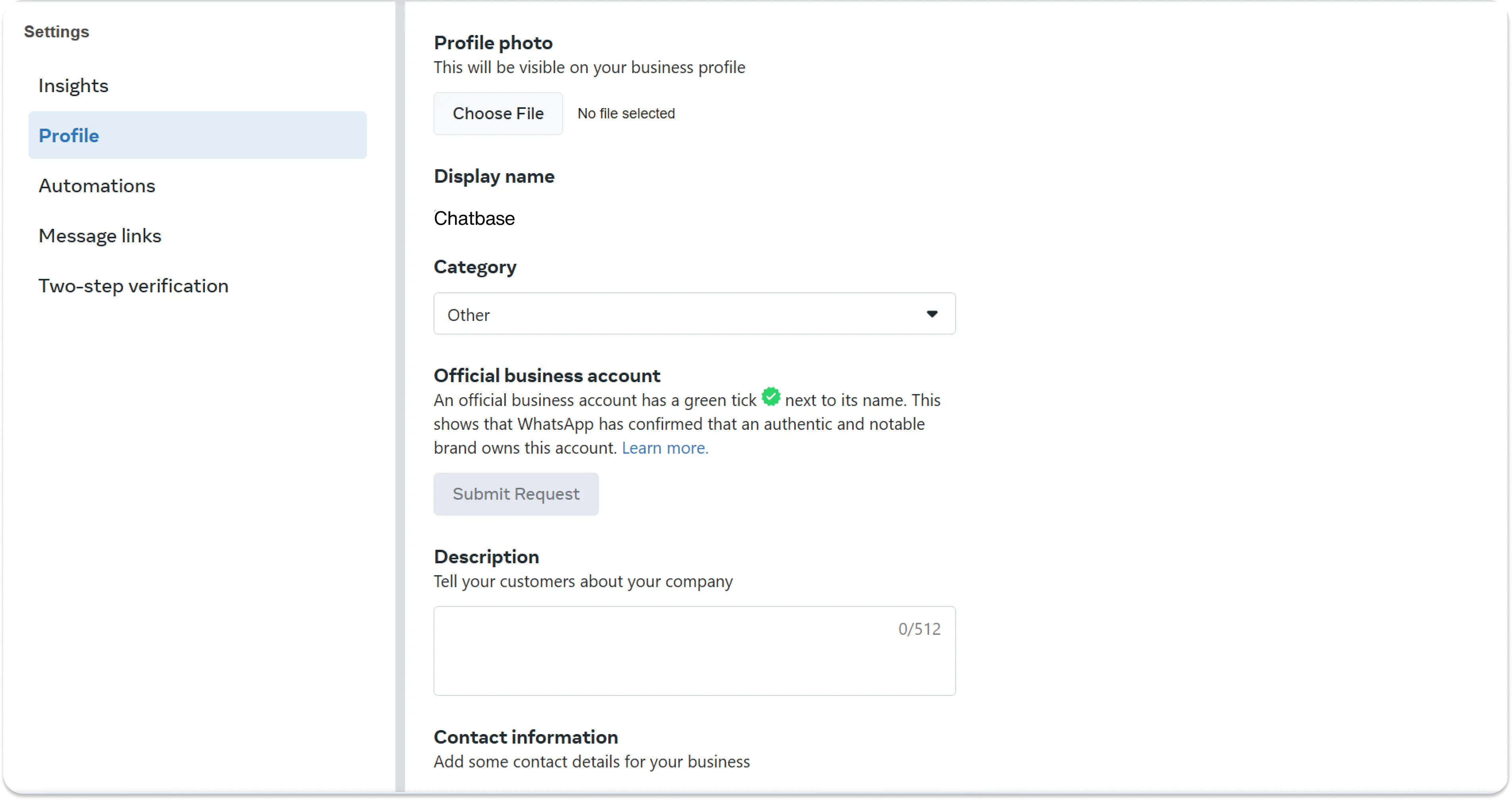
Send a message to your connected WhatsApp number and confirm your AI agent replies.
Automatic lead collection
Chatbase can automatically collect basic customer information from WhatsApp conversations, including the phone number and name when available. To enable it:- Go to Channels → WhatsApp → Manage → Leads.
- Toggle Enable Automatic Collection of Leads.
- Select the WhatsApp number or numbers you want to apply this to.
For more advanced lead capture and customization, use the Collect Leads Action in your AI agent.
Response delay
Customers on WhatsApp often send several short messages in a row. If your AI agent replies too fast, it answers each message separately before the customer has finished. The WhatsApp response delay sets how long your AI agent waits after the latest customer message before it replies. Messages sent during that wait are grouped into one reply instead of one reply per message. To set it:- Go to Channels → WhatsApp → Manage → Delay.
- For each WhatsApp number, set a Minimum delay and a Maximum delay in seconds.
- Click Save.
Both values can be between 2 and 30 seconds, and the maximum can’t be lower than the minimum. Numbers you haven’t configured wait 2 seconds.
Messaging limits and billing
WhatsApp conversations involve two separate costs: Chatbase message credits for your AI agent’s replies, and Meta’s charges for messages sent through WhatsApp. Chatbase message credits. Each reply your AI agent sends uses message credits based on its AI model (Auto is the default). A reply that triggers an Action, such as looking up an order, costs twice the model’s usual credits. Attachments customers send add credits per image or per PDF page. Meta charges. Once your integration is active, the first 1000 messages your AI agent sends each month are free. To send more, add a payment method in your Meta billing settings. Meta also charges for each template message, whether you send it from the Helpdesk or in a campaign, with fees that vary by country and template category. See Meta’s WhatsApp pricing for current rates. The 24-hour window. Your AI agent and your team can send free-form replies within 24 hours of the customer’s last message. After that, the only way to reach the customer is an approved template. When the customer replies, the window opens again. Messaging tiers. Meta assigns your WhatsApp Business Account a messaging tier based on quality and volume, which sets how many unique contacts you can message per day. Your current usage is shown as Meta limits on the Outbound campaigns page. See WhatsApp Campaigns.You can enable or disable the WhatsApp integration without disconnecting it. Disabling pauses messages while keeping your setup intact, and you can re-enable at any time. New chats still appear in Activity > Conversations.
Limitations
- The number is exclusive to the AI agent. A number connected to Chatbase can’t also be used in the WhatsApp or WhatsApp Business app. To keep using the WhatsApp Business app, use coexistence.
- 1000 free AI messages per month. Meta doesn’t charge for the first 1000 messages your AI agent sends each month. Beyond that, a payment method is required in Meta billing.
- Free-form replies are limited to a 24-hour window. After that you must use an approved template. See WhatsApp Templates.
Best practices
Give WhatsApp its own instructions
Turn off Sync with global instructions for the WhatsApp channel to write instructions for WhatsApp only, for example shorter answers for a phone screen. See Instructions and global instructions.
Turn on the commerce Actions together
If you sell on WhatsApp, enable Update cart, Get cart, and Create order along with Retrieve and display products on the WhatsApp channel, so customers can move between catalog cards and the chat and still check out in one order.
Set up a path to your team
Add an Escalations Action with Chatbase Helpdesk on WhatsApp, so customers who need a person get one in the same chat.
Add Meta billing before you need it
Add a payment method in Meta before you send templates or campaigns. Without one, template messages may fail to send.
Troubleshooting
The number can't be connected
The number can't be connected
If the number is already registered in the WhatsApp or WhatsApp Business app, delete the account in the app first, or connect it with coexistence to keep using the app. If you used the number through Meta Developer before, turn off two-step verification. See Before you start.
The AI agent stopped replying in a conversation
The AI agent stopped replying in a conversation
Check whether the conversation has an open Helpdesk ticket: the AI agent stays off until the ticket is closed. A conversation can also be paused manually from Activity > Conversations or automatically by Spam detection. If it stopped on every conversation, check that the WhatsApp integration is enabled.
You can't send a free-form message to a customer
You can't send a free-form message to a customer
The 24-hour window has closed. Send an approved template instead. Once the customer replies, you can send free-form messages again.
Template or campaign messages fail to send
Template or campaign messages fail to send
Check that the contact has a valid WhatsApp phone number and that a payment method is set in your Meta billing settings. For campaigns, Meta rate limits can also cause failures. See WhatsApp Campaigns troubleshooting.
Frequently asked questions
Can I keep using my number in the WhatsApp Business app?
Can I keep using my number in the WhatsApp Business app?
Yes, with WhatsApp Business App Coexistence. Your AI agent and the app share the number, and replying from the app pauses the AI for that conversation. With the regular setup on this page, the number can only be used by the AI agent.
Can the AI agent message customers first?
Can the AI agent message customers first?
Only with an approved template. Send one to a single customer from a Helpdesk ticket, or to many contacts at once with WhatsApp Campaigns. Free-form messages are only allowed within 24 hours of the customer’s last message.
How much does WhatsApp cost?
How much does WhatsApp cost?
Your AI agent’s replies use Chatbase message credits based on its model, and twice that when a reply triggers an Action. On Meta’s side, the first 1000 messages your AI agent sends each month are free, and template messages are charged per message by country and category. See Messaging limits and billing.
Can customers buy products inside WhatsApp?
Can customers buy products inside WhatsApp?
Yes, if you use Shopify. WhatsApp Catalog shows your products as native product cards with a WhatsApp cart, and the Create order Action places the order.
Can I connect more than one number?
Can I connect more than one number?
Yes. Connect as many WhatsApp numbers as you need and manage them from Channels → WhatsApp → Manage. Lead collection and response delay are set per number.
Next steps
WhatsApp Templates
Create approved message templates so you can reach customers after the 24-hour window closes.