

Best for:
Showing open times for demos, consultations, and support calls right in the conversation, so customers go straight to the slot they want.
- “I’d like to book a call”
- “What times are you free this week?”
- “Can I schedule a demo for Thursday?”
Prerequisite: Before using the Calendly Action, connect your Calendly account from the Integrations tab. If you’d rather not set up an integration, Cal.com works from an event URL alone, and it books the meeting inside the chat.
How it works
- The customer asks to book a meeting. Based on your When to use instructions, the AI agent calls the Action and picks a search window. By default, the window runs from today to 28 days later. A start date in the past is moved to now.
- A slot picker card appears in the chat. The customer picks a date, then a time. Times are shown in the customer’s browser time zone.
- Picking a time opens Calendly’s scheduling page for that slot in a new tab. The customer completes the booking there.
- The card in the chat then reads “You attempted to book a slot at on .”
Example
An example conversation on the Chat Bubble:Customer: Can I book an essay feedback session next week? AI agent: I have found available slots between Monday and Friday. Pick a time below. (Jane Doe picks Wednesday at 14:00. Calendly opens in a new tab, where she confirms the booking.) Card: You attempted to book a slot at 14:00 on Wednesday.
How to create the Action
1
Connect Calendly
Go to the Integrations tab and connect your Calendly account.
2
Navigate to Actions
Go to your Chatbase dashboard and select your AI agent. Click Build > Actions in the left sidebar.
3
Create the Action
Click Create Action, then select Calendly Get Slots.
4
Configure General Settings
Action Name: Give the Action a descriptive name. The AI agent uses this name to help decide when the Action applies, so make it specific.When to use: Describe when the Action should be triggered and the kind of customer queries that should trigger it. You can also add instructions the AI agent should follow once the Action runs. See Examples below.To restrict the Action to Procedure steps only, turn on Only use in Procedures. When it’s on, the When to use field is hidden, because the AI agent no longer decides when to call the Action.
5
Select your event
Choose the event you want the AI agent to show slots for from the Event dropdown. It lists the active event types of the connected Calendly user, by name (the first 100). If none are active, it shows “No events found”.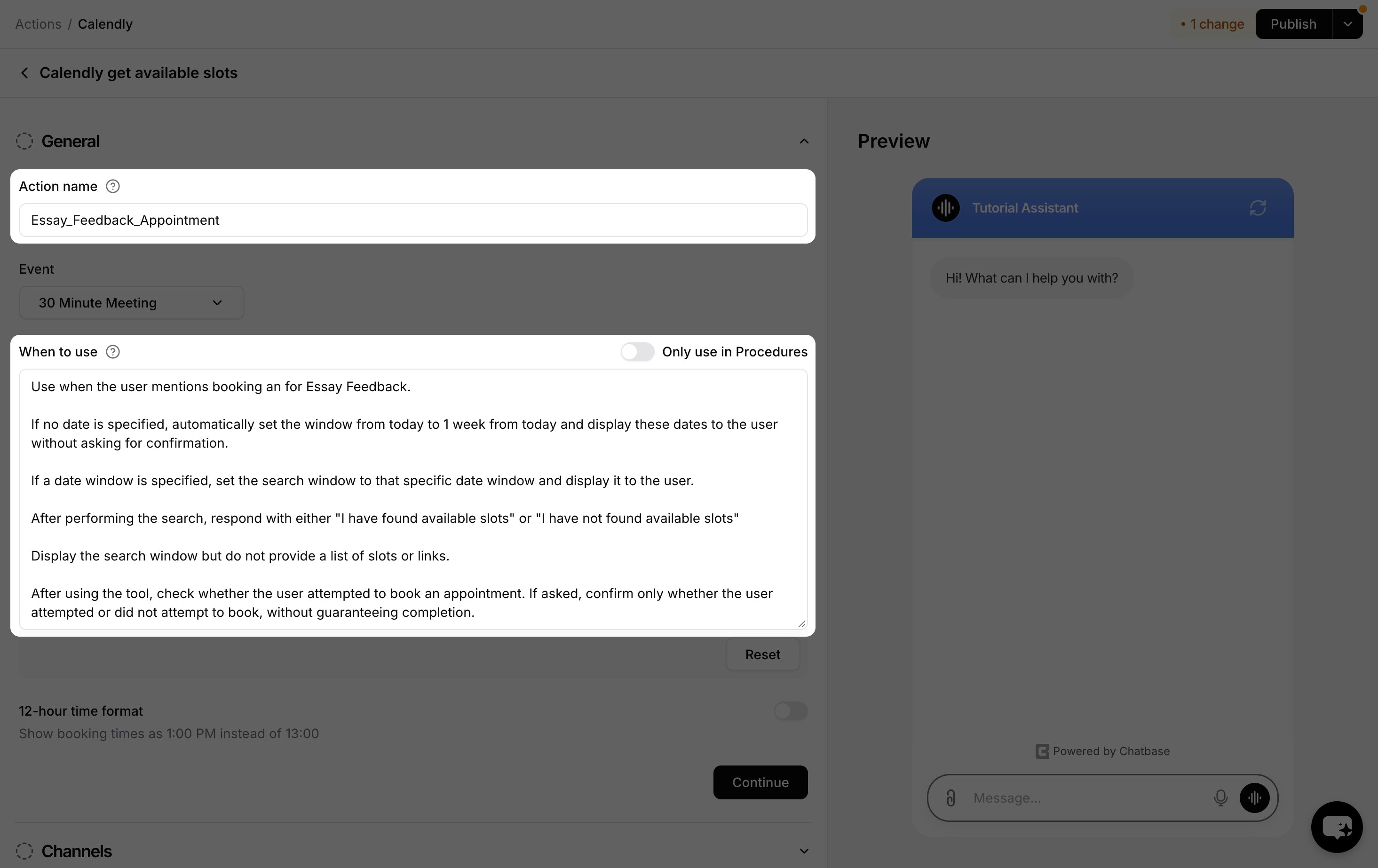
6
Choose Channels
This Action is compatible with the Chat Bubble, Help Page, and Center Stage channels only. Every other channel is incompatible and can’t be selected. Toggle it on or off for each configured channel. See Channels for what configured, unconfigured, and incompatible mean.
7
Enable and Test
Ensure the Action is toggled to Enabled, then test it.
Settings
Time format: You can display Calendly meeting times in a 12-hour format (AM/PM) instead of the default 24-hour format.Test the Action by asking your AI agent to book an appointment, pick a slot, finish the booking on the Calendly page that opens, and confirm it appears on your Calendly calendar.
Examples
A detailed When to use description that controls the search window, the wording of the reply, and how the AI agent reports the outcome:Troubleshooting
The card shows "Something went wrong. Please try again."
The card shows "Something went wrong. Please try again."
Chatbase couldn’t fetch slots from Calendly. This happens when Chatbase’s access was revoked on Calendly’s side or the selected event type was deleted. Reconnect Calendly under Integrations, then check the Event selected in the Action.
The Event dropdown shows "No events found"
The Event dropdown shows "No events found"
The connected Calendly user has no active event types. Turn an event type on in Calendly, then reopen the Action.
The Calendly Action disappeared
The Calendly Action disappeared
Disconnecting Calendly in Chatbase deletes the Calendly Action. Connect Calendly again and recreate the Action.
Best Practices
Clear Action Triggers
Write a specific When to use description so the AI agent knows exactly which requests should open the booking flow. Name the event type if you run more than one.
Set the Search Window
Tell the AI agent what to do when the customer gives no date, so it doesn’t ask a clarifying question it could have answered with a sensible default.
Confirm the Outcome
Instruct the AI agent to report only that the customer attempted to book. The booking is finished on Calendly, so Chatbase can’t confirm it completed.
Test Thoroughly
Test the Action with several phrasings before going live, and verify each booking lands on the right Calendly event.
Frequently asked questions
Is the meeting booked inside the chat?
Is the meeting booked inside the chat?
No. The customer picks a slot in the chat, and Calendly’s scheduling page opens in a new tab for that slot, where they complete the booking. To book inside the chat, use the Cal.com Action.
Which Calendly events can I pick?
Which Calendly events can I pick?
The active event types of the connected Calendly user, up to the first 100.
Which time zone are the slots shown in?
Which time zone are the slots shown in?
The customer’s browser time zone.
How far ahead does it search?
How far ahead does it search?
The AI agent picks the window. By default it’s today to 28 days later. To search further ahead, say so in When to use.
Which Chatbase plan do I need?
Which Chatbase plan do I need?
Any paid plan. The Calendly integration isn’t available without one.
What happens if I disconnect Calendly?
What happens if I disconnect Calendly?
Disconnecting Calendly in Chatbase deletes the Calendly Action. If you reconnect, create the Action again.