

Best for:
Answering questions that depend on live or fast-changing information, and filling gaps your training sources don’t cover.
- Questions about information that changes too often to keep in a training source
- Topics covered on your industry’s reference sites but not on your own
- Follow-up questions the AI agent can’t answer from your sources alone
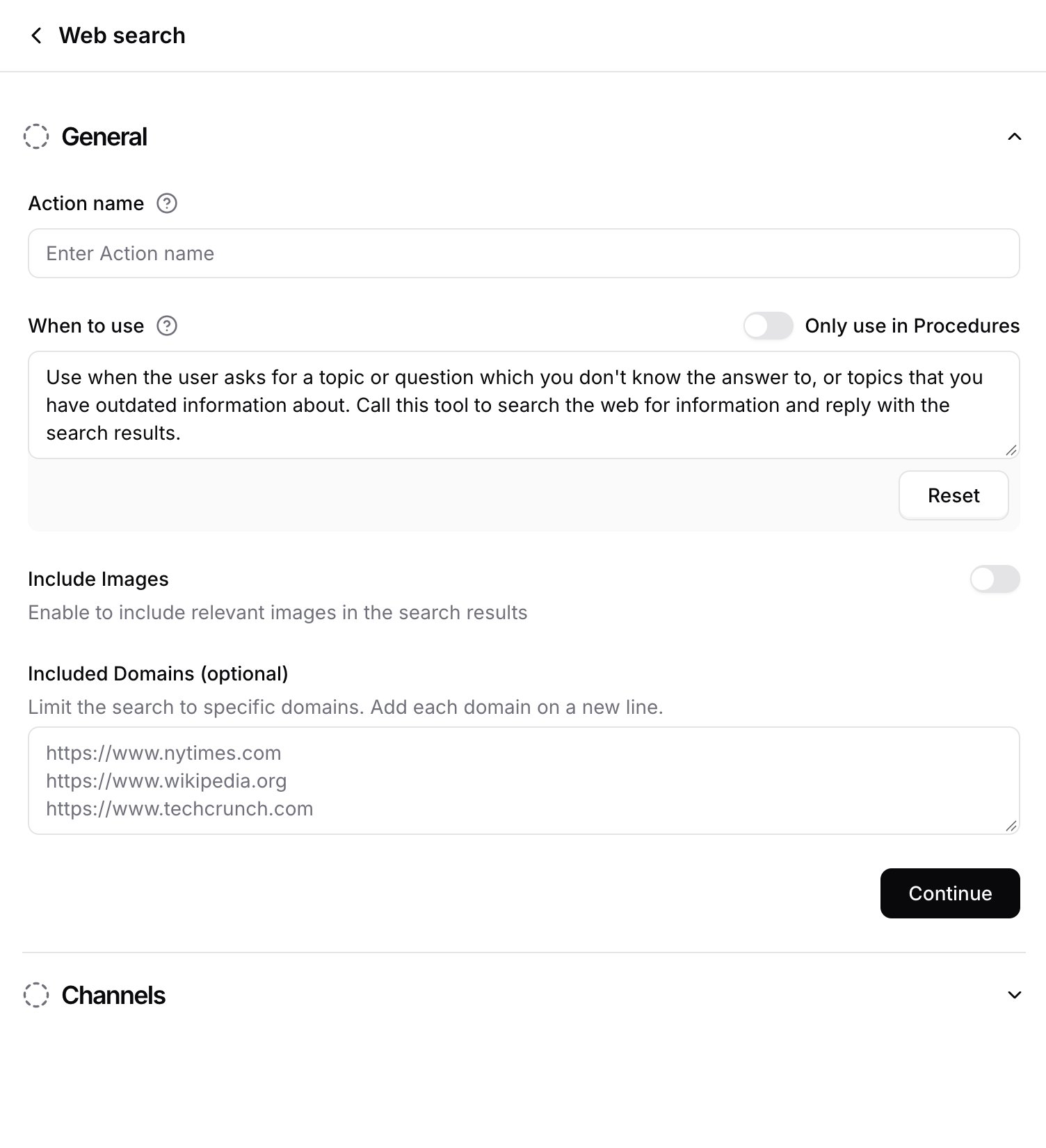
How to create the Action
1
Navigate to Actions
Go to your Chatbase dashboard and select your AI agent. Click Build > Actions in the left sidebar.
2
Create the Action
Click Create Action, then select Web Search.
3
Configure General Settings
Action Name: Give the Action a descriptive name.When to use: Describe when the Action should be triggered and the kind of customer queries that should trigger it. You can also add instructions the AI agent should follow once the Action runs.To restrict the Action to Procedure steps only, turn on Only use in Procedures. When it’s on, the When to use field is hidden, because the AI agent no longer decides when to call the Action.
4
Configure the search settings
Set Include images and Included domains as described in Settings below.
5
Choose Channels
This Action is compatible with every channel. Toggle it on or off for each configured channel. See Channels for what configured, unconfigured, and incompatible mean.
6
Enable and Test
Click Enable, then test it.
Settings
Include images: Turn this on to have each search also return images related to the query, so the AI agent can add them to its reply to illustrate the answer. Images come from the same domains as the search results. Included domains: The specific domains the AI agent is allowed to search. Leave this empty and the AI agent searches the whole web; add domains and it searches only those. Adding sites related to your business field keeps results relevant and on-brand. Enter one domain per line, written as a full URL, for example:- Enter domains, not pages. Each entry is reduced to its domain before searching, so
https://www.example.com/blogsearches all ofwww.example.com, not just the blog. - Leave out
wwwto cover every subdomain. A root domain likehttps://example.comalso coverswww.example.com,docs.example.com, and other subdomains. An entry with a subdomain, likehttps://www.example.com, covers only that subdomain. - Each line must be a full URL. Otherwise the form shows “Please enter valid URLs, one per line, such as https://www.example.com”. Duplicate lines show “Please ensure all URLs are unique”.

Test the Action by asking your AI agent a question your training sources don’t cover, and confirm the answer reflects live information from the domains you allowed.
How Web Search works
When a customer’s question matches When to use, the AI agent sends a search query to a dedicated search service and reads the results (each with a title, URL and snippet, plus related images when Include images is on). It then writes its reply from those results. The model’s own built-in web search isn’t used, which is why the Action works the same with every model. Results go only to the AI agent: the chat shows no search results or source cards. If you want the AI agent to cite its sources, ask for it in When to use, for example “Include a link to the page you used.” Example. With Included domains set tohttps://example-transit.com and When to use set to “When a customer asks about current service disruptions”:
Customer: Is the Line 4 train running today? AI agent: Line 4 has planned works this weekend, with buses replacing trains between Central and Riverside. Other stations are running normally.
Best Practices
Restrict Your Domains
Add the reference sites you trust to Included domains rather than leaving the AI agent to search the open web.
Clear Action Triggers
Write a specific When to use description so the AI agent searches only when your own sources fall short, instead of reaching for the web first.
Prefer Your Own Sources
Anything you control and can keep current belongs in a training source. Use web search for what you can’t.
Test Thoroughly
Test with questions your sources don’t answer and check that the results are accurate and from the sites you expect.
Frequently asked questions
Does Web Search cost extra credits?
Does Web Search cost extra credits?
No extra charge applies to the search. A reply that triggers the Action is billed like any Action reply, at twice the model’s usual message credits. See Credit usage.
Can I limit Web Search to specific pages or folders of a site?
Can I limit Web Search to specific pages or folders of a site?
No. Each entry in Included domains is reduced to its domain, so a page or folder path still searches the whole site. To keep answers focused on one section, describe it in When to use.
Does the AI agent cite or link its sources?
Does the AI agent cite or link its sources?
Not automatically. The search results go only to the AI agent, and the chat doesn’t display them. Ask for links in When to use if you want sources in the reply.
Can the AI agent show images from the web?
Can the AI agent show images from the web?
Yes. Turn on Include images and each search also returns related images, which the AI agent can add to its reply. With Included domains set, images come only from those domains.
Which models and channels support Web Search?
Which models and channels support Web Search?
Every model and every channel, including WhatsApp, Slack, phone and the API. It’s also available on HIPAA accounts.