

Best for:
Alerting your team to issues worth a human’s attention (late orders, churn risk, bug reports) without escalating the conversation itself.
- Flagging a complaint or a late order to the support channel
- Notifying sales when a customer asks about enterprise pricing
- Telling your team about a reported bug as soon as it comes up
Prerequisite: Before using the Slack Action, connect Slack to Chatbase. The Slack integration needs a paid plan.
How it works
- A customer mentions one of the topics listed in your When to use instructions.
- The AI agent calls the Action, filling in the topic and the channel name from your instructions.
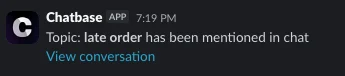
- Chatbase posts a message to that channel as Chatbase, with the Chatbase icon.
- The Action runs in the background, so the customer sees nothing for it in the chat.
# is removed.
What the notification looks like
Each notification has this fixed format:late order). The link opens the conversation in your Chatbase dashboard. If Chatbase can’t build the link, the message shows “Conversation ID: ” followed by the conversation’s ID instead. Nothing else from the conversation is included, and the format can’t be changed.
How to create the Action
1
Navigate to Actions
Go to your Chatbase dashboard and select your AI agent. Click Build > Actions in the left sidebar.
2
Create the Action
Click Create Action and select Slack. If Slack is connected, click Start customizing. If it isn’t, the dialog shows Connect Slack instead.
3
Choose your workspace
Select the Slack workspace you want connected to this Action from the Slack Workspace dropdown.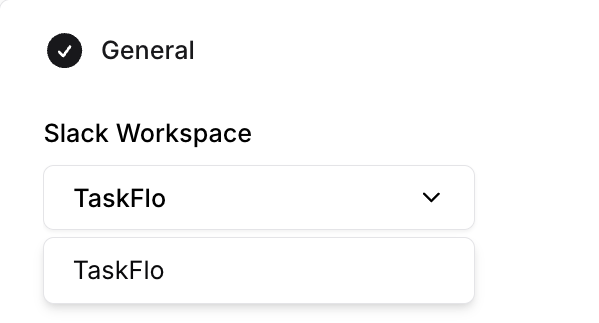
4
Configure General Settings
When to use: Provide a detailed description explaining when the AI agent should use this Action. Include the exact name of the channel to post to and the topics that should trigger it. See Examples below.To restrict the Action to Procedure steps only, turn on Only use in Procedures. When it’s on, the When to use field is hidden, because the AI agent no longer decides when to call the Action.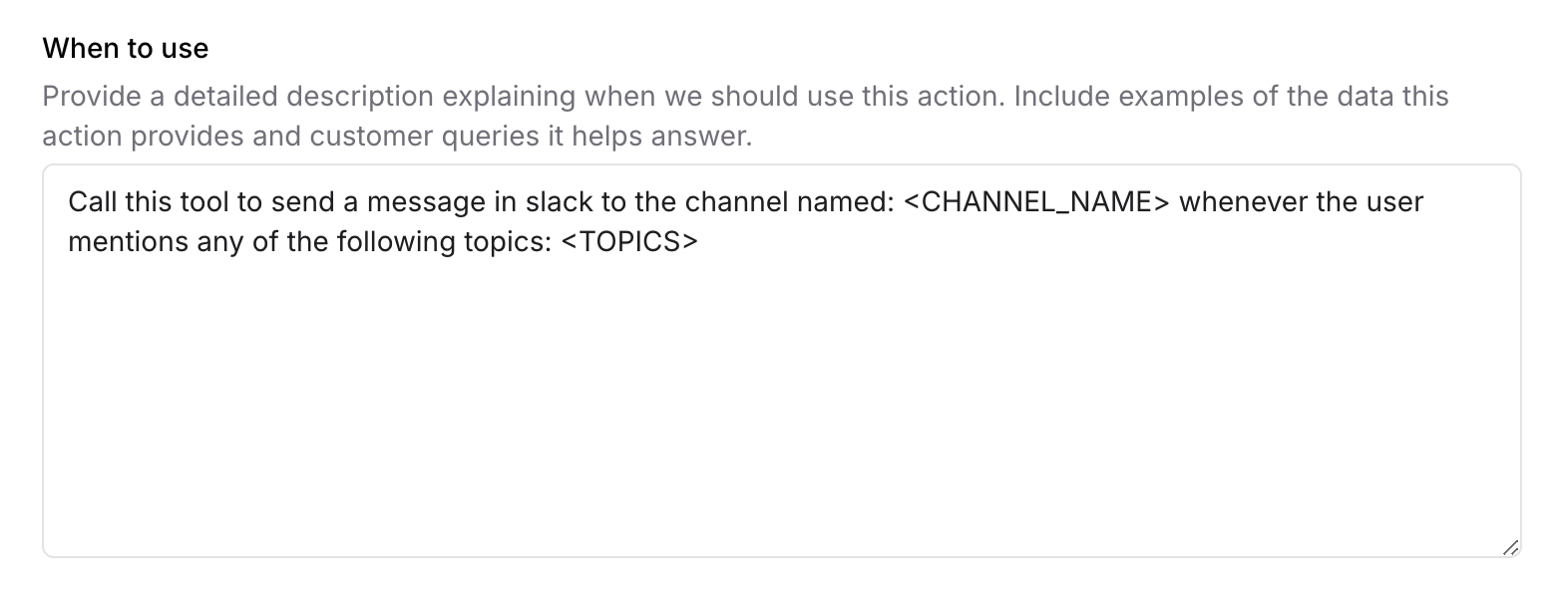
5
Invite the app to the channel
In Slack, invite the Chatbase app to the channel you named. Chatbase doesn’t join channels on its own, so the app may not be able to post to a channel it isn’t a member of. Private channels work the same way once the app is invited.
6
Choose Channels
This Action is compatible with every channel. Toggle it on or off for each configured channel. See Channels for what configured, unconfigured, and incompatible mean.
7
Enable and Test
Click Enable so the AI agent can post to your Slack channel.
Test the Action in the Preview panel of the Action editor, and confirm the notification arrives in the channel you named, not in another one.
Examples
A When to use description that names both the channel and the trigger topics: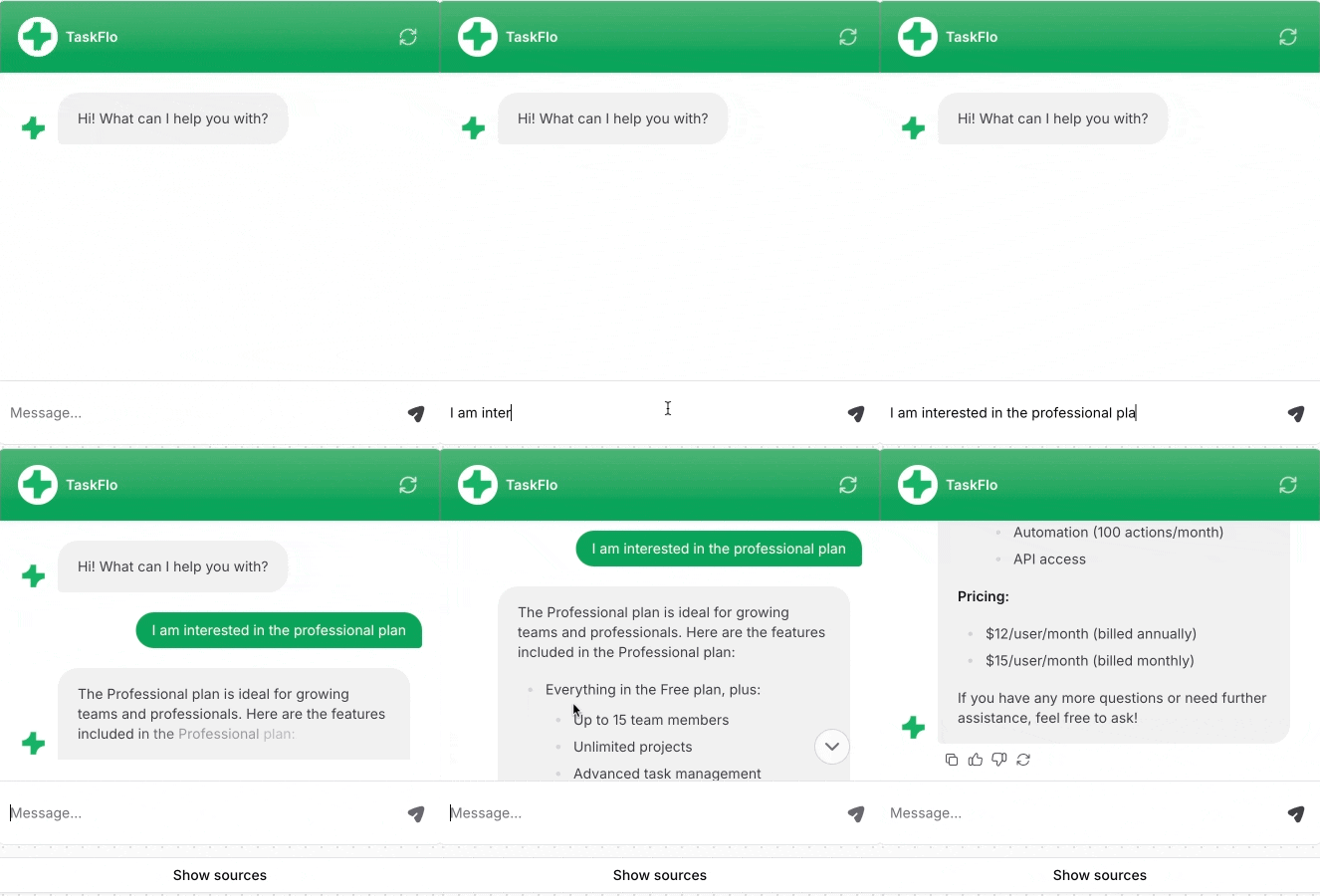
ai-actions-slack channel, with a direct link to that conversation:
Limitations
- Fixed message. The notification can’t @mention people, use
@here, or include more of the conversation. - Disconnecting Slack deletes the Action. If you disconnect Slack from Chatbase, create the Action again after reconnecting.
Best Practices
Name the Channel Exactly
Type the channel name exactly as it appears in Slack, so notifications don’t fall back to the first channel in the workspace.
List the Trigger Topics
Spell out the topics that should fire a notification. Vague instructions produce either noise or silence.
Notify, Don't Escalate
Slack tells your team something happened, but it doesn’t hand over the conversation. For that, use Escalations or Chatbase live chat.
Test Before Enabling
Send a test message from the Preview panel and confirm it arrives in the right channel before you turn the Action on.
Frequently asked questions
How do I choose which Slack channel gets the notification?
How do I choose which Slack channel gets the notification?
Name the channel in the When to use field. There’s no channel selector, only a Slack Workspace dropdown. If the name is wrong or missing, the message goes to the first channel in the workspace.
Why did the notification land in the wrong channel?
Why did the notification land in the wrong channel?
The channel name in When to use didn’t match a channel the Chatbase app can see, so Chatbase posted to the first channel in the workspace. Check the spelling, and invite the Chatbase app to the channel.
Can I post to a private channel?
Can I post to a private channel?
Yes, once you invite the Chatbase app to it.
Can the notification @mention someone or use @here?
Can the notification @mention someone or use @here?
No. The message format is fixed: the topic and a link to the conversation.
Does the customer see anything when the notification is sent?
Does the customer see anything when the notification is sent?
No. The Action runs in the background, and the chat shows nothing for it.