

Best for:
Getting a caller to the right person on the phone (sales, billing, or support) when the AI Agent can’t resolve the call itself.
- “Can I speak to a real person?”
- “Put me through to billing”
- “I need to talk to someone about my account”
How it works
1
The AI decides a transfer is needed
The AI Agent determines that a human should handle the conversation, based on the instructions you’ve provided in the When to use field.
2
The caller hears the hand-off message
Chatbase automatically plays your configured Message to caller before initiating the transfer.
3
The call is transferred
The live call is forwarded to the configured phone number. This is a cold (blind) transfer: the person who answers gets no summary or whisper of the conversation, so the caller may need to explain their issue again.
4
Transfer complete
Once the transfer begins, the AI Agent leaves the call and cannot resume the conversation.
How to create the Action
1
Navigate to Actions
Go to your Chatbase dashboard and select your AI agent. Click Build > Actions in the left sidebar.
2
Create the Action
Click Create Action, then select Transfer to phone number.
3
Configure General Settings
Action Name: A descriptive name for the Action, such as
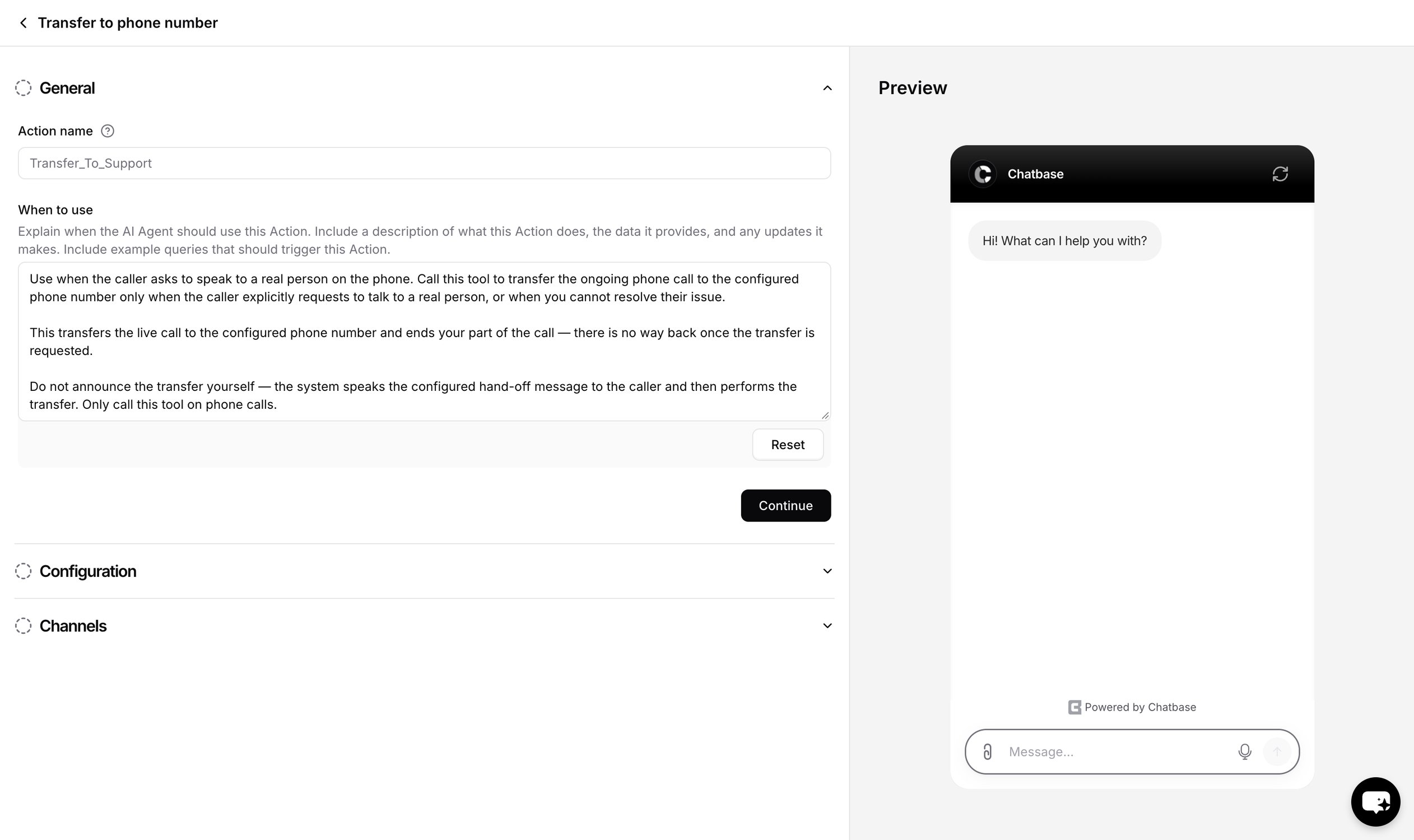
Transfer_To_Support. If you have multiple departments, create multiple transfer Actions: Transfer_To_Sales, Transfer_To_Support, Transfer_To_Billing.When to use: Describe exactly when the AI should perform the transfer. See Examples below.To restrict the Action to Procedure steps only, turn on Only use in Procedures. When it’s on, the When to use field is hidden, because the AI agent no longer decides when to call the Action.4
Configure the transfer
Set the destination number and the messages the caller hears. See Settings below.
5
Choose Channels
This Action is compatible with the Phone channel only. Every other channel is incompatible and can’t be selected. Click Setup next to Phone to configure the required phone integration. See Channels for what configured, unconfigured, and incompatible mean.
6
Enable and Test
Click Enable, then place a test call.
Settings
Phone number: The number that should receive transferred calls. It must use E.164 format: a+, the country code, and a valid number for that country, for example +12125551234. Mobile, landline, and international numbers are all accepted.
Only the following are supported:
- Twilio phone numbers
- SIP trunks
If you’re using a SIP trunk, make sure both SIP REFER and PSTN are enabled on the trunk before using this Action. Otherwise, call transfers will not work.
“Ah, it looks like I’m having a little trouble routing your call directly through our system right now. But don’t worry, I can still help you out. What’s the issue you’re running into today?”
If this field is left empty, the default failure message is used. Unlike Message to caller, it isn’t translated: it’s spoken exactly as typed, so write it in the language your callers use.
Test the Action by placing a call and asking to speak to a person. The caller should hear your hand-off message, and the call should arrive at the configured number.
Examples
A When to use description that defines the trigger and tells the AI agent not to narrate the transfer itself:When the transfer fails
The Message if the transfer fails plays only when the transfer request itself is rejected, for example when your phone provider refuses the transfer. Chatbase sets no ring timeout of its own, so how long the destination rings, and whether a busy or unanswered line is reported back as a failure, depends on your phone provider. If the destination doesn’t answer and the provider doesn’t reject the request, the caller won’t hear the failure message.Transfers in Activity
Each transfer shows up in the call’s transcript under Activity > Conversations as a card titled with the Action’s name. Click the card to see two tabs:- Parameters: the
transferMessageand thereasonthe AI Agent gave for the transfer - Result: the
status, plus thephoneNumber,transferMessage, andfailureMessage
A
success result means the transfer was requested, not that a person answered. Calls don’t have a separate “transferred” end reason.Limitations
- Once a transfer begins, the AI Agent cannot resume the conversation.
- Only calls on Twilio numbers and SIP trunks are supported.
- SIP trunks need SIP REFER and PSTN enabled, or transfers fail.
- No ring timeout from Chatbase. Ringing and no-answer handling are up to your phone provider.
- It can’t be tested in the voice playground. The Action runs only on the Phone channel, so test it with a real call.
Best Practices
Be Explicit
Clearly define when the AI should transfer the caller instead of trying to solve the issue itself.
Use Descriptive Names
If you have multiple transfer Actions, give each one a meaningful name like Transfer_To_Sales or Transfer_To_Billing.
Write a Natural Hand-off Message
Keep the message short so callers know they’re being connected.
Configure a Fallback
Always provide a friendly fallback message in case the transfer cannot be completed.
Frequently asked questions
Can I transfer calls to a mobile or international number?
Can I transfer calls to a mobile or international number?
Yes. Any valid number in E.164 format is accepted, including mobile, landline, and international numbers.
Does the person who answers get a summary of the call?
Does the person who answers get a summary of the call?
No. It’s a cold transfer. The AI Agent’s reason for the transfer is logged in Activity, but it isn’t passed to the person who answers.
What happens if nobody answers the transfer?
What happens if nobody answers the transfer?
The failure message plays only when the transfer request is rejected. Chatbase sets no ring timeout, so a busy or unanswered line is handled by your phone provider and may not trigger the failure message.
Can the AI Agent take the call back after a transfer?
Can the AI Agent take the call back after a transfer?
No. Once the transfer begins, the AI Agent leaves the call. It stays on the call only when the transfer request is rejected.
Can I transfer to different departments?
Can I transfer to different departments?
Yes. Create one Transfer to phone number Action per destination, such as
Transfer_To_Sales and Transfer_To_Billing, and describe in each When to use when it applies.Why can't I test the transfer in the playground?
Why can't I test the transfer in the playground?
The Action works only on the Phone channel, and the voice playground doesn’t count as Phone. Place a real call to a number connected to your AI agent instead.