

Best for:
Pointing customers to a pricing page, a booking form, a downloadable guide, or any destination that answers a question better than text does.
- “What are your pricing plans?”
- “Where can I download the app?”
- “How do I contact sales?”
How to create the Action
1
Navigate to Actions
Go to your Chatbase dashboard and select your AI agent. Click Build > Actions in the left sidebar.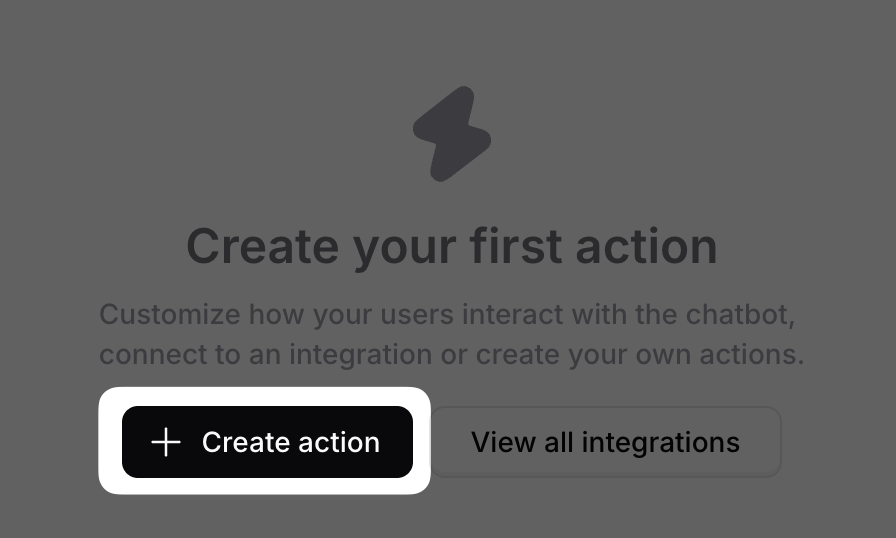
2
Create the Action
Click Create Action, scroll down, and select Custom Button.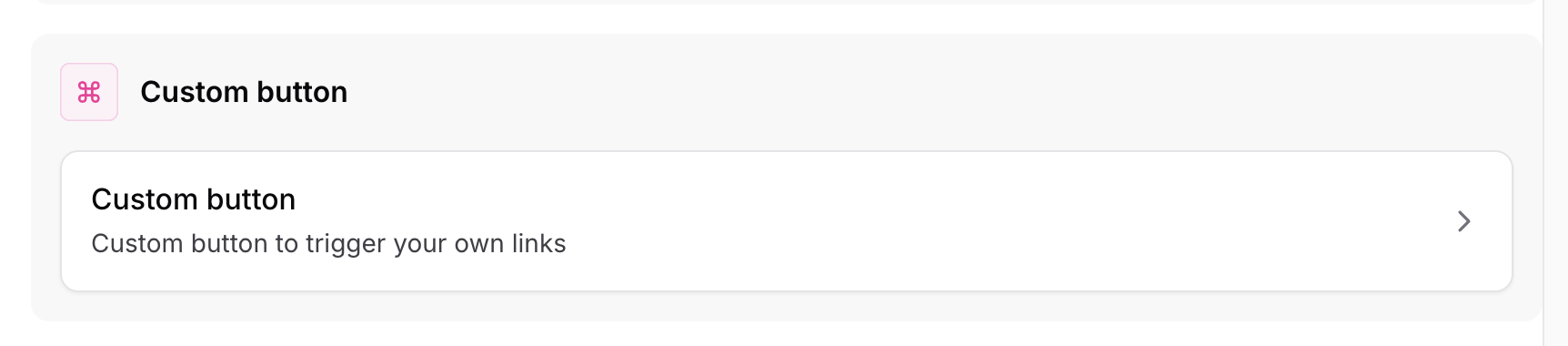
3
Configure General Settings
Action Name: A descriptive name for the Action, such as 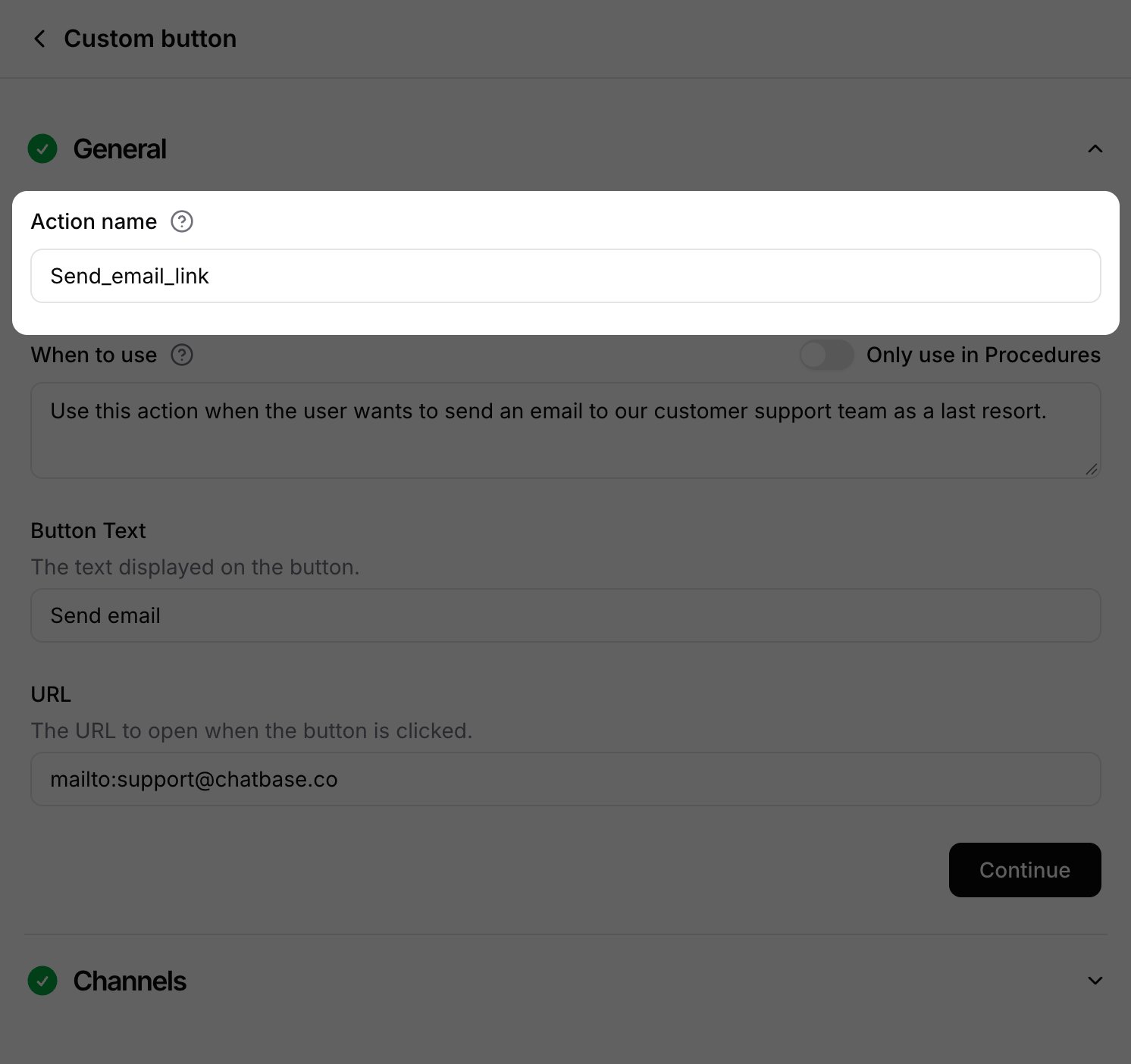
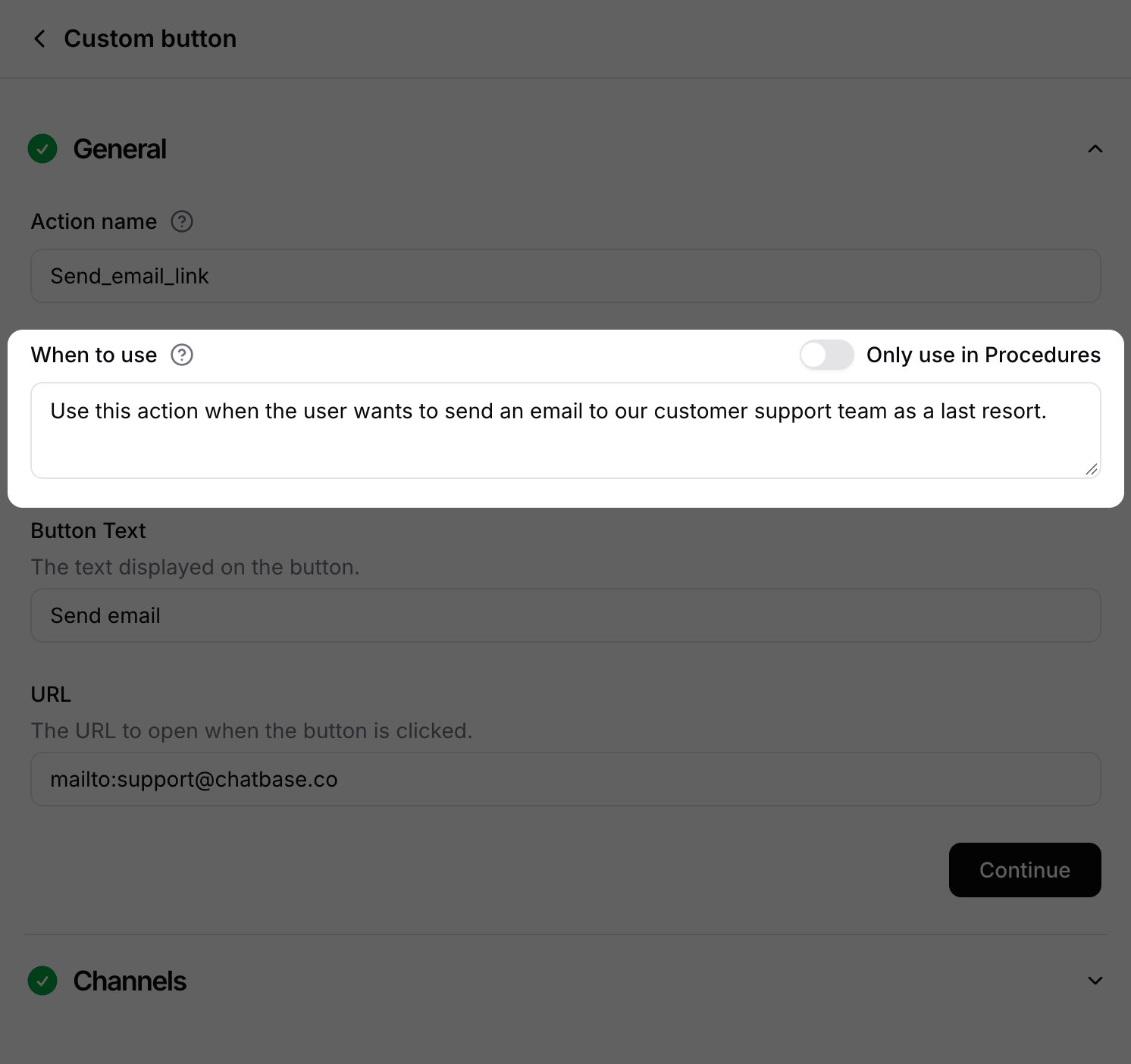
Pricing_Page_Button. The AI agent sees this name and uses it, together with When to use, to decide when to send the button. Names can contain only letters, numbers, underscores, and hyphens, with no spaces.4
Configure the button
Button text: The text shown on the button the customer sees.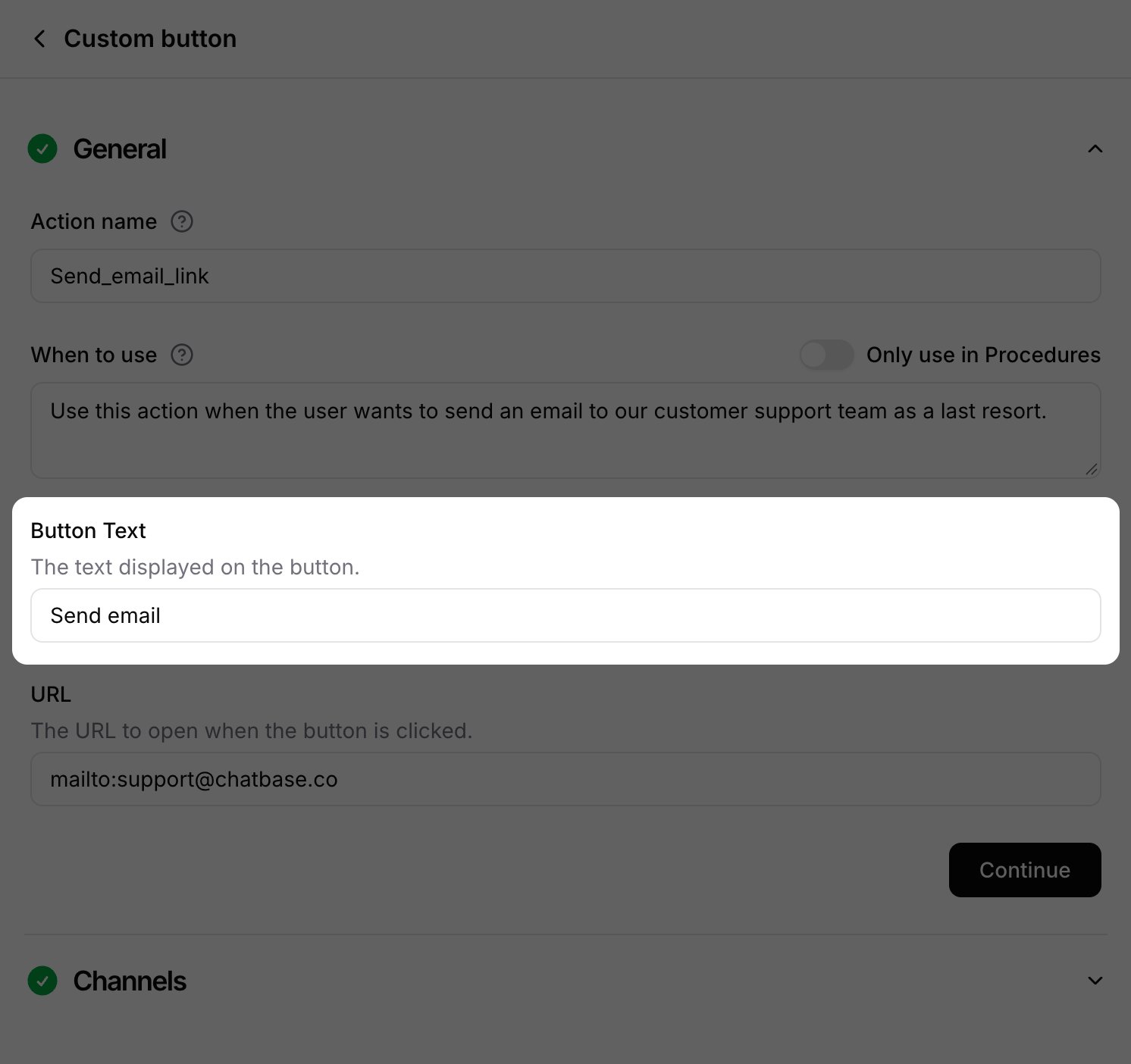
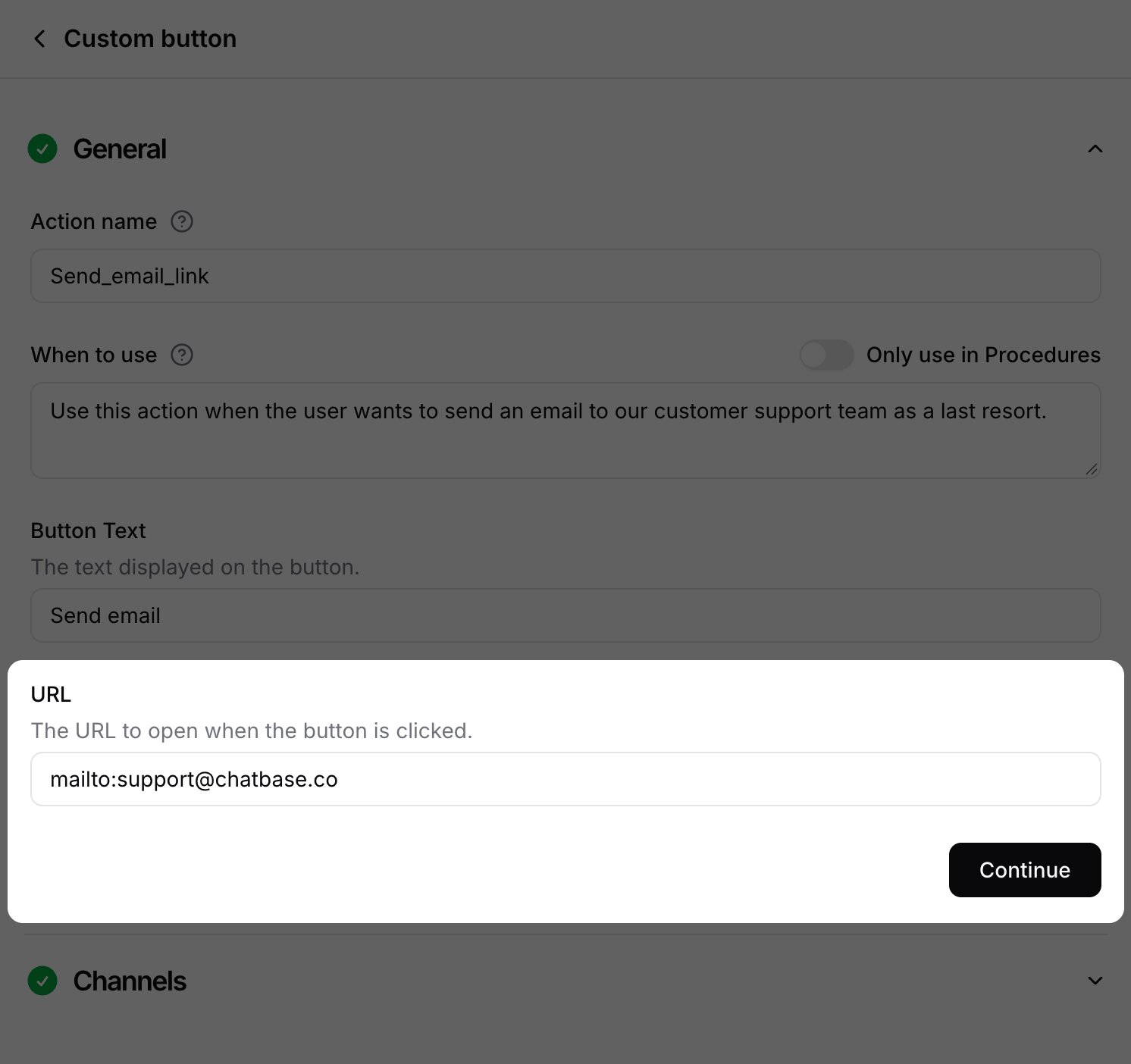
https://www.example.com/pricing?utm_source=chatbase.5
Choose Channels
This Action is compatible with the Chat Bubble, Help Page, and Center Stage channels only. Every other channel is incompatible and can’t be selected. Toggle it on or off for each configured channel. See Channels for what configured, unconfigured, and incompatible mean.
6
Enable and Test
Click Enable at the bottom of the page.
Test the Action in the Playground before enabling it, to confirm the AI agent sends the button with the right URL when your instructions are met.
Examples
A When to use description that tells the AI agent both what to say and when to attach the button: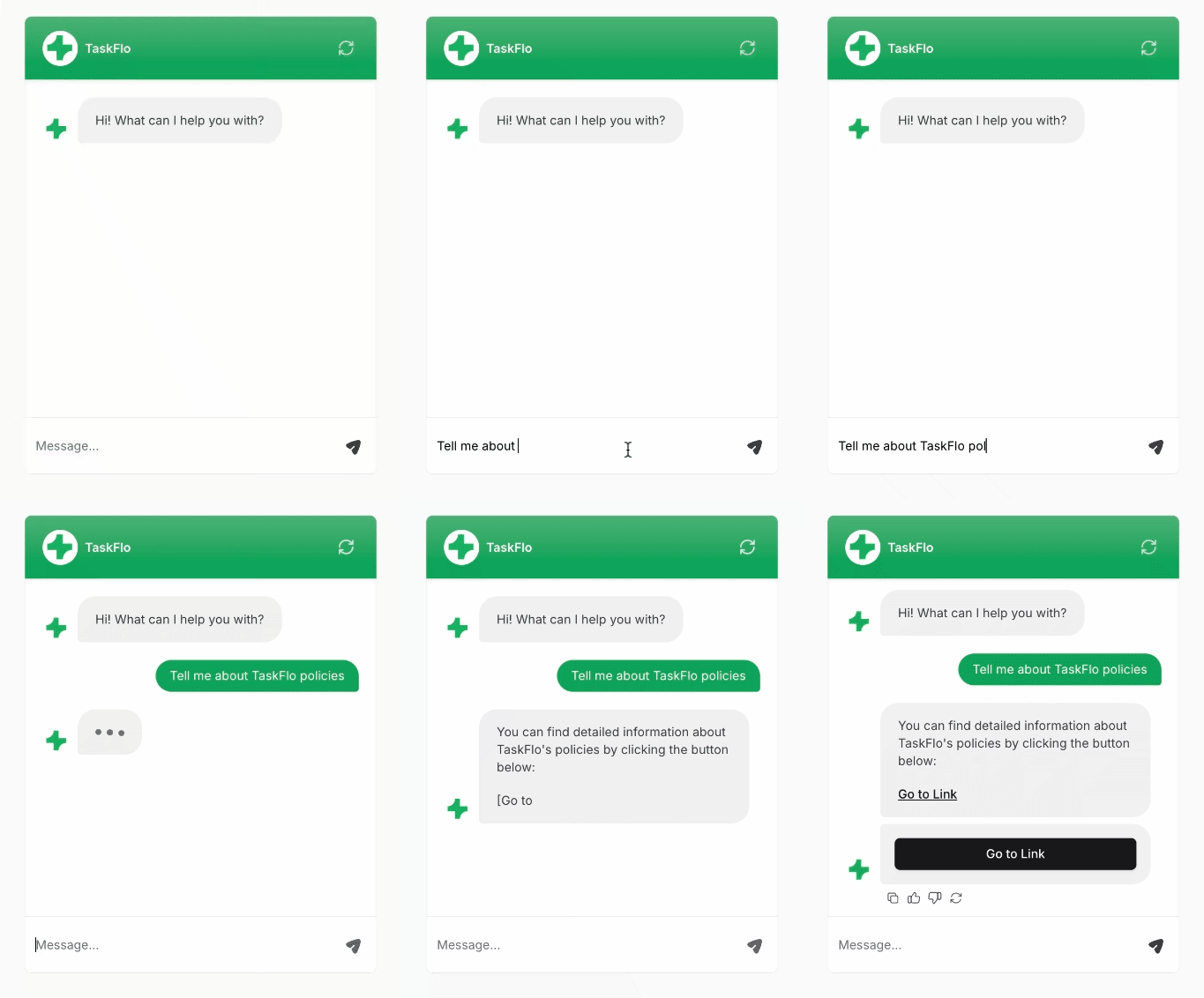
How it works
- The AI agent decides when to send it. The Action has no inputs: when the AI agent calls it, the button appears below the reply with your Button text.
- One button per Action. The AI agent can call more than one Custom Button Action in a reply, and each shows its own button, but whether it does depends on your instructions.
- Clicks aren’t tracked. The button is a plain link, and Chatbase doesn’t record clicks. To measure them, add UTM parameters to the URL and track visits in your analytics tool.
Best Practices
One Button, One Destination
Each Action carries a single URL. If you need to link to several pages, create a separate Custom Button Action for each.
Answer First, Then Link
Tell the AI agent to answer the question in text and attach the button as a next step, so the customer isn’t sent away for information the AI agent already has.
Keep Button Text Short
Use a few words that name the destination, such as See pricing or Book a demo.
Test Before Enabling
Try the Action in the Playground and confirm the button appears for the queries you expect, and not for the ones you don’t.
Frequently asked questions
Does the Action name matter?
Does the Action name matter?
Yes. The AI agent sees the Action name and uses it with When to use to decide when to send the button, so pick a name that describes the destination, such as
Pricing_Page_Button.