

What you can do:
Push leads straight into your CRM, spreadsheet, or inbox the moment your AI agent captures them, or have your AI agent draft answers inside any Zap.
Before you start
- A Chatbase account with an AI agent, on the Basic plan or higher, which the Chatbase API endpoints the Zapier app uses need. If you haven’t built an AI agent yet, follow Your first AI agent.
- An active Zapier account.
- Your Chatbase API key and Agent ID (see the steps below for where to find each).
Chatbase triggers and actions in Zapier
The Chatbase app in Zapier has one trigger and one action.
There are no search steps, and there’s no trigger for new conversations.
Form Submission trigger
The trigger is instant: when you turn on the Zap, Zapier registers a webhook with Chatbase, so leads arrive as soon as they’re submitted rather than on a polling schedule. It fires only for the Collect Leads Action. Submissions from Collect Data Actions and custom forms don’t trigger it. To send those elsewhere, use webhooks. Each lead includes these fields:
For example, a lead might arrive as
customerName: Jane Doe, customerEmail: jane@example.com, customerPhone: +15550000000.
Send Prompt action
Send Prompt sends a message to your AI agent and returns its reply, so later Zap steps can use it. Its fields are:
The action returns Chatbot ID and Response text.
Each Send Prompt call uses message credits at the cost of the model that answers it, the same as a reply on any other channel. Choosing a different Model changes the cost. The Form Submission trigger doesn’t use credits on its own.
What you can automate
These automations use the Send Prompt action, with a trigger from another app:How to connect Zapier
1
Set up lead collection in Chatbase
- Sign in to your Chatbase account to access your dashboard.
- Click the AI agent you want to set up lead collection for.
- From the sidebar, click Build > Actions, then select Create Action and set up your Collect Leads Action.
2
Create a Zap and add the trigger
- Sign in to your Zapier account.
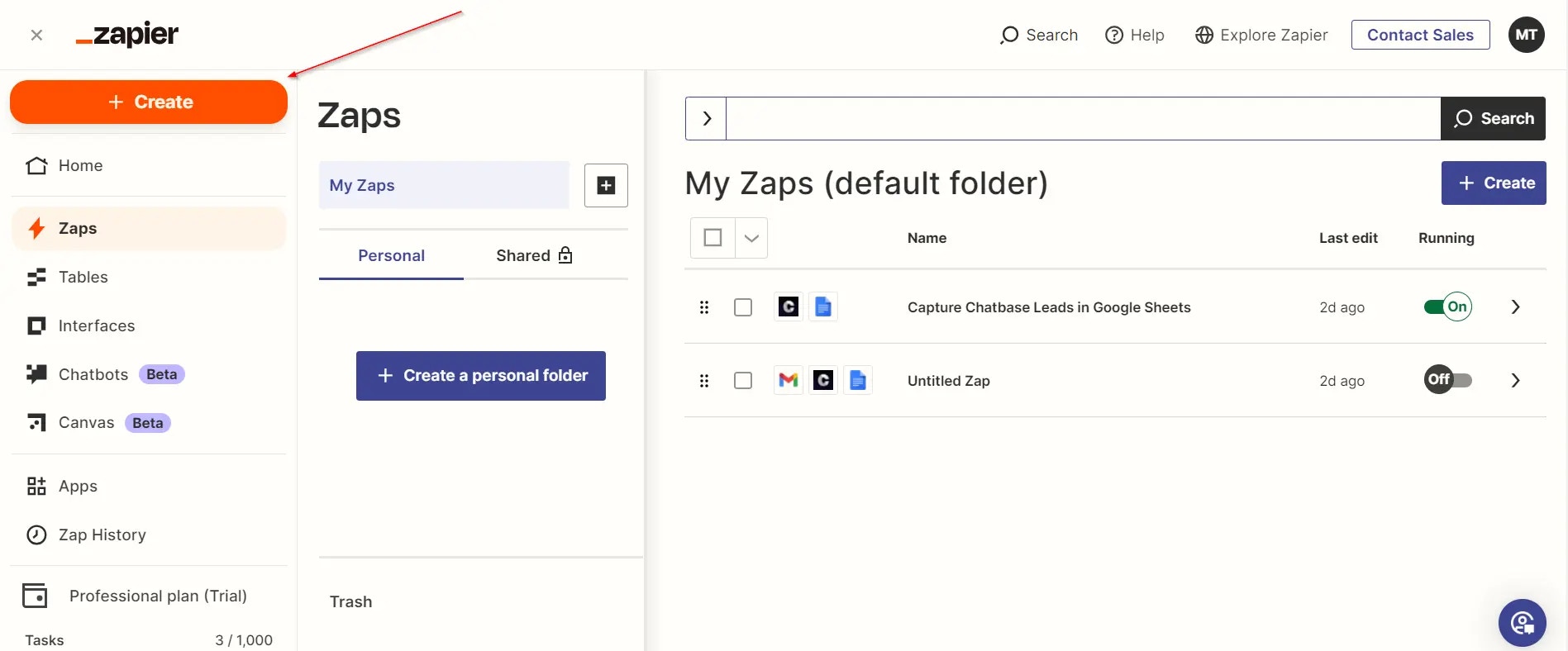
- Click Create, then Zaps, in the top-left corner of the Zapier homepage.
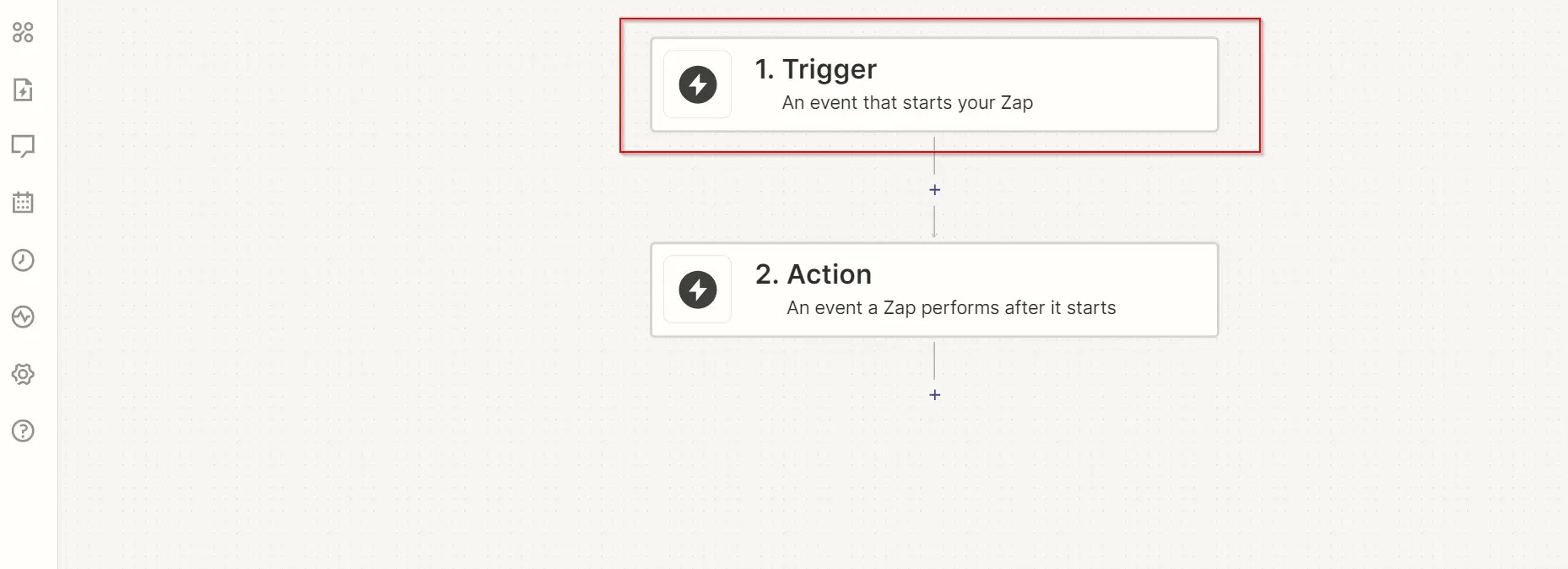
- In the Zap editor, click Trigger.
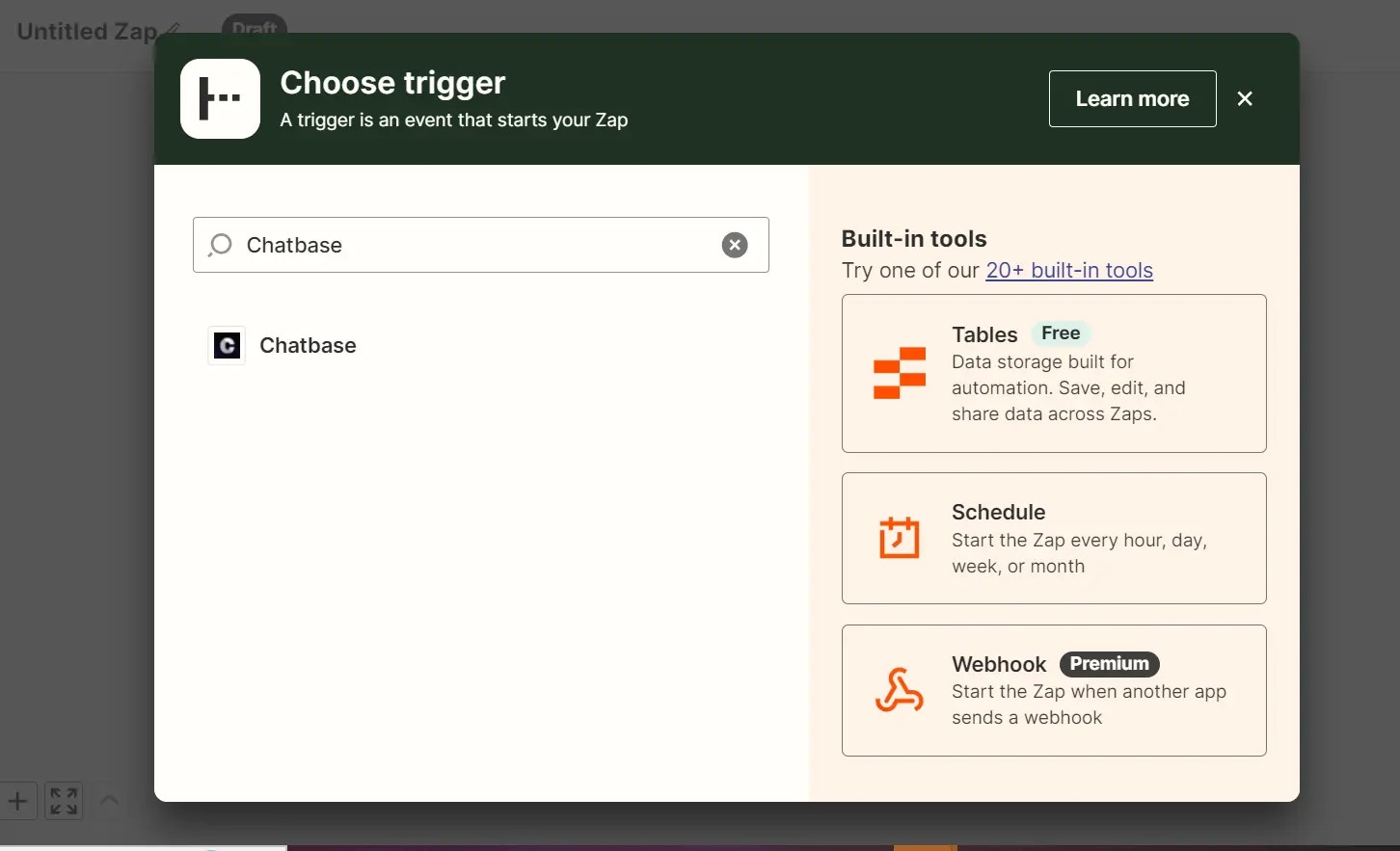
- Search for Chatbase in the search bar and click it.
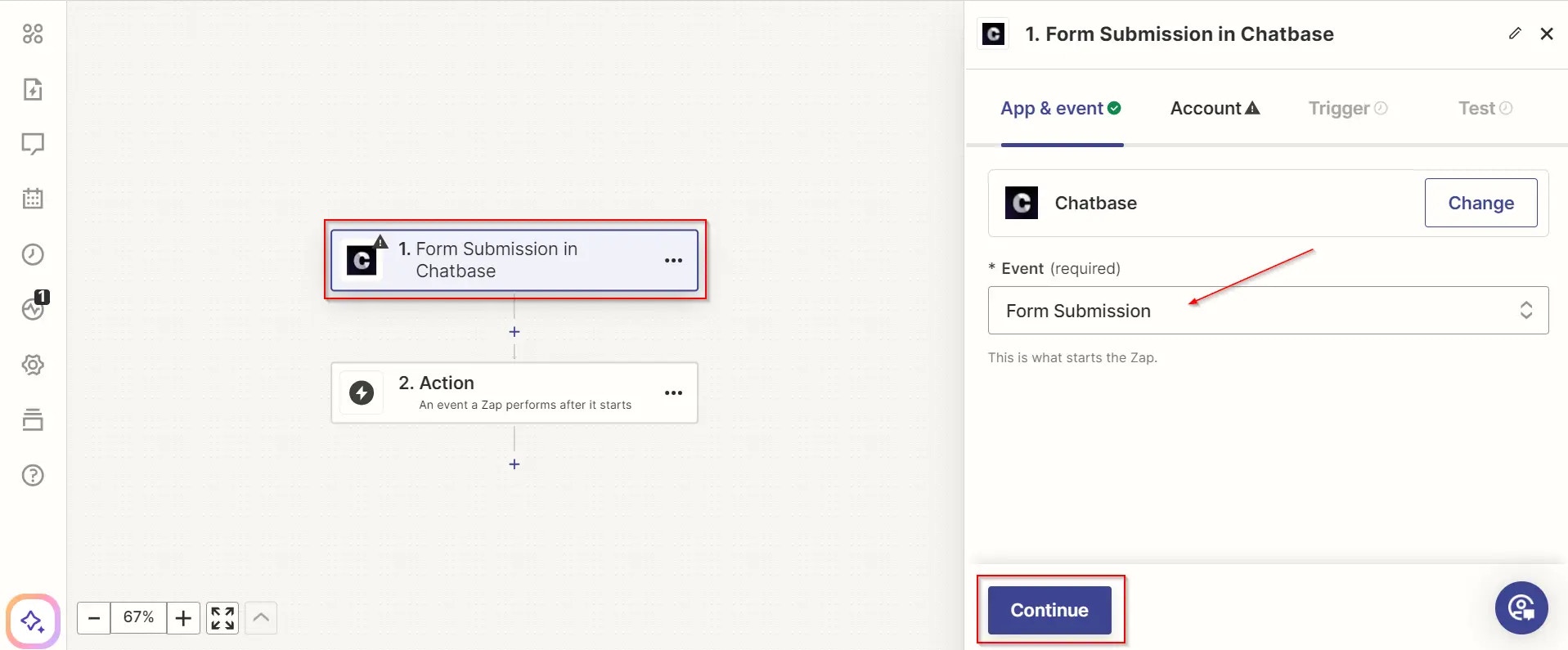
- On the right side of the page, click the Event field and select Form Submission, then click Continue.
3
Authenticate your Chatbase account
Click Sign in on the next page. On the authentication page, provide your Chatbase API key and, optionally, a display name, then click Yes, Continue to Chatbase.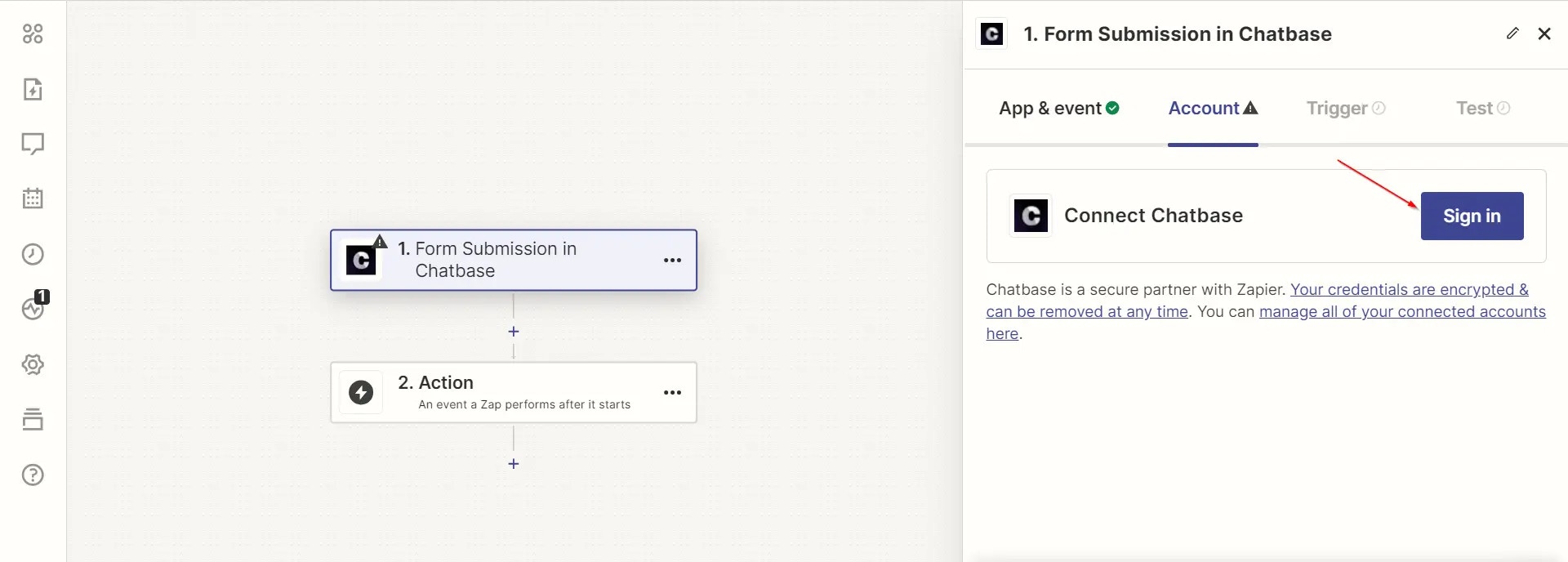
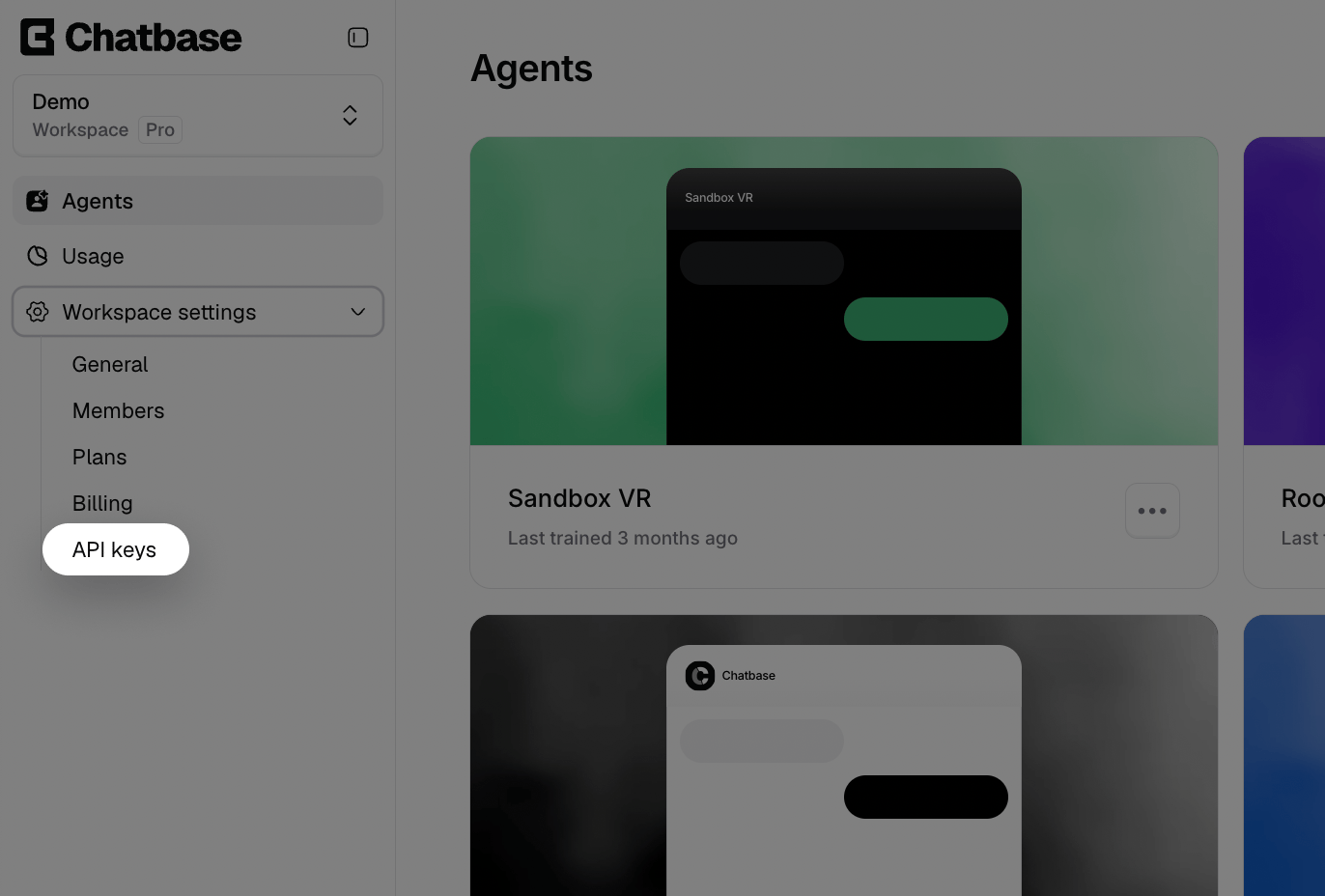
To get your API key, head to your account dashboard, go to Workspace settings, then select API keys in the sidebar. Copy an existing key, or click Create API Key to create a new one.
4
Provide your Agent ID and test the trigger
- Click Continue after authenticating.
- Paste your Agent ID in the provided input field and click Continue.
To find your Agent ID, open the AI agent you want to link with Zapier, go to Settings → General, and copy the Agent ID from the Agent details card.
- Click Test Trigger.
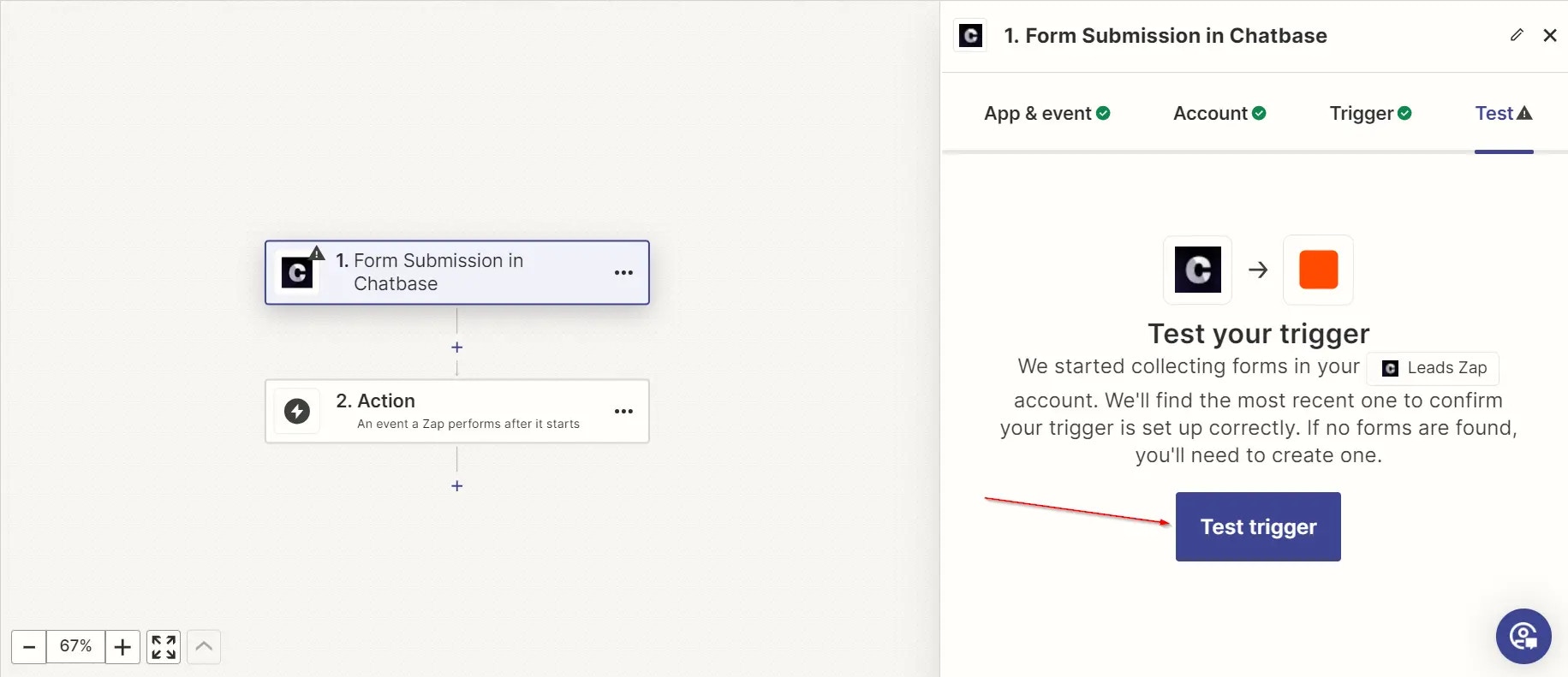
- When prompted, click Continue with selected records.
5
Set up the action
- A window appears with a list of apps. Search for Google Docs and click it.
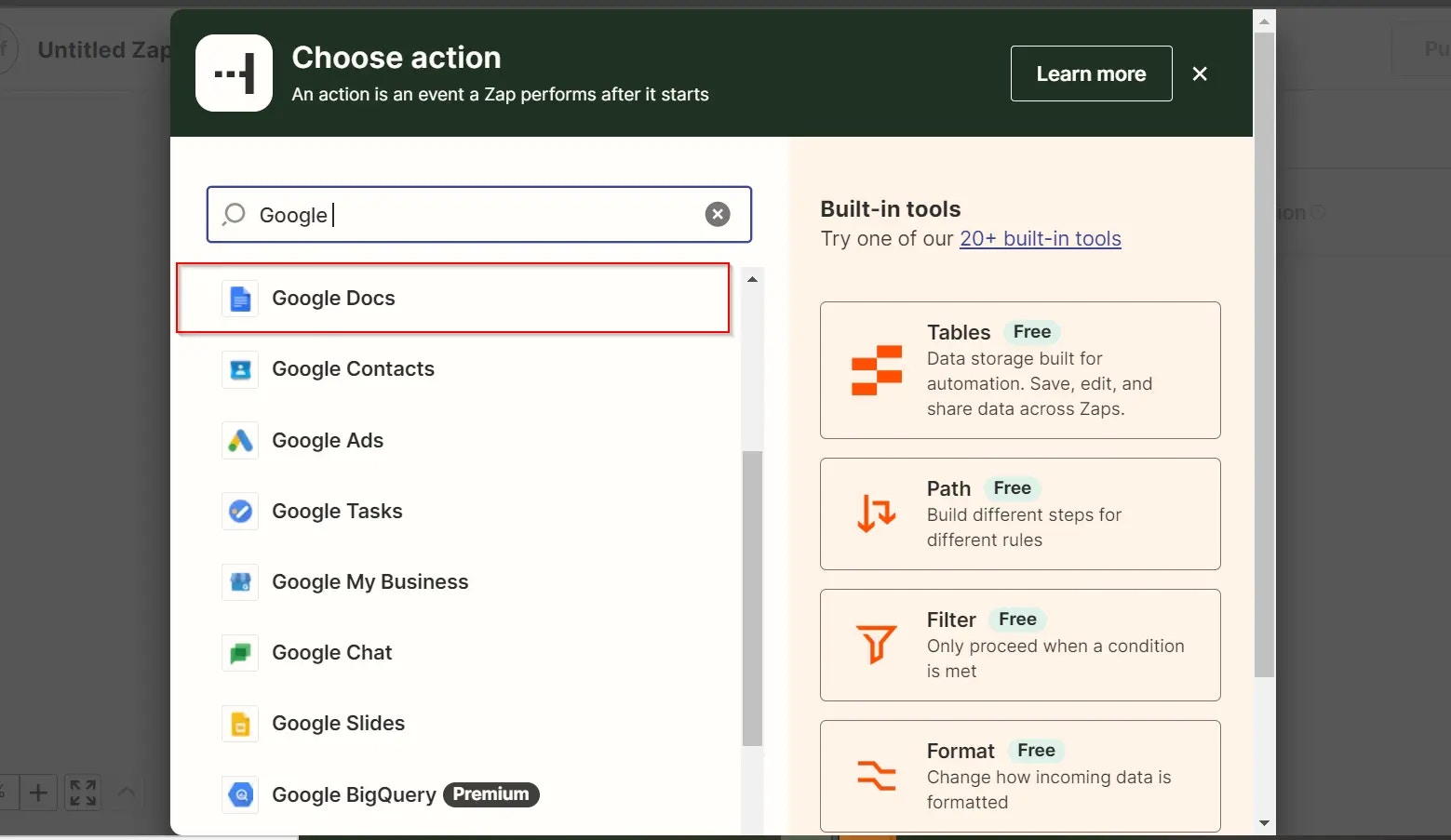
- Click the Event field, select Append Text to Document, then click Continue.
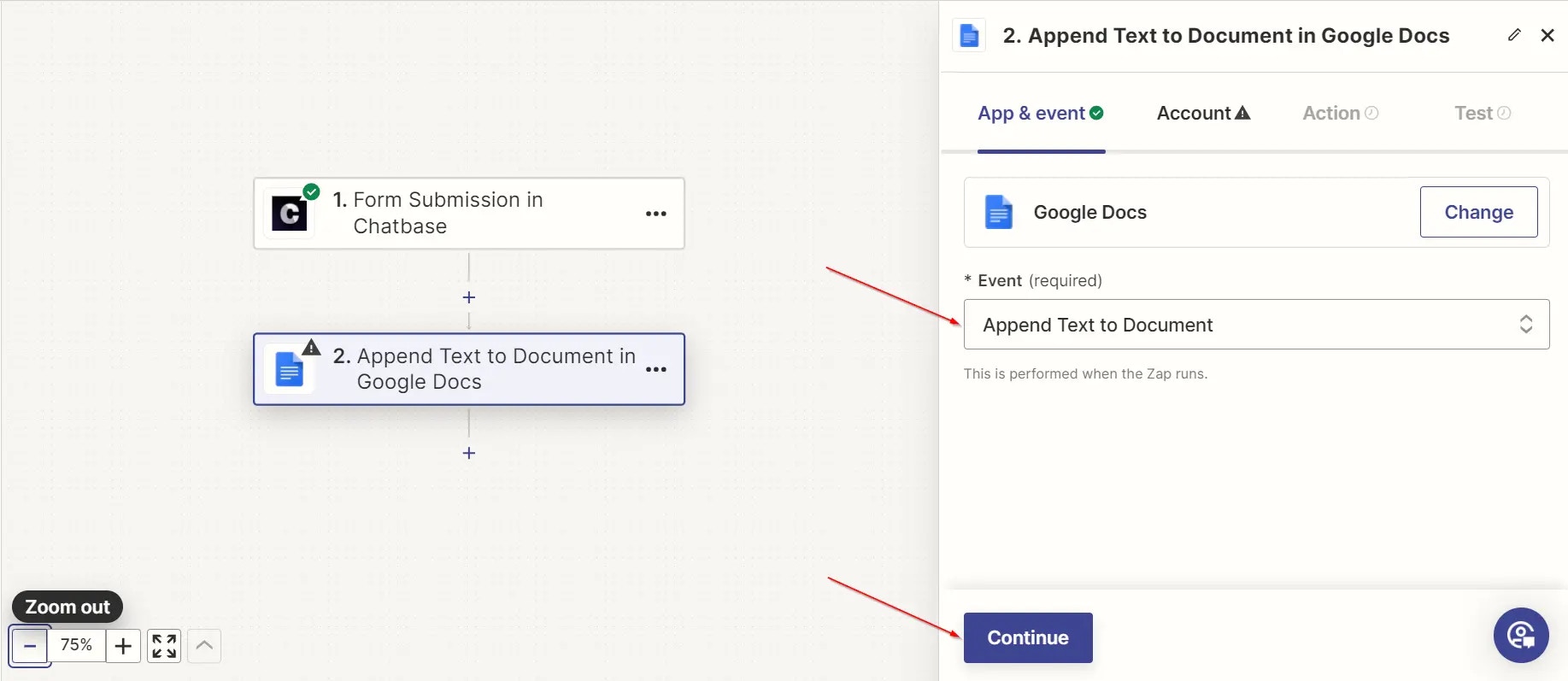
- Sign into your Google account and click Continue.
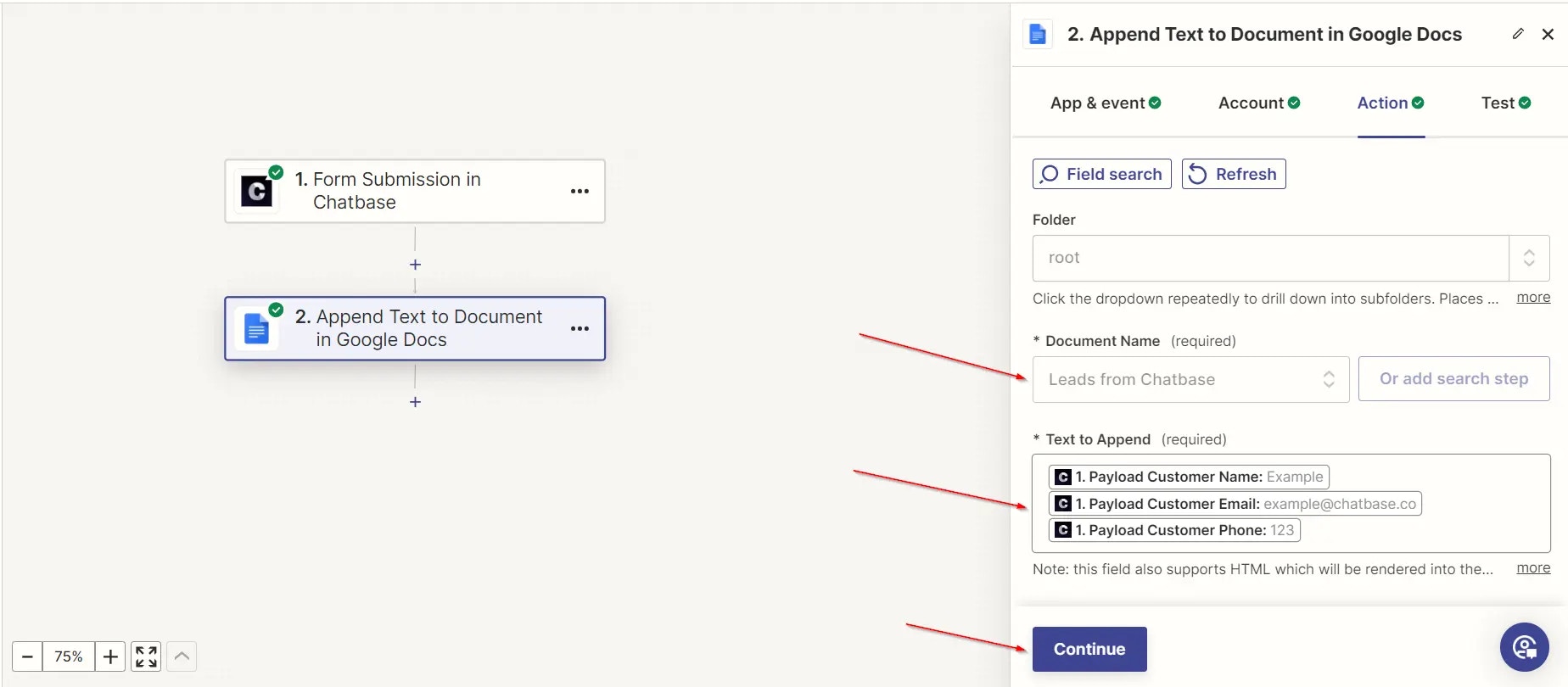
- Select the document you wish to append to, in the Document Name field.
- In the Text to Append field, select the lead form field you want to add, then click Continue.
6
Test and publish
Click to test the setup, then click Publish to go live.
Trigger a lead capture on your site and confirm the lead is appended to your target Google Docs file.
Frequently asked questions
Which Chatbase plan do I need for Zapier?
Which Chatbase plan do I need for Zapier?
The Basic plan or higher, because the Zapier app signs in with a Chatbase API key and uses Chatbase API endpoints.
Is there a Zapier trigger for new conversations?
Is there a Zapier trigger for new conversations?
No. The only Chatbase trigger is Form Submission, which fires when the Collect Leads Action captures a lead. Each lead includes the
conversationId it came from.Does Form Submission fire for Collect Data or custom forms?
Does Form Submission fire for Collect Data or custom forms?
No. It fires only for the Collect Leads Action. Send Collect Data and custom form submissions to a webhook instead.
Is the Form Submission trigger instant or polling?
Is the Form Submission trigger instant or polling?
Instant. Zapier registers a webhook with Chatbase when you turn the Zap on, so each lead is sent as soon as it’s submitted.
Do Zapier actions use message credits?
Do Zapier actions use message credits?
Yes. Each Send Prompt call uses message credits for the model that answers it, like any other reply. The trigger itself doesn’t.
Where do I find my API key?
Where do I find my API key?
Go to Workspace settings > API keys in your Chatbase dashboard. Seeing this page requires the API keys permission.
Next steps
Collect Leads Action
Configure which details your AI agent captures, and when.
viaSocket
An alternative no-code automation platform, connected through webhooks.