

What you can do:
Let the AI resolve routine questions on its own, and hand off to Zoho Desk the moment a case needs a person, with the full context already attached.
Before you start
- A Chatbase account on the Basic plan or higher.
- A Chatbase AI agent. The connection is per AI agent, and each AI agent can connect one Zoho Desk account.
- A Zoho Desk account you can authorize access for, with at least one department.
How to connect Zoho Desk
1
Open your Chatbase AI agent
Log in to your Chatbase dashboard and select the AI agent you want to connect.
2
Connect Zoho Desk
Choose Integrations, then click Connect under Zoho Desk. Sign in to Zoho and approve the request to authorize access.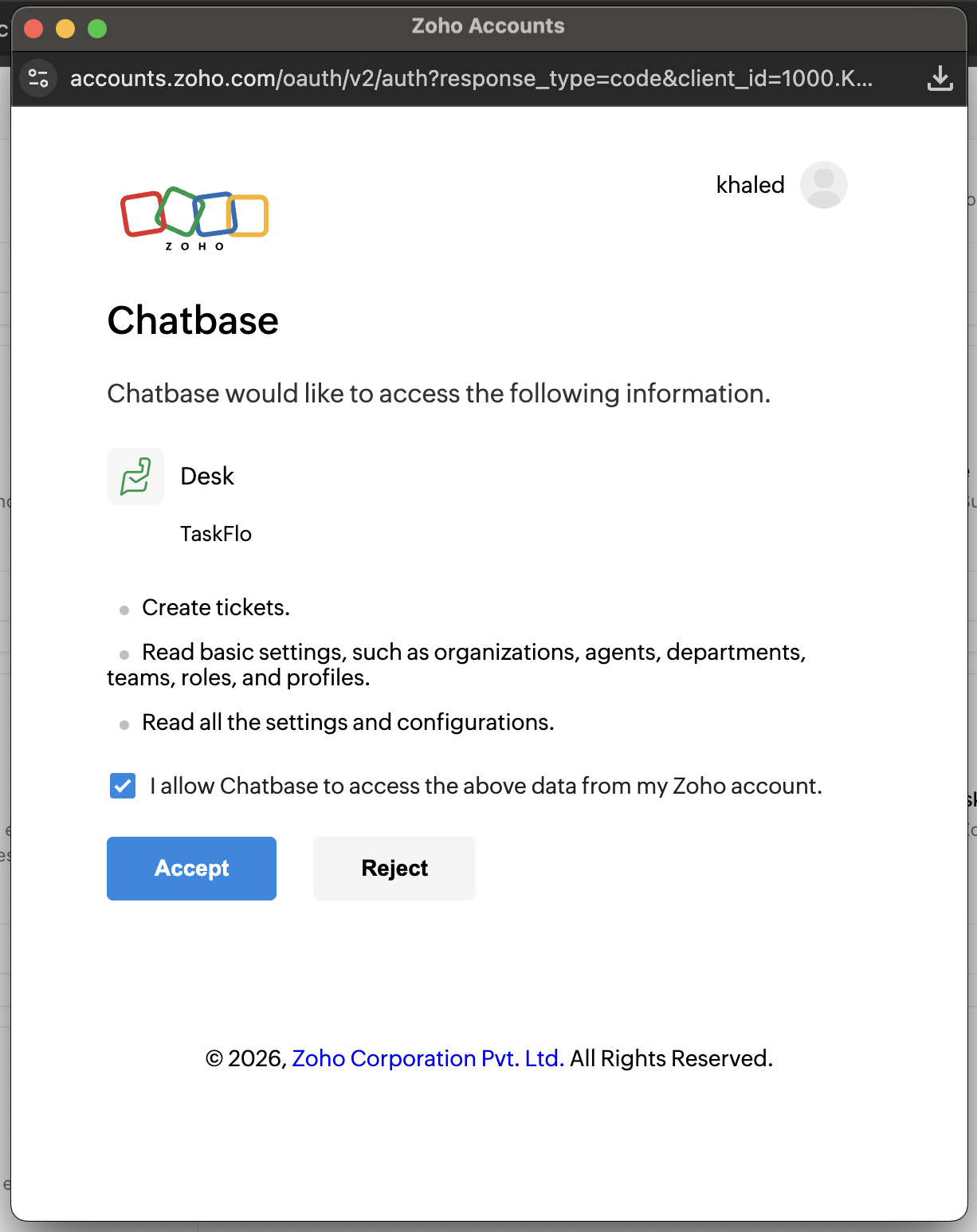
3
Create the Escalations Action
Go to Build > Actions > Create Action, select Create ticket under Escalations, and choose Zoho Desk as the Ticket Platform. Zoho Desk has no extra options on the Action. Follow the Escalations Action guide for the rest of the setup.
Test the integration by asking your AI agent to speak to a human, and confirm a ticket appears in Zoho Desk with the conversation summary attached.
Which organization and department get the ticket
When you connect, Chatbase picks one Zoho Desk organization and one department and saves them:- Organization: the one marked as default in Zoho, otherwise the first one.
- Department: that organization’s default department, otherwise the first one.
What the ticket contains
Each Zoho Desk ticket Chatbase creates has:- Subject: written by the AI agent from the customer’s issue. The customer is never asked for it.
- Description: an AI-written summary of the conversation, in the customer’s language.
- Channel: Chat.
- Contact: the customer’s email, with their full name in the last name field (the first name is left empty).
- Department: the department chosen when you connected.
- Private comment: a link to the full conversation in Chatbase, added right after the ticket is created.
Example
The following exchange is illustrative. A customer on the Chat Bubble writes “My invoice was charged twice, I want to talk to someone.” The AI agent asks for an email and name, the customer replies “Jane Doe, jane@example.com”, and Zoho Desk receives:- Subject: Duplicate charge on invoice
- Description: The customer reports being charged twice for the same invoice and asks for a refund of the duplicate charge.
- Contact: last name “Jane Doe”, email jane@example.com
- Channel: Chat
- A private comment with the link to the conversation in Chatbase
What the customer sees
The AI agent asks for the customer’s email and name if it doesn’t already have them, creates the ticket, and tells the customer the ticket number. On the Chat Bubble, Help Page, and Center Stage, a Ticket Created card also shows the ticket number and the customer’s name and email. If creation fails, the card reads Failed to create ticket. Your team replies from Zoho Desk, and those replies reach the customer the way Zoho Desk sends them, normally by email. Nothing syncs back to the Chatbase conversation, and the AI agent keeps answering in the chat. Creating a ticket uses no extra message credits beyond the AI agent’s normal reply.Troubleshooting
Connecting fails with a Zoho Desk error
Connecting fails with a Zoho Desk error
Errors appear as a message starting with Zoho Desk integration failed, for example “Failed to fetch Zoho Desk departments”. Make sure the Zoho account you sign in with can see your organization and its departments, and that the organization has at least one department.
Tickets stopped being created, but the card still says Connected
Tickets stopped being created, but the card still says Connected
The card shows Connected as long as a saved connection exists, even if Zoho no longer accepts it (for example, after access was revoked in Zoho). Tickets then fail, the customer sees Failed to create ticket, and nobody is notified. Open the conversation in Activity and check the Create ticket Action’s Result for the error, then disconnect and connect again.
Tickets don't have the link to the Chatbase conversation
Tickets don't have the link to the Chatbase conversation
Older Zoho Desk connections don’t add the private comment with the conversation link. Disconnect and connect again to grant the newer permission, then recreate your Zoho Desk Create ticket Actions.
Tickets go to the wrong department
Tickets go to the wrong department
Chatbase uses the default department (or the first one) of the default organization, saved when you connected. Set the right default in Zoho Desk, then disconnect and connect again.
Frequently asked questions
Which Zoho data centers does Chatbase support?
Which Zoho data centers does Chatbase support?
US, EU, India, Australia, Japan, China, Canada, Saudi Arabia, and the UK. Chatbase detects the region automatically from the Zoho account you sign in with.
Can I choose which department receives tickets?
Can I choose which department receives tickets?
Not in Chatbase. Tickets go to the default organization’s default department (or the first one), chosen when you connect. To change it, update the default in Zoho Desk and reconnect.
Do replies from Zoho Desk show up in the chat?
Do replies from Zoho Desk show up in the chat?
No. Replies reach the customer from Zoho Desk, normally by email. The only thing the chat shows is the ticket number when the ticket is created.
What happens to my Actions if I disconnect Zoho Desk?
What happens to my Actions if I disconnect Zoho Desk?
Chatbase lists the Zoho Desk Create ticket Actions and deletes them when you confirm. Tickets already in Zoho Desk aren’t affected.
Does creating a Zoho Desk ticket use message credits?
Does creating a Zoho Desk ticket use message credits?
No extra credits. The AI agent’s reply that creates the ticket costs the same as any other reply.
Next steps
Escalations Action
Configure when your AI agent escalates, which details it collects first, and which channels it can escalate from.