

What you can do:
Let the AI handle routine questions, and hand the customer to a live Zendesk agent in real time when the issue needs a person.
Before you start
- A Chatbase account with an AI agent.
- A Zendesk account on a Professional Suite plan or above.
- The Zendesk ticketing integration connected on the same AI agent. Until it is, the Sunshine Connect button is disabled and shows Connect Zendesk first when you hover over it. Chatbase uses that connection to set up Sunshine in your Zendesk account.
- Zendesk Messaging not connected on this AI agent. An AI agent can use Sunshine or Zendesk Messaging, not both.
- A workspace that isn’t HIPAA-compliant. Sunshine isn’t available on HIPAA-compliant accounts.
How Sunshine differs from Zendesk Messaging
How to connect Sunshine
1
Create an API key in Zendesk
- Sign in to your Zendesk account as an Admin and navigate to the Admin Center.
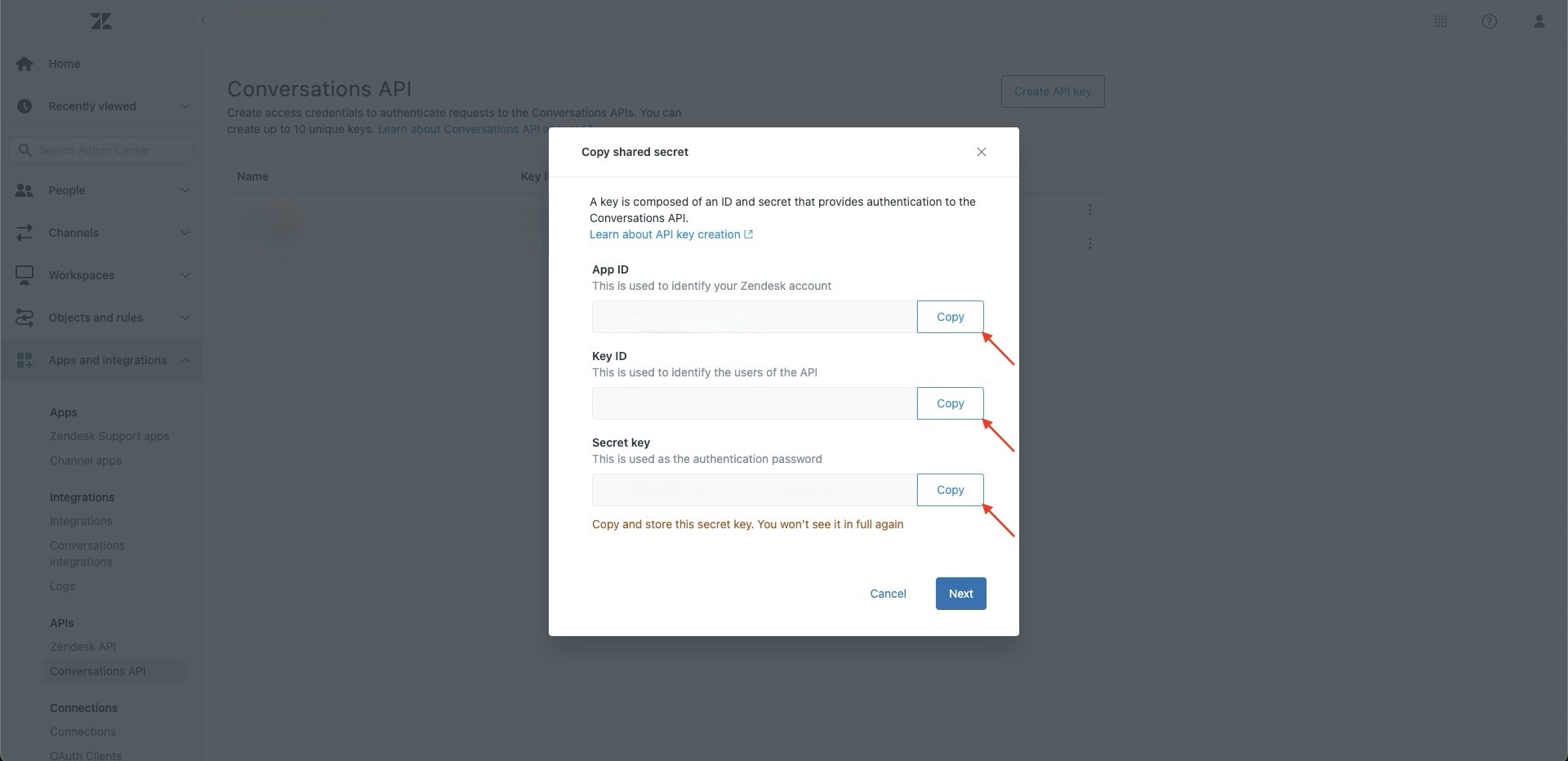
- Navigate to Apps and integrations > APIs > Conversations API.
- Click Create API Key, enter Chatbase as the name, and press Next.
- Copy the App ID, Key ID, and Secret key displayed.
2
Set up the Sunshine integration in Chatbase
- Navigate to your Chatbase dashboard.
- Click the AI agent you wish to enable live chat for.
- Navigate to Integrations. Make sure Zendesk is connected before you attempt to connect Sunshine.
- Enter the copied App ID, Key ID, and Secret key, then press Submit.
3
Enable multi-conversations in Zendesk
Every handoff creates a new Zendesk messaging conversation for the customer, and Zendesk only allows that when multi-conversations is on. Without it, handoffs fail with: “Zendesk account does not have multi-conversations enabled (Admin Center > Messaging and social > Messaging > Manage settings)”.
- Sign in to your Zendesk account as an Admin and navigate to the Admin Center.
- Click Channels in the sidebar, then select Messaging and social > Messaging.
- At the top of the page, click Manage settings.
- Under Web Widget and Mobile SDKs, expand Multi-conversations.
- Click Set up multi-conversations.
- Click Turn on multi-conversations for your account, select the channels you want to offer multi-conversations on, then click Save.
4
Enable end messaging sessions in Zendesk
This lets your human Zendesk agents close the messaging conversation when the issue is resolved. When they do, a Zendesk trigger named Chatbase Sunshine Conversation Ended, which Chatbase creates for you, tells Chatbase to end the conversation there too.
- Sign in to your Zendesk account as an Admin and navigate to the Admin Center.
- Click Channels in the sidebar, then select Messaging and social > Messaging.
- At the top of the page, click Manage settings.
- Under Advanced, expand Ending sessions.
- Select Agents can end messaging sessions at any time.
- Click Save settings.
5
Enable the Live Chat Action
This Action lets all customers, both identified and unidentified, start a live chat from the Chat Bubble, Center Stage, or Help Page.
- Navigate to your Chatbase dashboard.
- Choose the AI agent you integrated with Sunshine Conversations.
- Navigate to Build > Actions.
- Click Create Action, then select Sunshine live chat.
- Customize the When to use field, click Continue, then click Enable.
Test the integration by asking your AI agent to speak to a human, and confirm the conversation reaches a live agent in Zendesk.
What happens during a handoff
- The AI agent decides the customer needs a person, based on the Action’s When to use, and collects any details checked under Collect from user.
- Chatbase opens a new Zendesk messaging conversation as the customer. Its first message contains a title, the link to the Chatbase conversation, and either a summary or the full conversation, depending on the Action’s conversation content setting.
- Your Zendesk agent replies from Zendesk. Each reply appears in the customer’s Chatbase widget with the agent’s name and avatar.
- When your agent closes the conversation in Zendesk, the Chatbase Sunshine Conversation Ended trigger ends the conversation in Chatbase.
What your Zendesk agent receives
- A title for the chat.
- The line “conversation link in Chatbase:” followed by the link to the Chatbase conversation.
- Summary: followed by an AI-written summary, or Full conversation: followed by the transcript and the customer’s attachments, when the Action is set to send the full conversation.
- The customer’s name and email, on the customer’s profile in Zendesk.
Example handoff
A customer on your Help Page writes:Customer: My account is locked and the reset email never arrives. I need to talk to someone. AI agent: I can connect you with our support team. What’s your name and email? Customer: Sam Lee, sam@example.comA new conversation opens in Zendesk with a title like “Locked account, reset email not received”, the conversation link, and a summary. Your agent replies “Hi Sam, I’ve unlocked your account.” and that message appears in the Help Page chat with the agent’s name and avatar. When the agent closes the conversation in Zendesk, the chat ends in Chatbase.
Limitations
- Sunshine requires Zendesk. The Zendesk integration must be connected in Chatbase first.
- Sunshine and Zendesk Messaging can’t share an AI agent. Disconnect one before connecting the other.
- Not available on HIPAA-compliant accounts.
- A Professional Suite plan or above is required on your Zendesk account.
- The live chat Action runs on the Chatbase widget only. It is compatible with the Chat Bubble, Center Stage, and Help Page channels only. Every other channel is incompatible and can’t be selected. See Channels for what configured, unconfigured, and incompatible mean.
Troubleshooting
Connecting shows Incorrect credentials
Connecting shows Incorrect credentials
“Incorrect credentials, please check your credentials and try again” means the App ID, Key ID, or Secret key is wrong. Copy all three from Apps and integrations > APIs > Conversations API in Zendesk Admin Center and submit again. If you lost the secret key, create a new API key.
Connecting says Zendesk Messaging is already connected
Connecting says Zendesk Messaging is already connected
“This chatbot already has a Zendesk Messaging integration connected. Disconnect it first before connecting Zendesk Sunshine.” Disconnect Zendesk Messaging on the Integrations page, then connect Sunshine.
Handoffs fail with a multi-conversations error
Handoffs fail with a multi-conversations error
Turn on multi-conversations in Zendesk under Admin Center > Messaging and social > Messaging > Manage settings. Every handoff opens a new conversation, which Zendesk only allows with multi-conversations on.
The chat doesn't end in Chatbase when my agent finishes
The chat doesn't end in Chatbase when my agent finishes
The conversation ends in Chatbase only when your agent closes the messaging conversation in Zendesk. Check that Agents can end messaging sessions at any time is selected under Ending sessions, and that the Chatbase Sunshine Conversation Ended trigger is still active in Zendesk.
Frequently asked questions
Do I need the Zendesk integration to use Sunshine?
Do I need the Zendesk integration to use Sunshine?
Yes. Connect the Zendesk ticketing integration first. Chatbase uses it to set up Sunshine in your Zendesk account.
Where does the customer see the Zendesk agent's replies?
Where does the customer see the Zendesk agent's replies?
In the same Chatbase widget they were already chatting in, with the agent’s name and avatar.
Who ends a Sunshine conversation?
Who ends a Sunshine conversation?
Your human Zendesk agent, by closing the messaging conversation in Zendesk. The AI agent doesn’t end it.
Can I use Sunshine and Zendesk Messaging on the same AI agent?
Can I use Sunshine and Zendesk Messaging on the same AI agent?
No. An AI agent can have one of the two connected. See How Sunshine differs from Zendesk Messaging.
Which channels support Sunshine live chat?
Which channels support Sunshine live chat?
The Chat Bubble, Center Stage, and Help Page. It isn’t available on WhatsApp, Instagram, Messenger, email, or other channels.
Why do I need multi-conversations in Zendesk?
Why do I need multi-conversations in Zendesk?
Each handoff creates a new Zendesk messaging conversation for the customer. Zendesk rejects that unless multi-conversations is turned on, so handoffs fail without it.
Next steps
Escalations Action
Prefer an asynchronous handoff? Open a ticket instead of routing the customer to a live agent.