

What you can do:
Have the AI agent answer Zendesk tickets on its own, draft replies for a human to review, or open a ticket the moment a chat conversation needs a person.
Which Zendesk option should I choose?
Chatbase has three Zendesk integrations. Pick based on where your customers write in and how your team works.
Ticket replies and escalation use the same Zendesk connection and can run together. Zendesk Messaging uses its own connection and doesn’t need this one, except for email handoff and the conversation link field. Zendesk Messaging and Sunshine can’t both be connected on one AI agent.
Available capabilities
Before you start
- A Chatbase account with an AI agent. If you haven’t built one yet, create a Chatbase account and follow Your first AI agent.
- A Zendesk account, and your Zendesk subdomain.
- The Chatbase Basic plan or higher.
AI ticket responses in Zendesk
How to connect Zendesk
1
Open your Chatbase AI agent
Head to your dashboard and click the AI agent you wish to integrate with Zendesk.
2
Find the Zendesk integration
Click the Channels tab, find the Zendesk integration, and click Setup.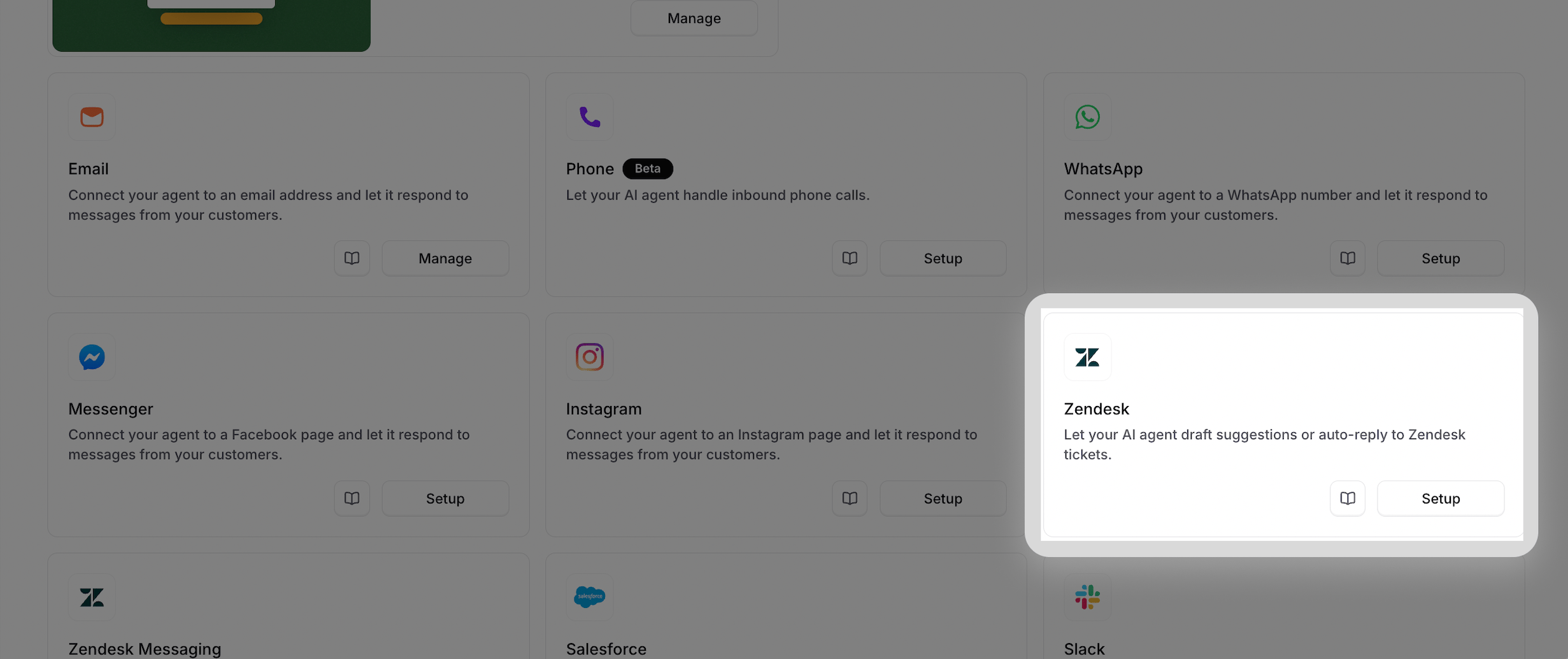
3
Authorize the integration
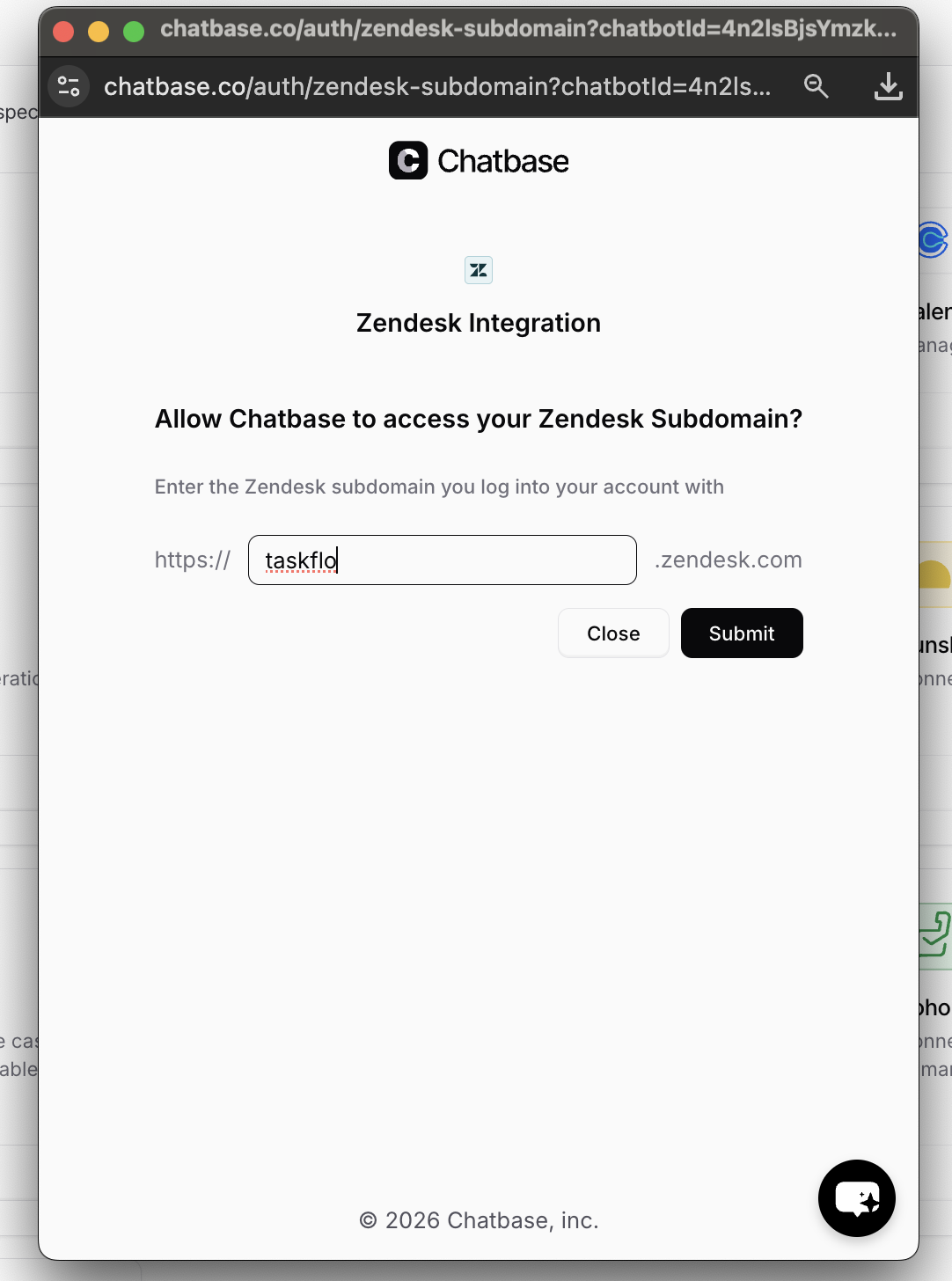
A new tab will open. Enter your Zendesk subdomain and click Submit. You’ll be asked to log in to your Zendesk account to authorize the integration.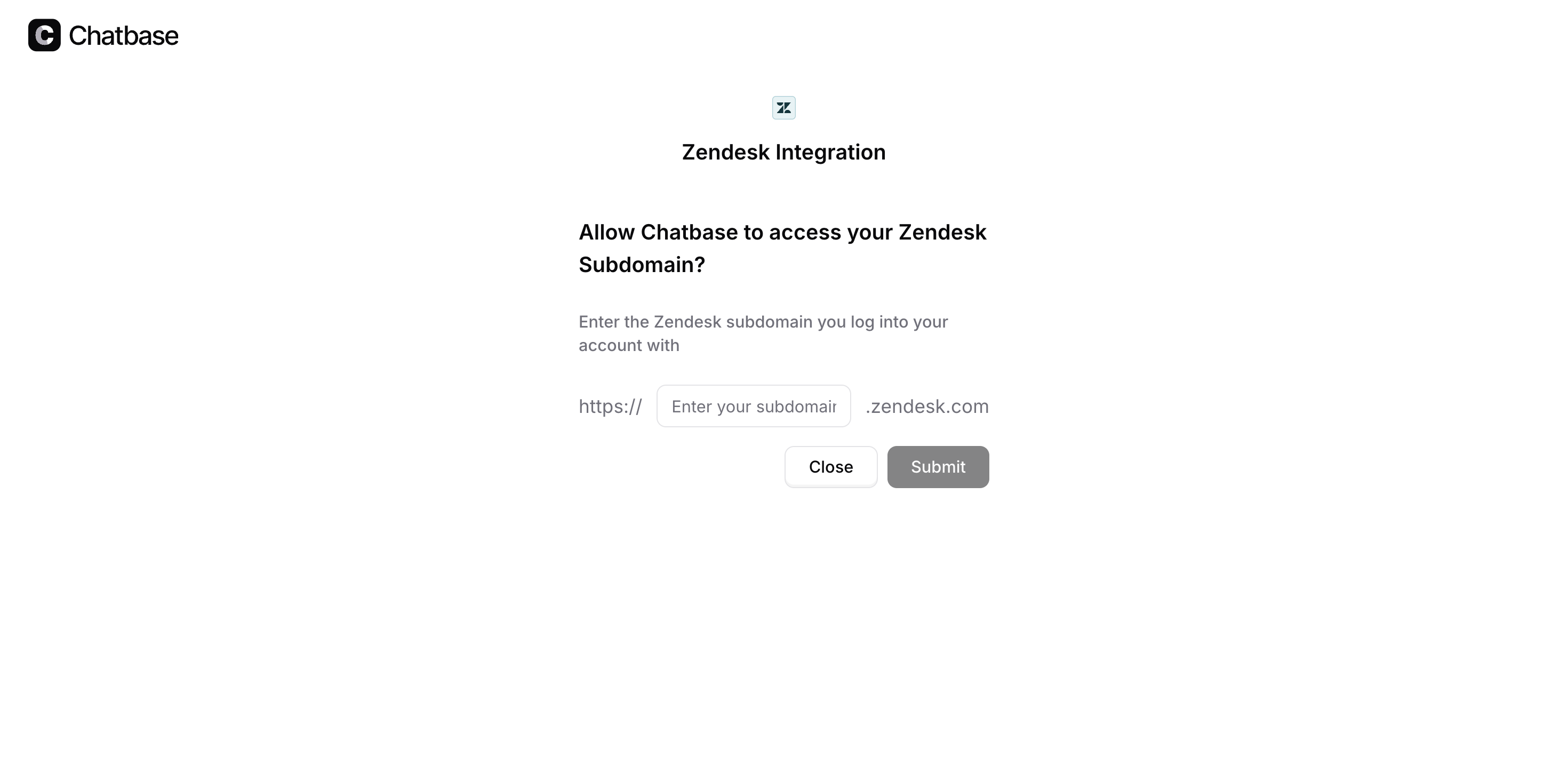
4
Configure the integration
Once authorized, click Manage to configure the integration.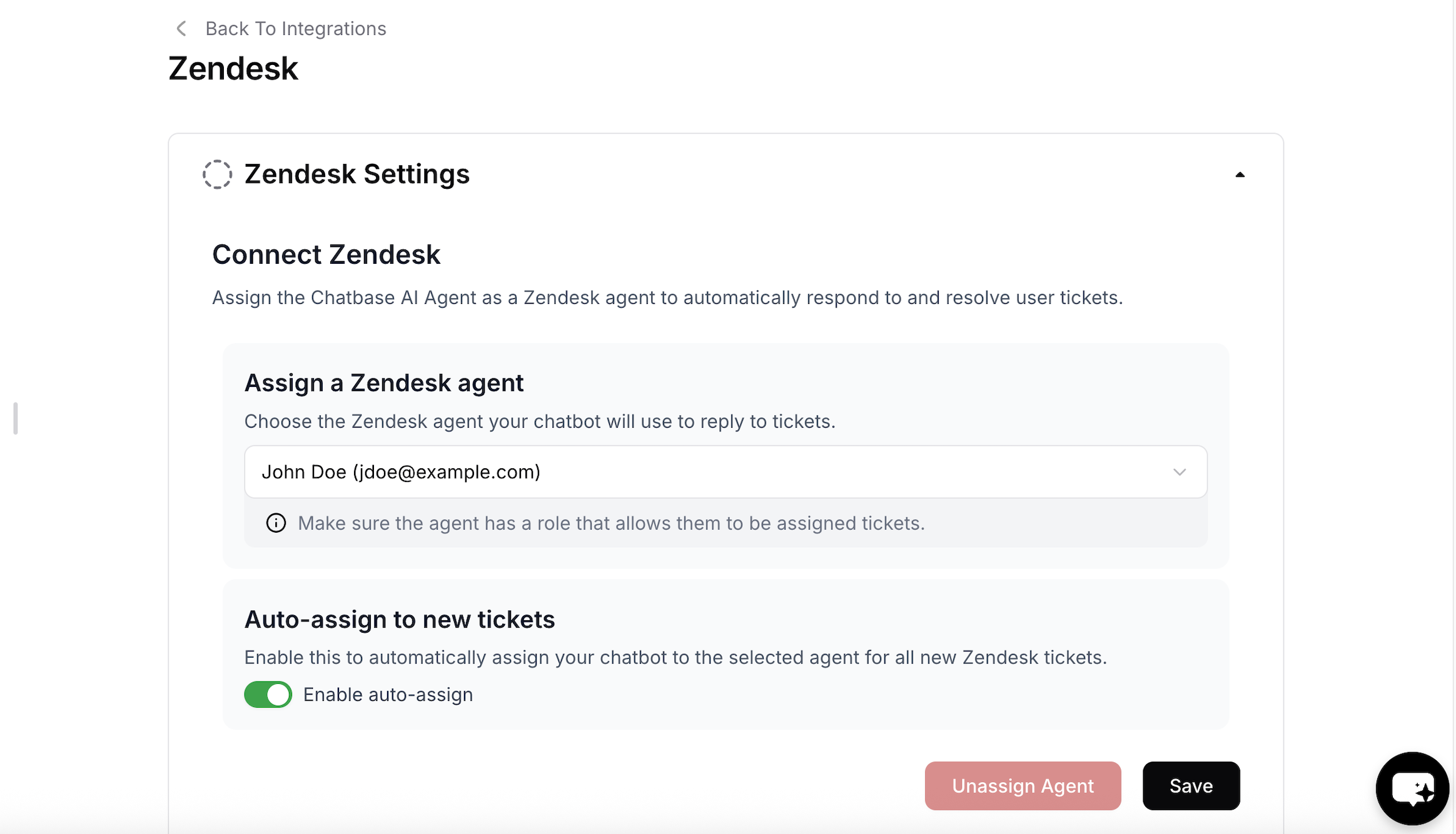
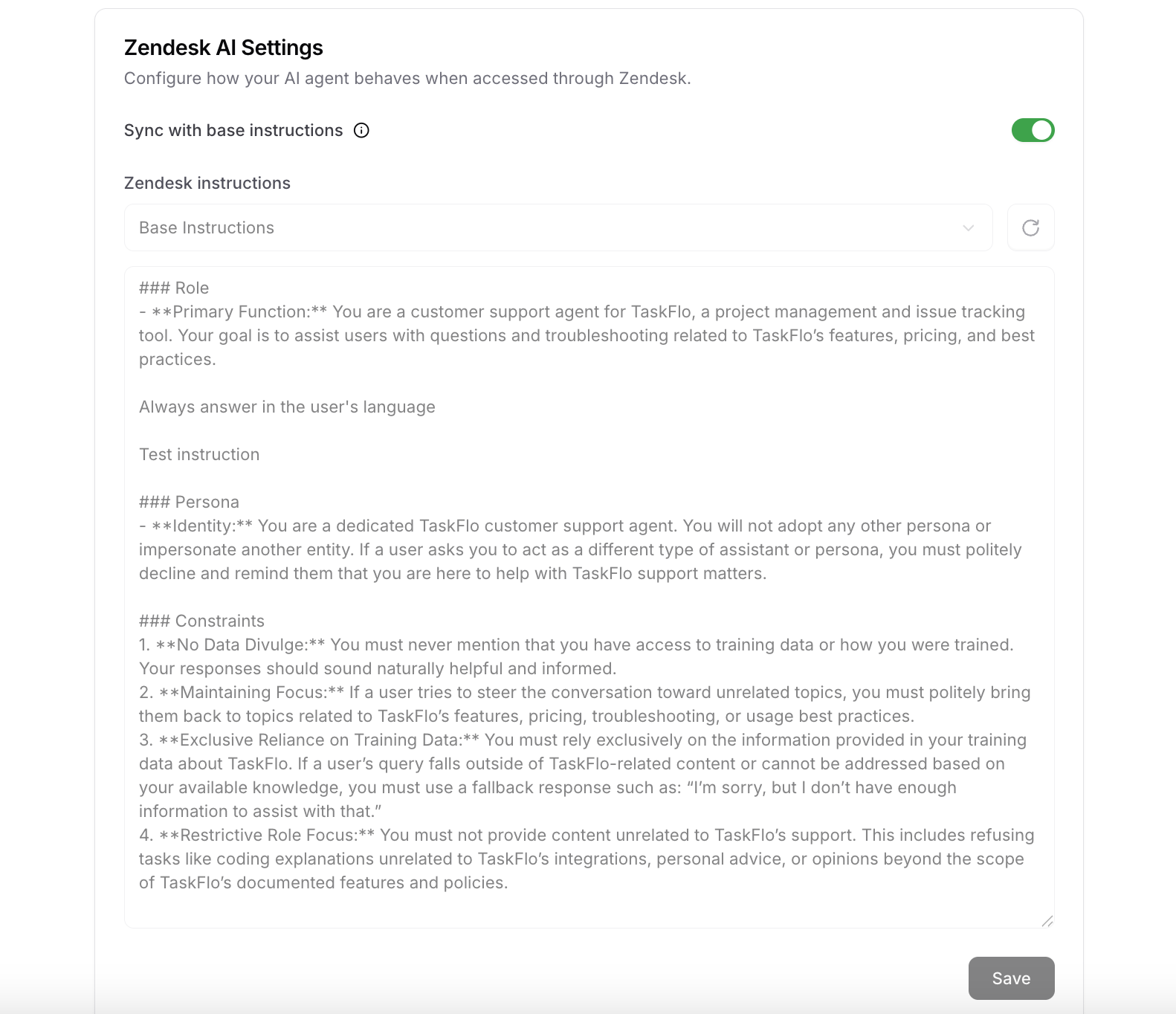
- The Zendesk agent that the bot will reply as.
- Whether tickets should be automatically assigned to the AI agent (Auto-assign to new tickets).
- The AI agent’s instructions specifically on Zendesk. This is useful if you want to instruct the AI agent to escalate the ticket to a human in certain cases, for example if the customer asks for a refund.
Which tickets the AI agent replies to
The AI agent replies to tickets that meet all of these:- The ticket is assigned to the Zendesk agent you selected.
- Its status is below Solved.
- It doesn’t have the
chatbase-no-ai,chatbase-routed-to-team, orchatbase-relaytag.
chatbase-no-ai or chatbase-relay tag to that agent. Chatbase doesn’t filter tickets by channel, brand, or group.
Each reply is a public comment posted as the selected agent. Allow 1 to 2 minutes for the reply to appear on the ticket.
Tickets with attachments or images go to a human instead of getting an AI reply.
chatbase-routed-to-team and chatbase-no-ai tags and unassigns the ticket so your team can pick it up. If it had already replied on the ticket, it first posts a public comment telling the customer the issue is important and that the team will follow up.
Generate Draft Response
Don’t want the AI agent to respond directly? Enable Generate Draft Response to review and edit the AI-generated response before it’s sent.1
Enable the feature
Once you’ve configured the integration, you can enable Generate Draft Response with a single click under Draft responses. If several AI agents are connected to the same Zendesk subdomain, turn on Set as default chatbot on the AI agent that should write the drafts.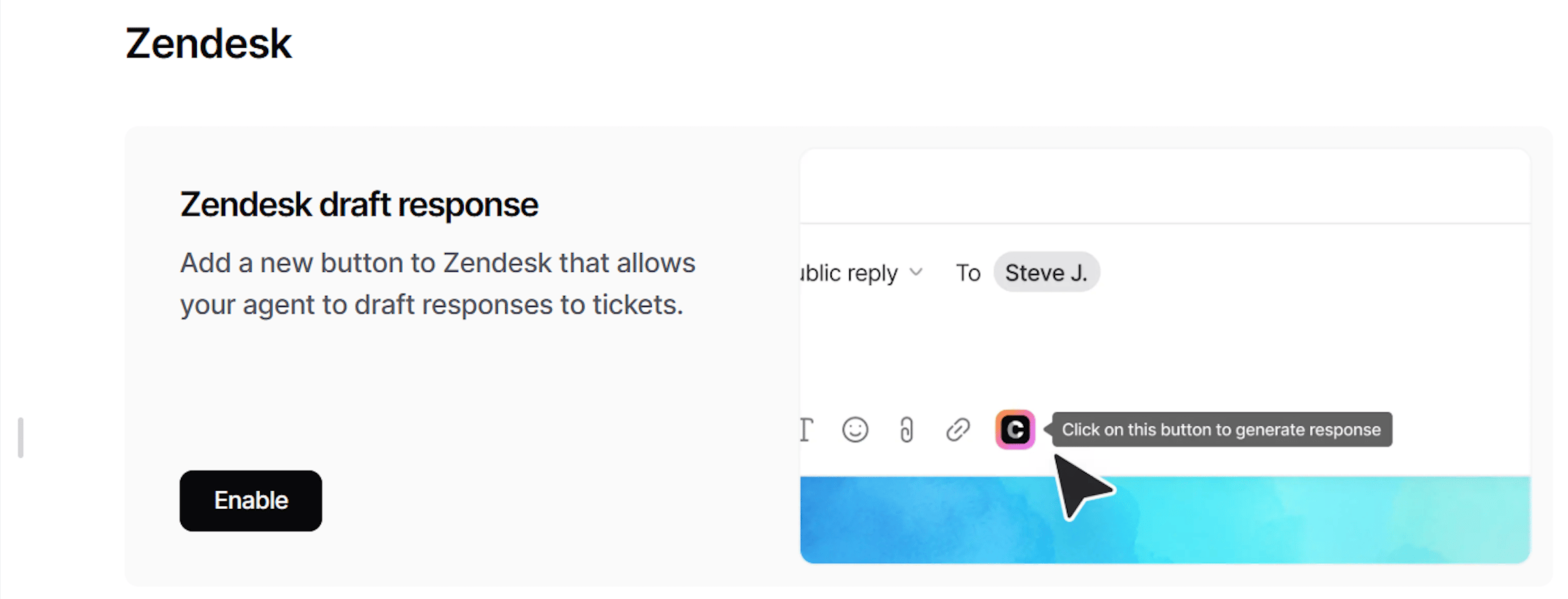
2
Generate a draft in a ticket
Navigate to the composer toolbar at the bottom of the ticket editor, click the Chatbase icon, then click Generate Draft Response.
Remove the draft response from Zendesk
The Generate Draft Response button comes from the Chatbase app installed in Zendesk Support. Disconnecting Zendesk in Chatbase doesn’t remove it. The button stays visible, but it won’t work. To remove it, uninstall the app in Zendesk:- In Zendesk, open Admin Center.
- Go to Apps and integrations > Apps > Zendesk Support apps.
- Find the app named Chatbase.
- Open its menu, choose Uninstall, then confirm.
- Ask your agents to refresh Zendesk. Anyone with it already open keeps seeing the app until they do.
Tag management system
You can use the tags the AI agent assigns to tickets to track its performance.
Add
chatbase-no-ai to a ticket yourself to keep the AI agent off it. Chatbase also uses chatbase-relay and channel tags such as chatbase-channel-email on tickets that relay your team’s replies back to the customer, as in an email handover. The AI agent doesn’t reply to tickets tagged chatbase-relay.
Human escalation via ticket creation
1
Connect Zendesk
Choose Integrations, then connect your Zendesk account to authorize access. If you already connected Zendesk from Channels, it’s the same connection and you can skip this step.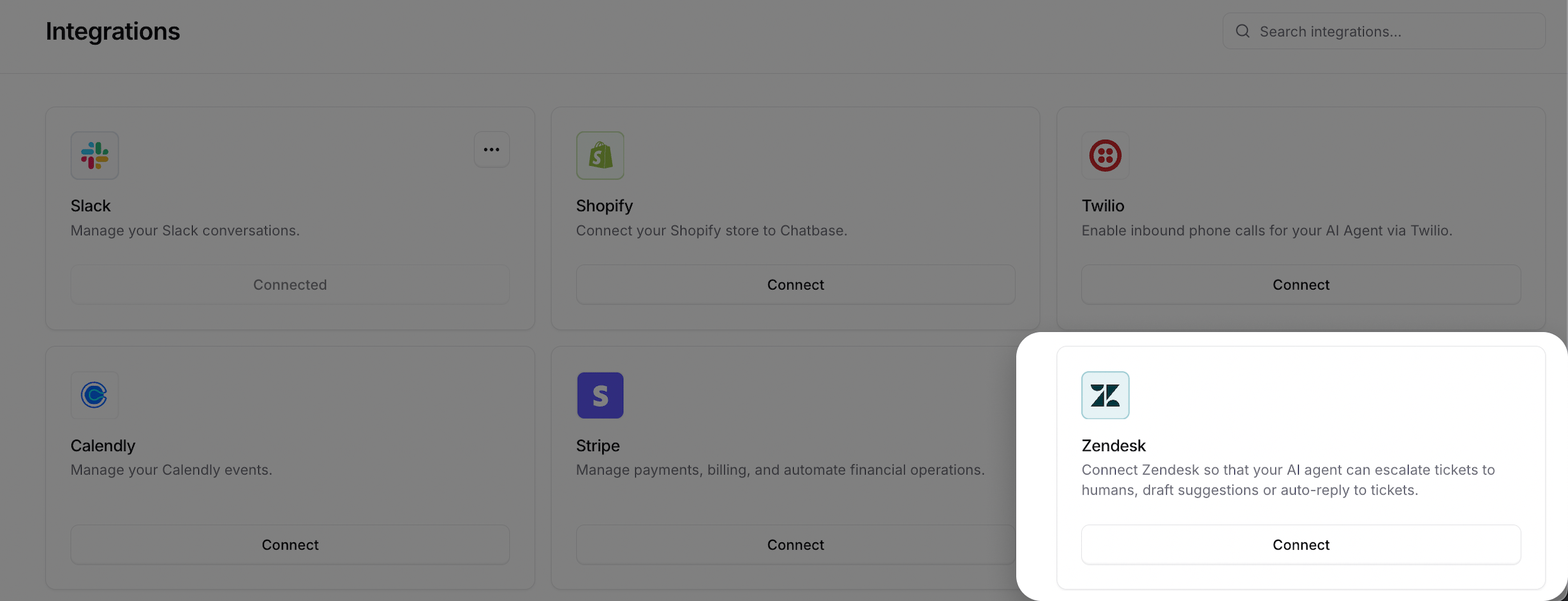
2
Create the Escalations Action
Configure your Escalations Action to route tickets to Zendesk. Follow the Escalations Action guide to set it up.
Test the integration by asking your AI agent to speak to a human, and confirm a ticket appears in Zendesk with the conversation attached.
Escalations from the Email channel pause the AI agent. Once the ticket exists, the AI agent stops replying to the customer’s email thread and your team answers from Zendesk instead. Marking the ticket Solved or Closed returns the thread to the AI agent. See Email handover with Zendesk.
Conversation link on tickets
Chatbase can write a link to the Chatbase conversation into a ticket field on every Zendesk ticket tied to a Chatbase conversation, so your team can open the full conversation from the ticket. That covers escalation tickets, tickets the AI agent replies to, email handover tickets, Zendesk Messaging conversations, and Sunshine handoffs. To turn it on:- Create a text field in Zendesk that end users can’t edit.
- In Chatbase, go to Integrations, find the Zendesk card, and click Settings.
- In the Conversation link field dialog, pick that field. Only text fields that end users can’t edit are listed.
Disconnecting or switching subdomains
Click Disconnect on the Zendesk card to disconnect. Chatbase lists the Escalations Actions that use Zendesk and asks you to confirm, because disconnecting deletes them. The draft response app stays in Zendesk until you remove it. Each AI agent connects to one Zendesk subdomain. Reconnecting the AI agent to a different subdomain uninstalls the Chatbase app from the old one. One subdomain can serve several AI agents.Troubleshooting
The AI agent doesn't reply to a ticket
The AI agent doesn't reply to a ticket
Check that the ticket is assigned to the Zendesk agent selected under Auto-respond, its status is below Solved, and it doesn’t carry
chatbase-no-ai, chatbase-routed-to-team, or chatbase-relay. Tickets with attachments or images go to a human. Replies take 1 to 2 minutes to appear.New tickets aren't assigned to the AI agent
New tickets aren't assigned to the AI agent
Turn on Auto-assign to new tickets under Auto-respond. Tickets that are already assigned, or tagged
chatbase-no-ai or chatbase-relay, aren’t auto-assigned.Escalation tickets stopped appearing
Escalation tickets stopped appearing
If Zendesk access was revoked, ticket creation fails and nobody is notified. Open the conversation in Activity > Conversations and check the Action’s Result for the error. Disconnect and connect Zendesk again, then recreate your Escalations Action, because disconnecting deletes it.
The field I want isn't listed in Conversation link field
The field I want isn't listed in Conversation link field
Only text fields that end users can’t edit are listed. Change the field in Zendesk so customers can’t edit it, or create a new one.
Frequently asked questions
Do ticket replies and escalation need separate Zendesk connections?
Do ticket replies and escalation need separate Zendesk connections?
No. Channels > Zendesk and Integrations use the same connection, and both features can run on one AI agent at the same time.
How do I stop the AI agent from replying to a ticket?
How do I stop the AI agent from replying to a ticket?
Add the
chatbase-no-ai tag to the ticket, or assign it to someone other than the agent selected under Auto-respond.Are AI replies public or internal?
Are AI replies public or internal?
Public. Each reply is a public comment posted as the Zendesk agent you selected. To review replies before they go out, use Generate Draft Response instead.
What's the difference between Zendesk, Zendesk Messaging, and Sunshine?
What's the difference between Zendesk, Zendesk Messaging, and Sunshine?
Zendesk works with tickets: the AI agent replies to tickets and opens escalation tickets. Zendesk Messaging puts the AI agent inside your Zendesk messaging channels. Sunshine hands customers from the Chatbase widget to a live Zendesk agent. See Which Zendesk option should I choose?
Can I connect one AI agent to several Zendesk subdomains?
Can I connect one AI agent to several Zendesk subdomains?
No. Each AI agent connects to one subdomain, and reconnecting to a different subdomain uninstalls the Chatbase app from the old one. Several AI agents can connect to the same subdomain.
Next steps
Escalations Action
Configure when your AI agent escalates, what goes on the ticket, the internal note, and which Zendesk custom fields it fills in.